How to Customize a Review Widget on Shopify

You can customize a review widget on Shopify without touching code. Open the theme editor, pick your product template, and add, move or remove the widget’s app block. The rest, colors, layout, what the widget shows, is set in the app’s own settings. This guide covers both halves: where the widget sits on the page, and how it looks once it is there.
We wrote it for Shopify store owners and e-commerce managers who already have a review app, or are choosing one, and want the widget to look like part of the store rather than a bolt-on.
TL;DR
- Customization happens in two places: the theme editor (where the widget goes) and the review app’s settings (how it looks).
- Use apps built on app blocks and app embeds, not manual script edits in theme.liquid. They are easier to move and safer for page speed.
- Label your blocks, test on a real phone, and run a before-and-after speed check.
- Match the widget to the page: stars near the title, full reviews and video lower down, Q&A close to the buying decision.
- If the widget disappears, check the layer map first, then toggle the app embed off and on.
Table of Contents
- The two layers of review widget customization
- Why app blocks make this easy
- Step by step: placing and rearranging the widget
- Choosing a layout that fits the page
- Customizing how the widget looks
- What good review widget examples have in common
- Mobile is where most customization fails
- Protect page speed while you customize
- When the widget does not show up
- Our perspective: customize for trust, not decoration
- Adding video reviews and Q&A to your customized layout
- Try it on your own store
- FAQ
- Sources
The two layers of review widget customization
Most confusion about customizing a review widget comes from mixing up two separate jobs.
Placement is controlled by your theme. It decides which section of the product page holds the widget, what sits above and below it, and whether it appears on collection pages or the homepage.
Appearance is controlled by the app. It decides colors, fonts, corner radius, how many reviews load at once, and which elements (stars, photos, video, Q&A) are visible.
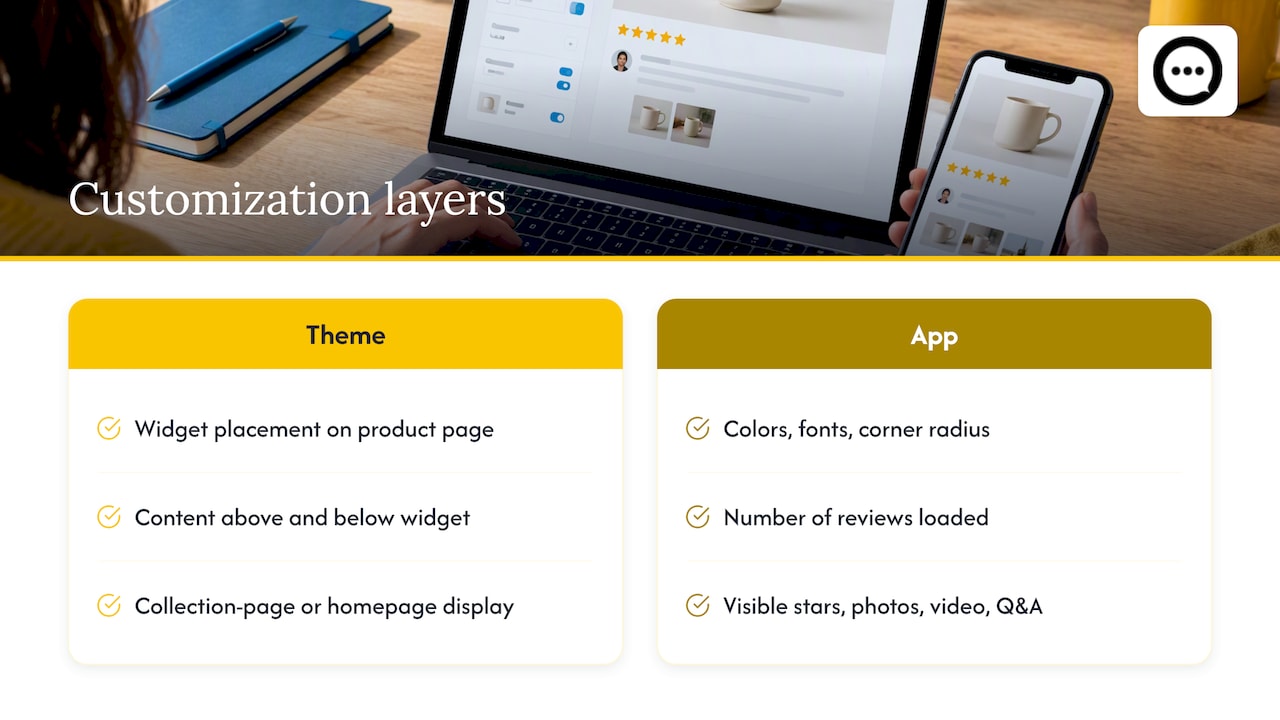
If you try to fix an appearance problem with placement, or the reverse, you will spend an afternoon moving things around with nothing to show for it. Decide which job you are doing first.
Why app blocks make this easy
On themes built for Online Store 2.0, apps plug in through theme app extensions. Shopify’s help center describes the app block as the way to add app functionality exactly where you want it in your theme, and you can add, remove, preview and reposition it in the theme editor.
There are two kinds of extension, and it pays to know which one you are dealing with:
| Type | What it does | Where you control it |
|---|---|---|
| App block | Places a visible element, such as a review widget or star rating, at a specific spot in a section | Drag and drop in the theme editor, inside the page template |
| App embed | Loads scripts and styles across the store, or adds floating elements | Toggled on or off in the theme editor’s app embeds panel |
This distinction is laid out in a walkthrough of theme app extensions, which also notes that App Blocks rely on drag and drop in the theme editor while App Embeds are toggled in the settings panel. Knowing it saves time later: if a widget is missing, the question is whether the block is placed or the embed is enabled.
Step by step: placing and rearranging the widget
- In your Shopify admin, go to Online Store > Themes and click Customize on your live theme (or, safer, a duplicate).
- Use the page selector at the top to choose Products > Default product, or a specific product template if you use several.
- In the left sidebar, find the section where you want reviews, usually below the product description or inside the main product section.
- Click Add block (or Add section, then the Apps tab) and choose the review widget.
- Drag it to its position. Preview on desktop, then switch to mobile view.
- Click Save.
This is the path described in the theme app extension guide: choose a product page template and add, remove or rearrange blocks such as a review widget or product stars, with no code edits required.
If you want a deeper look at what goes where on the page, our guide on review widget placement on Shopify walks through each piece.
Label everything
This is the habit most stores skip. Rename your review blocks and sections in the theme editor so a teammate can tell at a glance what each one is. Clear labels in the layer map prevent accidental deletion during routine maintenance and make troubleshooting far quicker for non-technical managers, as the same guide points out. A block called “Reviews, product page, main” is much harder to delete by mistake than “Apps 3”.
Choosing a layout that fits the page
There is no single correct layout, but there is a sensible order. Think of the product page as a conversation that moves from curiosity to confidence.
Near the title: the star summary
A compact star rating and review count next to the product name gives a first signal of trust. Keep it small. It should answer “do other people like this?” in under a second, and link down to the full reviews.
Mid-page: the full review list
Place the full widget below the description or the key benefit sections. A shopper who scrolls this far is evaluating, so give them room: sorting, filtering by rating, and photos or video if your widget supports them.
Close to the buy button: Q&A and short proof
Hesitation often comes from a specific question: does it fit, how does it feel, how long does it last. A question-and-answer block near the purchase decision answers these without making the shopper leave the page. If you are adding this without theme edits, see four ways to add product Q&A on Shopify.
Above the fold or below it?
Video is the element most often buried. A clip hidden under three accordions might as well not exist. We cover that problem in detail in why video reviews should not sit below the fold. A practical compromise: a thumbnail strip or highlight high on the page, with the full wall of reviews lower down.
Social proof also belongs beyond the product page. If you are planning where else it should appear, showcasing social proof on Shopify product pages is one angle on how reviews support visibility and conversion, and our own list of five Shopify spots for social proof covers placement across the store.
Customizing how the widget looks
Once the widget is placed, the app’s settings do the styling. Open the app from your Shopify admin and look for design or appearance options. Whatever app you use, work through the same checklist:
- Colors. Match star color and button color to your theme’s accent, not your logo’s every shade. Contrast matters more than exact brand match: stars should be readable against the background.
- Typography. Inherit your theme fonts if the app allows it. Mismatched fonts are the quickest giveaway that a widget is a third-party add-on.
- Density. Decide how many reviews show before a “load more” button. A long page with fifty reviews expanded can bury your footer and slow the page.
- Corners, borders and spacing. Keep them consistent with your product cards and buttons.
- Visible elements. Turn on only what you will use: verified-buyer badges, dates, photos, video, Q&A. Empty features look worse than missing ones.
- Language and labels. Edit button text so it sounds like your store.
Change one setting at a time and preview after each. It is easy to tweak six things, dislike the result, and have no idea which change caused it.
What good review widget examples have in common
People search for examples because they want a picture of “done well”. Instead of copying one store, look for these traits when you browse stores you admire:
- A clear hierarchy. Stars first, then the written or video proof, then the questions.
- Real faces and real language. Short, specific comments beat polished praise.
- Consistency with the theme. The widget does not look like it belongs to a different site.
- Fast and stable loading. Nothing jumps around as the page loads.
- Mobile-first spacing. Tap targets are large and nothing is cut off.
To see a live widget on a store, you can browse the Peers demo store and judge the layout on your own phone.
Mobile is where most customization fails
A layout that looks balanced in the desktop preview can fall apart on a phone. Switch the theme editor to mobile view, then also load your actual store on a real device. Check these points:
- Does the star summary wrap onto two lines and push the price down?
- Are video thumbnails large enough to tap?
- Does the review list force horizontal scrolling?
- Does the widget appear in a sensible position when columns stack vertically?
Shopify has also been redesigning its mobile editor around a layer map, which lets you see and toggle widgets on the page structure itself, useful when something overlaps on a small screen.
Protect page speed while you customize
Every widget has a cost. The approach that tends to be lightest is a native app block, rather than older methods such as pasting script tags into theme.liquid, because the older injection methods can block rendering. That performance point comes from the theme app extensions guide, which also recommends running Lighthouse before and after installing an app to see whether it is truly non-invasive.
A simple routine:
- Run Lighthouse on a product page before installing or changing the widget. Save the score.
- Make your changes.
- Run it again on the same page, same device setting.
- If the score drops noticeably, reduce the number of reviews loaded initially or remove elements you do not need.
App embeds deserve the same scrutiny. As Shopify’s growth team explains, an embed loads globally across all pages of your store, so leaving unused ones switched on affects every page, not just the product page.
When the widget does not show up
Work through this in order:
- Check the layer map. Confirm the block is placed in the product template you are viewing and that it is enabled, not hidden.
- Check the right template. If you use alternate product templates, the block may be on one and missing from another.
- Check the app embed. In the theme editor’s app embeds panel, make sure the app’s embed is switched on.
- Toggle it off and on. Disabling and re-enabling the embed often forces a clean reload of the widget’s scripts and styles without any code edits, a step Shopify’s growth team lists among its troubleshooting advice.
- Preview in a fresh browser window. Cached files can make a fixed widget look broken.
- Contact the app’s support. If all of the above checks out, the issue is likely theme-specific.
After a theme switch, expect to re-add app blocks to new templates. Embeds are designed to survive a theme change more gracefully than hand-edited code, but placed blocks still need checking.
Our perspective: customize for trust, not decoration
We build Peers only for Shopify, and that narrow focus shapes how we think about widgets. The most common mistake we see is treating the review area as a design exercise. Merchants spend hours on shades of gold for the stars and almost no time on the question that actually moves a hesitant shopper: can I see and hear from someone who bought this?
Text reviews tell people a product is good. Video and live questions to verified customers show them. That is why we put post-purchase video reviews and shopper Q&A directly on the product page, with moderation controls so you stay in charge of what appears, and design settings so the result looks like your store.
Our advice, in order of priority:
- Put proof where the doubt happens, not where the layout is convenient.
- Keep the widget visually quiet. Let the customers be the loudest thing on the page.
- Moderate before you decorate. One off-topic or low-quality entry undoes a lot of styling work.
- Use analytics to learn which elements get engagement, then cut the rest.
If you want the thinking behind video versus text, read our comparison of video testimonials and written reviews.
— Leo
Adding video reviews and Q&A to your customized layout
If you want more than stars and text, you will need a way to collect the content. Our guides cover the practical side: three steps from QR code to product page for collecting clips, how to publish them within the size and time limits, and embedding post-purchase video reviews without theme code. If you run US campaigns that use customer clips, our piece on one-click video testimonials and FTC compliance is worth reading before you publish.
Try it on your own store
Peers is a Shopify app that embeds post-purchase video reviews and shopper Q&A on your product pages, with moderation tools, customizable design, mobile compatibility and engagement analytics. There is a Free plan, and Peers Growth is $15 per month. You can install Peers from the Shopify App Store and place it with the same theme editor steps described above.
FAQ
Can I customize a Shopify review widget without coding?
Yes, in most cases. If your theme supports Online Store 2.0 and your review app offers an app block, you can add, move and remove it in the theme editor. Colors, layout and visible elements are set in the app’s own settings, so no theme code needs to change.
Where is the best place to put a review widget on a product page?
Use a layered approach: a small star summary near the product title, the full review widget below the description, and Q&A or video close to the decision point. Test on mobile, since a spot that works on desktop can end up far down a stacked phone layout.
Will a review widget slow down my store?
It can, depending on how the app loads. Apps that use native app blocks generally avoid the render-blocking problems of manually inserted scripts. Run Lighthouse before and after installing, and switch off any app embeds you no longer use.
Why did my review widget disappear after changing themes?
Placed app blocks belong to the theme templates, so a new theme may not have them. Open the product template in the theme editor, re-add the review block, and confirm the app embed is enabled. Then preview on desktop and mobile before publishing.
Can I show video reviews and questions in the same widget area?
Yes, if the app supports both. With Peers, video reviews and shopper Q&A both sit on the product page. Place them where shoppers hesitate, and keep your moderation settings on so you control what is published.
Sources
- Extend your theme with apps, Shopify Help Center
- Theme App Extensions, Shopify Dev MasterClass
- How to Create a Shopify App Embed for Custom Scripts and Styles, Shopify Growth Services
- Shopify’s mobile online store editor and layer map, Power Commerce