Shopify Video Reviews: 3 Steps From QR Code to Product Page

The fastest reliable way to collect authentic video reviews on Shopify is to automate post-purchase capture by email or QR code, route customers to a mobile-friendly recorder, and publish the verified clips directly on product pages. A Shopify-native app handles the trigger, capture, and embed steps without custom development, and there are apps built specifically for this workflow.
TL;DR:
- Send requests after delivery or three to seven days after first use, using email links or packaging QR codes that open a recorder without downloads.
- Keep clips around 15 to 20 seconds, place the widget near product details, and reserve its height to prevent page shifts during loading.
- Require explicit recording consent, retain its timestamp and order ID, verify each submission, and get approval before publishing edited clips.
- Begin with one product that already draws traffic, wait until customers have used it, then reuse approved clips across product pages, email, and paid social.
- Review submissions twice daily and aim to publish approved clips the same day, balancing quality checks against a queue that can cool customer momentum.
Table of Contents
- Why Video Reviews Work Better Than Text on Shopify
- The Trigger, Capture, and Leverage Workflow
- Practical Ways to Capture Video Reviews on Shopify
- Adding Video Widgets to Your Theme Without Breaking It
- Keeping Video Testimonials Compliant and On-Brand
- How a Shopify-Native App Simplifies the Whole Process
- What Shopify Merchants Should Prioritize First
- Try Peers for Shopify Video Reviews
- FAQ
- Sources
Why Video Reviews Work Better Than Text on Shopify
Shoppers trust a face and a voice more than a paragraph of stars and adjectives. Video testimonials show real customers using a product, which closes the gap between what a listing promises and what a buyer actually experiences. Shopify’s own guidance on testimonial videos points to short, authentic clips, not polished influencer content, as the format that builds trust and drives conversion.
Short clips of a few seconds work best for product pages, according to Shopify’s testimonial guidance, because they’re quick to film, quick to watch, and easy to reuse. A single customer unboxing, a before-and-after, or a 20-second “here’s why I bought this” clip can live on a product page, in a paid social ad, and in an email campaign without reshooting anything, making it a perfect example of how user-generated content boosts brand trust and engagement. That reusability is what makes video review collection worth the setup effort.
The Trigger, Capture, and Leverage Workflow
A dependable video review program follows a sequence, not a one-off email blast. Sporadic requests produce inconsistent results, while an automated structure tied to the order lifecycle performs far better, a point echoed in legal guidance on incentivized review programs.
- Trigger: An event in the order lifecycle (delivery confirmation, or 3 to 7 days after a first use) fires the request automatically.
- Capture: The customer taps a link or scans a code that opens a mobile recorder, no app download or account creation required.
- Leverage: Approved clips get published on the product page and repurposed in ads, email, and social content.
For phrasing, skip “please leave a review” and ask something closer to “what problem were you solving when you bought this, and did it work?” Framing the ask as helping future shoppers, rather than helping the brand, improves participation, per the same FTC-focused guidance.
Pro Tip: Send the request after the product has actually been used, not the moment it ships. A review of an unopened box rarely says anything useful.
Practical Ways to Capture Video Reviews on Shopify
Merchants have several realistic options for getting cameras pointed at their products, and most stores end up combining two or three.
- Post-purchase email with a one-click recorder: send a link in the delivery confirmation or a follow-up email that opens a mobile-optimized recorder directly in the browser, no app install needed.
- QR code in packaging: print a code on the packing slip or an insert card that opens the same recorder when scanned with a phone camera, letting customers record while the product is in hand. A detailed walkthrough on QR code capture placement covers where inserts perform best.
- Tagged social submissions: collect clips customers already posted with a branded hashtag or product tag, with explicit permission requested before reuse, then pull them into the store through a Shopify-compatible integration.
- Manual outreach: reach out directly to repeat buyers or customers who left glowing text reviews or support tickets, since they’re often willing to record a short clip if asked personally.
Shopify’s native Shop app also prompts for post-purchase reviews and can display a “Verified by Shop” badge, though a dedicated review app layered on top usually adds the finer control needed for video specifically, such as moderation queues and custom branding.
Adding Video Widgets to Your Theme Without Breaking It
Most review apps install through theme app extensions rather than requiring edits to Liquid code, which keeps the widget inside the theme editor and easier to move or remove later, as Shopify’s developer documentation explains.
- Placement: the product media gallery, directly below the add-to-cart button, or a dedicated social proof strip near product specs all test well.
- Reserve space: set a min-height placeholder sized to the actual widget, since app-injected content that loads late without reserved space causes layout shift. Shopify’s performance docs recommend measuring the widget’s height in a dev store using browser DevTools and using that value, or slightly more, as the CSS min-height.
- File size and playback: favor short clips (15 to 20 seconds) and let a CDN handle adaptive playback so mobile shoppers on slower connections aren’t stuck buffering.
Pro Tip: Check your product page’s Core Web Vitals in a staging environment before and after adding a video widget. A few extra pixels of reserved space is cheaper than a layout shift penalty.
A step-by-step build guide for adding video reviews to product pages walks through this setup for stores doing it for the first time.
Keeping Video Testimonials Compliant and On-Brand
Publishing a customer’s face and voice carries more responsibility than publishing a star rating, so consent and moderation need to happen before anything goes live.
- Capture explicit consent with a one-click release at the point of recording, and store a timestamp and order ID alongside it for your records.
- Verify the order tied to the submission and run a basic authenticity check before approving the clip for publication.
- Request approval for edits: if a clip gets trimmed or captioned, confirm the customer is comfortable with the final version before it ships to a product page.
Retaining release records and using clear consent language is exactly what FTC-focused legal guidance recommends for incentivized or requested testimonials. A practical rundown of this process is also covered in a guide on FTC-compliant video testimonial collection.
How a Shopify-Native App Simplifies the Whole Process
A tool built only for Shopify can skip the custom development most of this workflow would otherwise require and tie into the Trigger → Capture → Leverage sequence directly:
- Automates the post-purchase trigger so requests go out without manual follow-up.
- Offers QR and link-based capture that opens a mobile recorder tied to the original order.
- Verifies clips against order data and provides a moderation queue before anything publishes.
- Embeds approved videos and shopper Q&A directly on the product page through a theme app block.
Getting started follows a short checklist: install the app, turn on the post-purchase trigger, add the app block to the product template, then moderate and publish incoming clips. Because the widget installs as a theme app block rather than a Liquid edit, placement and removal stay simple if a theme changes later.
What Shopify Merchants Should Prioritize First
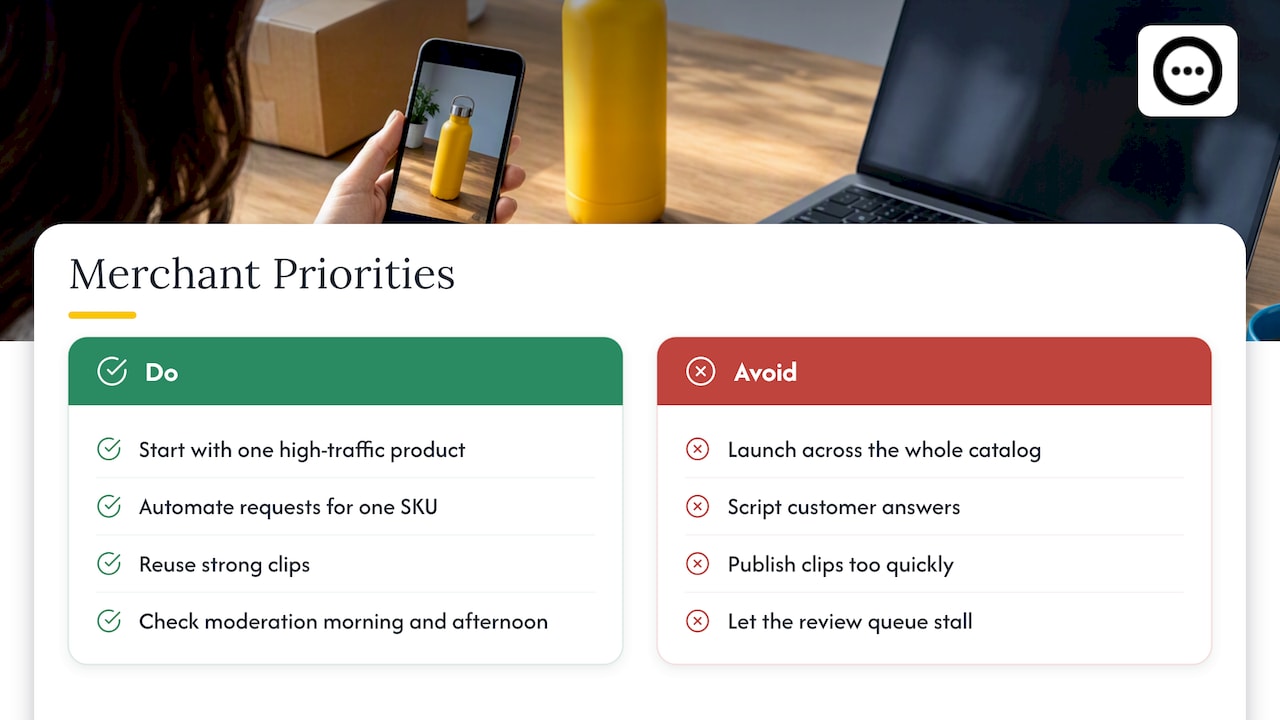
Start with one high-traffic product, not the whole catalog. Automate the request for that single SKU, get the timing right, and resist the urge to script customer answers, since authenticity is the entire point of video over text.
Once a handful of strong clips exist, reuse them. A testimonial that performs well on a product page is also a candidate for a TikTok Spark Ad, as Shopify’s UGC guidance describes for turning customer clips into paid social assets. The harder operational call is balancing speed against moderation: publishing too fast risks an off-topic or low-quality clip going live, while a slow review queue lets momentum die. A same-day moderation habit, checked once in the morning and once in the afternoon, tends to strike that balance.
— Leo
Try Peers for Shopify Video Reviews
An app built specifically for Shopify stores can provide verified, post-purchase video reviews and shopper Q&A embedded directly on product pages, without custom development or a developer on retainer.
- Automated triggers, mobile recording, and moderation come built into one app block.
- Install from the Shopify App Store listing and add the first app block to a product template in minutes.
FAQ
What is the best way to collect video reviews on Shopify?
The most reliable method combines an automated post-purchase trigger with a mobile-friendly recorder, sent by email or accessed through a QR code. This removes the friction of asking customers to download an app or figure out video formatting on their own.
How long should a customer video testimonial be?
Short clips of about 15 to 20 seconds work best for product pages and social reuse, according to Shopify’s testimonial guidance. Shorter clips are easier for customers to record and faster for shoppers to watch before making a decision.
Do I need customer consent to publish video reviews?
Yes, explicit consent captured at the time of recording, along with a record of the timestamp and order ID, is recommended for compliant testimonial publishing. This recordkeeping approach is outlined in guidance on incentivized review programs.
Will adding a video widget slow down my Shopify store?
It can, if the widget loads without reserved space, which causes a layout shift as the page jumps to make room. Shopify’s performance documentation recommends setting a min-height placeholder sized to the actual widget to prevent this.
Can I reuse Shopify video reviews in social ads?
Yes, customer video clips collected for product pages can be repurposed as Spark Ads on TikTok and linked back to the original product listing. Shopify’s UGC guidance covers how this cross-channel reuse works in practice.
Sources
- How To Create Testimonial Videos: Best Practices + Examples (2026) - Shopify
- What the FTC’s final rule means for incentivized reviews — BCLP