Publish Video Reviews on Shopify Within 1 GB and 10 Minutes

You can add video reviews to Shopify three ways: upload native product media, embed a hosted video from YouTube or Vimeo, or install an app that automates collection and moderation. Native uploads suit a one-off clip you already have; embeds work when you are reusing social content; an app makes sense once you want a steady stream of customer footage without manual work.
TL;DR:
- Video reviews are best collected regularly using apps for scalable moderation and display, especially for multiple products.
- Embedding YouTube or Vimeo videos requires correct privacy settings and conversion of Shorts links to standard URLs for proper display.
- Shopify’s file size and format limits (up to 1 GB, 10 minutes, MP4/Mov/WebM) often cause upload failures, especially for long or large files.
- Positioning reviews below the main product gallery and above detailed text reviews increases the likelihood of influencing purchase decisions.
- Automated tools like Peers streamline collection, moderation, and analytics, making ongoing video review management more efficient.
Table of Contents
- Comparing native uploads, embeds, and apps
- Uploading video through the Shopify admin
- Embedding YouTube and Vimeo videos correctly
- Building a review collection and moderation workflow
- Where video reviews convert best on the page
- Video file specs, limits, and common errors
- What actually drives ROI when you add video
- The overlooked tradeoff in video reviews
- Automating video reviews with Peers
- Sources
- FAQ
Comparing native uploads, embeds, and apps
Each method solves a different problem, and most stores end up using more than one.
- Native upload: fastest way to publish a video you already own, but there is no built-in way to request, moderate, or manage submissions from customers.
- Embed from YouTube or Vimeo: ideal for reusing content already posted on social platforms, though it depends on correct URL formats and the right privacy settings.
- Apps and widgets: automate review requests, handle moderation queues, and offer display and analytics tools, which matters once you are managing video at scale.
If you have a single testimonial from a happy customer, upload it directly. If you are trying to build an ongoing library of shopper-submitted clips across dozens of products, an app removes the manual chasing and sorting that quickly becomes unmanageable.
Uploading video through the Shopify admin
Adding a video file directly to a product page takes a few minutes.
- Go to Products in your Shopify admin and open the product you want to update.
- Scroll to the Media section and select Add file, or choose Add from URL for a hosted video.
- Wait for the file to finish processing. Shopify converts uploads into MP4 or HLS format for playback compatibility, so give it a moment before checking the storefront.
- Drag the video into the position you want it to appear in the media gallery, then save the product.
- Add a cover image so the thumbnail looks intentional rather than a random video frame, which Shopify’s product media documentation recommends for load performance.
The same steps work from the Shopify mobile app under a product’s media section. If your theme does not display the video correctly, check whether it supports video metafields or needs an update. Shopify’s guide to adding product media covers theme compatibility in more detail.
Pro Tip: If a video shows as “processing” for more than a few minutes, re-check the file format before re-uploading. A corrupted export is the most common cause.
Embedding YouTube and Vimeo videos correctly
Embedding a hosted video is often faster than uploading a large file, but it only works if the source and privacy settings line up. Shopify’s Add from URL option accepts standard YouTube watch URLs and Vimeo links, and both platforms have to allow the video to be shown outside their own site, according to Shopify’s media upload guidance.
- YouTube videos must be set to public or unlisted; private videos will fail to load.
- Vimeo videos need embedding enabled in the privacy settings, or Shopify cannot pull them in.
- YouTube Shorts links are not supported directly. Convert the Shorts URL to the standard format (youtube.com/watch?v=[id]) before pasting it in.
- Before publishing, confirm the customer who filmed the clip is comfortable with it appearing on your store and that they hold the rights to any music or branding shown.
Skipping that last check is the most common source of takedown requests later, especially when a clip includes background music or another brand’s packaging.
Building a review collection and moderation workflow
Getting customers to actually film something usable is the harder half of this process. Timing your request for right after delivery, while the excitement of unboxing is still fresh, tends to produce better footage than waiting weeks. A specific prompt (asking what surprised them, or asking them to show the product in use) produces more usable footage than a generic “leave a review” request.
- Send the request within a short window after delivery confirmation rather than immediately at purchase.
- Offer a stronger incentive for video than for text, since filming takes more effort than typing a few lines.
- Log a consent record for every submission before it goes live, confirming the customer agreed to publication.
- Screen each clip for identifiable copyrighted material, like background music or another brand’s logo, before approving it.
Pro Tip: Keep your approval queue short by batching moderation once a day rather than reacting to each submission as it lands.
When you are collecting video from EU residents, document consent and how the footage will be used. GDPR requires a lawful basis for processing personal data, and a customer’s face and voice in a video count as personal data.
Where video reviews convert best on the page
Placement matters almost as much as the content itself. Video reviews generally perform best positioned below the main product gallery but above the detailed text reviews, close enough to influence the decision without slowing the page before someone has seen the product itself. A short carousel or a single highlighted clip near the add-to-cart button also works well for stores with only a handful of videos.
- Never autoplay with sound. It interrupts the browsing experience and often gets muted or skipped entirely.
- Design for mobile-first aspect ratios (9:16 or 1:1) since most shoppers are viewing on a phone.
- Use a clear cover thumbnail rather than a blurry auto-generated frame, and build in a fast fallback for slower connections.
- Curate 2 to 4 representative clips per product rather than displaying every submission, and archive the rest.
Showing everything you collect creates decision fatigue. A tighter, better-edited selection tends to reduce selection paralysis and keeps the page fast. For broader guidance on product-page layout and conversion patterns, this rundown on optimizing product pages for higher sales and SEO covers complementary UX principles worth applying alongside video placement.
Video file specs, limits, and common errors
Shopify sets firm technical limits on product video uploads, and hitting them is the most common cause of a failed upload. According to Shopify’s product media documentation, videos can run up to 10 minutes, up to 1 GB in size, and up to 4K resolution (4096 x 2160 pixels), with .mp4, .mov, and .webm as supported formats. That ceiling is generous for most testimonial-style clips, which rarely need to run longer than a minute or two.
Common errors and fixes:
- Unsupported URL format: convert YouTube Shorts links to the standard watch URL before adding from URL.
- Private video rejected: switch the source video to public or unlisted, or enable embedding on Vimeo.
- Plan-based quota reached: Shopify’s file upload management page documents that video quotas vary by plan, so check your current usage before troubleshooting further.
When you are managing a large library or need finer streaming control, hosting off-Shopify and embedding cleanly is often simpler than fighting quota limits.
What actually drives ROI when you add video
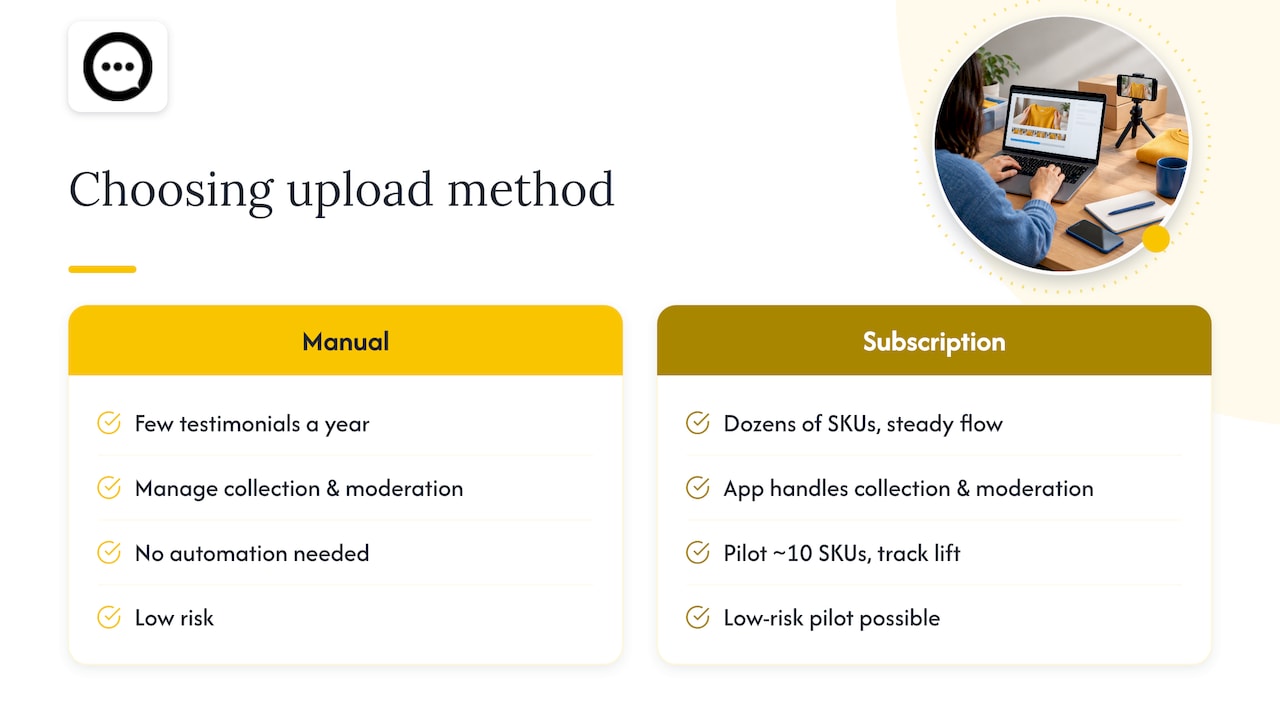
Deciding between manual uploads and a subscription app comes down to volume. A handful of testimonials a year does not justify automation. Dozens of products needing a steady stream of fresh footage does.
A low-risk way to test this before committing to a subscription: pick around 10 SKUs, collect a batch of customer clips, and track engagement and conversion over a few weeks. If the lift is real, scale the rollout to more products. If it is not, you have lost little.
Peers is one option built specifically for this: an app that embeds authentic post-purchase video reviews and shopper Q&A directly on Shopify product pages, aimed at merchants who want the collection and moderation work handled rather than managed by hand.
The overlooked tradeoff in video reviews
Most advice on this topic treats video reviews as a simple upgrade over text, more engaging, more authentic, install and forget. That undersells the actual work involved. A video review is only as persuasive as the moderation behind it: an unedited, poorly lit clip with no context can hurt trust rather than build it, and a page cluttered with a dozen mediocre submissions performs worse than one with three sharp ones.

The bigger mistake stores make is treating collection as a one-time push instead of an ongoing habit tied to delivery timing. A single email blast to past customers rarely produces much. A consistent, well-timed request built into the post-delivery flow does far better over months, not days.
Prioritize timing and curation over volume. A store with five well-chosen video clips per product will usually outperform one that has fifty unsorted ones sitting in a gallery nobody wants to click through.
— Leo
Automating video reviews with Peers
Native uploads and embeds get you started, but they leave the collecting, moderating, and displaying entirely on your plate. Peers handles that layer specifically for Shopify: automated post-purchase requests go out to recent buyers, submissions land in a moderation queue before they go live, and approved clips display in a customizable widget with engagement analytics attached.
- Automated requests replace manual outreach after delivery.
- A moderation queue keeps unreviewed clips off the storefront.
- Analytics show which videos are actually influencing add-to-cart activity.
Peers offers a Free plan and a Peers Growth plan, both listed on the Peers pricing page, with the Growth plan priced as stated by the publisher. If you want to see how it fits your store, check out Peers on the Shopify App Store and install it directly from your admin.
Sources
FAQ
Is there a way to add reviews to Shopify?
Yes, Shopify supports product reviews natively through media uploads, and many merchants add richer review functionality, including video, through apps built for that purpose. Both native tools and third-party apps can run side by side on the same product page.
Can you embed a video on Shopify?
Yes, Shopify lets you embed a video by adding a YouTube or Vimeo URL directly to a product’s media section, as long as the source video allows public or embed-enabled viewing. Uploading the file directly is also supported for videos up to 1 GB and 10 minutes long.
Is Shopify still worth it in 2026?
Shopify remains a widely used e-commerce platform because it continues to support flexible product media, a large app ecosystem, and ongoing platform updates. Whether it is worth it depends on your specific business needs, but its media and integration tools, including video support, remain actively maintained.
How much does Shopify take from a $20 sale?
Shopify’s transaction fees depend on your specific plan and payment setup, and the platform does not publish one flat rate that applies to every merchant. Check your plan’s exact fee structure directly in your Shopify admin billing settings before estimating a per-sale cost.