Review Widget Placement on Shopify: Where Each Piece Belongs

Put a compact star rating directly under the product title, and put the full review widget below the description, close enough to the buy button that a doubtful shopper reaches it in one scroll. Video reviews and shopper Q&A go inside that full widget, near its top. That layout works on most Shopify themes, and you can build it in the theme editor in about 15 minutes without touching code.
The rest of this guide covers why that order works, how to build it with app blocks, and what to check on mobile. It also covers the technical details that decide whether your reviews help you in Google.
TL;DR
- Use two placements: a star summary under the product title, and the full review widget (video reviews, Q&A, written reviews) lower on the product page.
- On an Online Store 2.0 theme, add both with app blocks in the theme editor. Check first that your review app and theme support app blocks.
- Reserve space for the widget so the page does not jump while it loads, especially on mobile.
- Open the full widget with a ratings breakdown, then customer media, then Q&A. Shoppers use those parts to judge quality fast.
- Placement is not the same as SEO. Reviews only earn rich results in Google if your structured data is correct and matches your product identifiers.
Table of Contents
- Why placement matters more than the widget itself
- The four placements that cover a product page
- Why video reviews and Q&A earn the prime spot
- How to place a review widget with app blocks
- Mobile: where most placement mistakes show up
- The part people skip: responding and moderating
- Placement is not SEO: what to check for Google
- Our perspective: put proof where doubt happens
- Try the layout with Peers
- A quick placement audit you can run today
- Frequently asked questions
- Sources
Why placement matters more than the widget itself
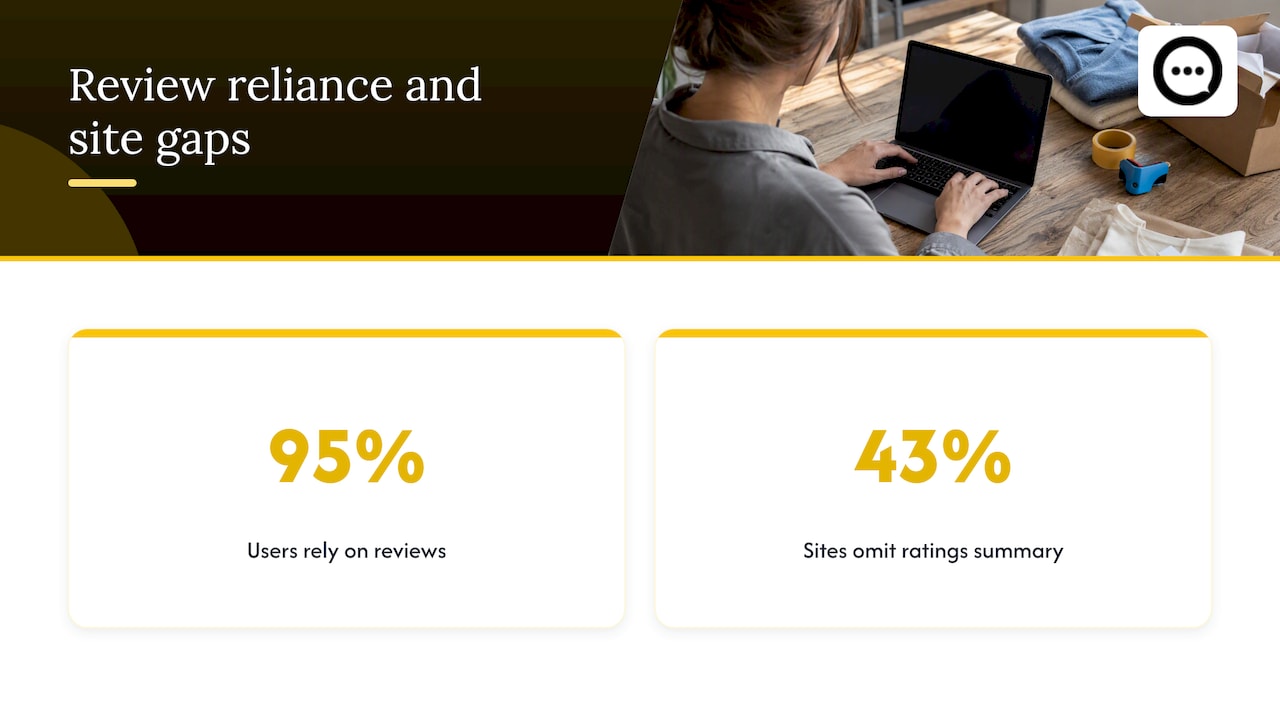
Most Shopify stores have reviews somewhere. Fewer have them where a hesitant buyer actually looks. Baymard’s testing shows how much shoppers lean on them: 95% of users rely on reviews to evaluate products, yet 43% of e-commerce sites leave out a ratings distribution summary at the top of the reviews section. That summary, the bar breakdown of 5-star to 1-star ratings, was the most used review feature in their research.
So the job of placement is simple. Make the rating visible early. Make the proof easy to reach. Make the detail (photos, video, answers) easy to scan once the shopper arrives.
There is a second reason to be deliberate if you run a direct-to-consumer brand. Baymard found that users are more skeptical of reviews on DTC sites than on traditional retailers, and often look for product feedback elsewhere. If your reviews sit in a distant tab that looks like every other text block, you ask shoppers to trust you on faith. Putting authentic, customer-made content where they are already deciding closes that gap.
The four placements that cover a product page
Think of the product page as four zones. Each has a different job.
| Zone | What goes there | Job |
|---|---|---|
| Under the title or price | Star rating and review count | Instant reassurance, links down to the full widget |
| Near the add-to-cart button | Short trust line or one featured video | Handle last-second doubt |
| Below the description | Full widget: breakdown, video reviews, written reviews, Q&A | Answer real questions |
| Collection cards and homepage | Compact stars only | Help shoppers pick which product to open |
Zone 1: stars under the product title
This is the most common spot for a reason. The shopper sees the product name, then the proof, before reading anything else. Keep it small: stars, the average, and the count. Make it a link that jumps to the full widget further down the page.
Avoid putting stars only inside a tab or accordion that stays closed. If the rating is the only trace of social proof above the fold, it needs to be visible without a click.
Zone 2: close to the buy button
This zone is optional and best kept light. One featured customer video or a one-line summary such as the number of verified buyers works here. Do not load a heavy widget next to the button. It pushes the price and the cart button down, which is the opposite of what you want.
Zone 3: the full widget below the description
This is where most of the work happens. Put it right after the product description, before cross-sells such as related products. A shopper who is nearly sold and has one question will scroll here first. If related products come first, some of them leave the page without seeing your best proof.
Inside the widget, order matters too. A sequence that tests well in practice:
- Ratings distribution summary.
- Customer photos and videos, in a scrollable strip.
- Shopper Q&A.
- Written reviews with sorting and filtering.
The breakdown comes first because Baymard’s testing found it was how users got a feel for the overall rating quickly. Media comes second because it is the fastest way to see the product in real hands. Baymard also reports that 63% of sites don’t let users navigate reviews through customer-submitted images, so a media strip is a cheap way to stand out.
Zone 4: collection pages and the homepage
On collection grids, show stars only. A full widget would make no sense there. On the homepage, one featured video review or a short row of them works as a trust banner. For more ideas on spots beyond the product page, see our guide to five Shopify spots for social proof.
Why video reviews and Q&A earn the prime spot
A wall of text reviews looks the same on every store. Shoppers know that. A short clip from a verified buyer showing the product in use, or a question answered by someone who already bought it, is harder to fake and more specific than five-star text that says “great product.”
This is the idea behind Peers: post-purchase video reviews and shopper Q&A embedded directly on the product page, with moderation tools so you decide what goes live. If you want to see how the two formats compare, we wrote up video testimonials versus written reviews for Shopify stores.
Because video and Q&A are richer than a star line, they belong in Zone 3, in the main body of the page, and not squeezed into the title area. Give them room.

How to place a review widget with app blocks
On themes built for Online Store 2.0, you can place app content without editing theme files. Shopify’s help center explains that if your theme is compatible, you can add app functionality anywhere in your theme using blocks and app embeds. An app block sits exactly where you put it. An app embed typically floats or loads site-wide.
Here is the process:
- In your Shopify admin, go to Online Store > Themes and click Customize on your live or duplicate theme. Working on a duplicate lets you test safely.
- Use the page selector at the top to open the Products > Default product template.
- In the left sidebar, find the Product information section (the area with the title, price and buy button). Click Add block.
- Under the Apps heading in the block picker, choose the star rating block from your review app. Drag it just below the title.
- Scroll to the bottom of the template. Click Add section, go to Apps, and pick the full widget block. Drag it below the description section and above any related products section.
- Check the app’s embed settings if it uses an app embed for scripts. Toggle it on under App embeds in the theme editor sidebar.
- Save, then preview on both desktop and a phone.
If you don’t see your app in the block picker, the usual causes are an older theme without app block support in that section, or an app that has not been enabled yet. In that case, the app’s own setup guide is the next stop. If you want the detail on adding video content without code, see how to embed post-purchase video reviews on Shopify without theme code.
One template, or one per product type
Shopify lets you create alternate product templates. If you sell both simple items and products with a lot of questions (skincare, supplements, electronics, anything with sizing or fit), create a second template and give it a larger Q&A section near the top. Assign it to the products where questions come up in customer service. Keep the simple template lean.
Mobile: where most placement mistakes show up
A layout that looks balanced on a laptop can bury everything on a phone. Check these:
- Stars still sit above the fold. On small screens, product images take a lot of height. If the title and stars land below a tall gallery, shrink the gallery height or move the stars up.
- The jump link works. Tap the star summary on your phone. It should scroll to the widget, not to the top of the page.
- Video loads on tap, not at once. A strip of autoplaying clips slows the page. Thumbnails that load the player on tap keep it fast.
- Touch targets are big enough. Filters, “Ask a question” buttons and sort menus should be easy to tap with a thumb.
- Accordions are optional. If you collapse the full widget on mobile to shorten the page, label it with the rating and count, so the proof is visible even when it is closed.
Stop the page from jumping
Review widgets usually load after the rest of the page, which can shift content and frustrate shoppers who are about to tap something. Shopify’s developer docs recommend you reserve space for app-injected content, for example by setting a min-height through the app block’s custom CSS, or by placing injected content next to static content so visible content does not move. Even a rough placeholder height is better than none.
The part people skip: responding and moderating
Placement gets reviews seen. What they see afterwards decides whether they trust you. Baymard reports that 89% of sites don’t respond to negative reviews, and that skipping the basics leaves users doubtful about customer service. A calm, specific reply to a 2-star review on the product page often does more for trust than ten more 5-star ratings.
A few habits that help:
- Reply to critical reviews within a couple of business days, with a fix or next step.
- Answer shopper questions on the page, so the next visitor does not have to ask.
- Moderate before publishing so off-topic or unverified content stays out.
- Do not delete all negative feedback. A mixed rating looks more believable than a perfect one.
If you collect customer video, handle privacy and disclosure properly. Our checklist on four privacy checks before customer videos go live covers the basics, and our note on verifying customer reviews after purchase covers the compliance side.
Placement is not SEO: what to check for Google
A widget in the right spot on the page is a user experience matter. Showing review stars in Google results is a separate, technical one. Many store owners assume installing an app handles it. Often it only partly does.
Shopify’s guide to ecommerce schema explains that structured data works as a quality signal for search and AI shopping tools, and that on Shopify the structured_data Liquid filter generates markup for product and article pages automatically. Google’s documentation on Product structured data explains how that markup can make product information appear in richer ways in search results.
Three practical checks:
- Look for duplicates. Your theme may output product schema, and your review app may output its own. Two conflicting blocks can cause errors. Use Google’s Rich Results Test on a product URL to see what it detects.
- Match identifiers. If you use Google Merchant Center, the product identifiers in your markup (such as GTINs) should line up with your feed. Without that alignment, reviews can exist on your page and still not produce rich snippets.
- Keep visible and marked-up reviews consistent. The ratings in your schema should reflect reviews shoppers can actually see on the page.
If you want a deeper walk-through of which markup to add first for merchant listings, this guide on ecommerce schema markup types is a useful reference. For video specifically, we cover nesting VideoObject on the server side so clips can qualify for video rich results.
Our perspective: put proof where doubt happens
We built Peers for Shopify stores only, so we spend our time on one question: where does a shopper hesitate, and what would settle it? Our answer has been consistent. Hesitation shows up at specific moments. It happens when someone reads the description and wonders whether it will fit, whether it looks like the photos, or whether it will arrive and work as promised.
A star average cannot answer those questions. A 15 to 20 second clip from someone who bought it can. So can a reply from a verified buyer to a question the shopper typed. That is why we think the best placement is not a corner of the page but a full section, close to the description, with video and Q&A at the top of it and the stars repeated above.
Our advice to store owners is short:
- Keep the star summary small and early.
- Give video and Q&A a visible, full-width section.
- Moderate everything, and answer the hard questions yourself.
- Reserve space, test on a phone, and then leave the layout alone for a few weeks so you can read the results.
A layout you can measure beats a layout that merely looks good. Compare add-to-cart rate and engagement before and after any move, and change one thing at a time.
— Leo
Try the layout with Peers
If you want video reviews and shopper Q&A in the full-widget spot described above, you can install Peers from the Shopify App Store. There is a Free plan, and the Peers Growth plan is 15 USD per month. You get moderation tools, customizable design, mobile-friendly display and analytics for engagement, so you can see whether the new placement is working. Collecting the videos is straightforward too: see how to capture video reviews with QR codes after purchase.
A quick placement audit you can run today
Open your best-selling product page on your phone and answer these questions:
- Can you see the star rating without scrolling past the first screen?
- Does tapping it take you to the reviews?
- Is the full widget before the related products?
- Does the widget start with a ratings breakdown and customer media?
- Are shopper questions visible, with answers?
- Does the page stay still while the widget loads?
- Has someone replied to your most critical review?
- Does a rich results test show one clean set of product markup?
Every “no” is a concrete fix. Start with the first three, because they affect every visitor, and work down the list.
Frequently asked questions
Should the review widget go above or below the product description?
Put the star summary above the description, under the title, and the full widget below it. The description answers the first round of questions, and the widget answers the follow-ups. Placing the full widget above the description tends to push the product details too far down.
Can I place review widgets without editing code?
Yes, if your theme supports app blocks. In the theme editor, choose Add block or Add section, then pick your review app under Apps. Shopify notes that this works when the theme is compatible. Older themes may need the app’s manual setup instead.
Do review widgets slow down my Shopify store?
They can, mostly through late-loading scripts and layout shifts. Reserve a minimum height for the widget, load video on tap and keep only one widget per page. Shopify’s developer guidance on reserving space for app content is a good starting point.
Will installing a review app get me star ratings in Google?
Not automatically. Google decides whether to show them, and your structured data needs to be valid and consistent with your visible reviews and product identifiers. Test your product URLs with Google’s Rich Results Test, and read the Product structured data guidelines.
How many reviews should I show on the product page at first?
There is no fixed number, but show enough to reveal a pattern, then let shoppers load more. Lead with the rating breakdown and a handful of media reviews, and sort by most helpful or most recent. Keep the first view short so the page stays fast.
Sources
- Baymard: 5 Requirements for the Ratings Distribution Summary
- Baymard: DTC E-Commerce User Reviews
- Baymard: Product Page UX Best Practices 2026
- Shopify Help Center: Extend your theme with apps
- Shopify Developers: Reserve space for app-injected content
- Shopify: Ecommerce Schema, Your Structured Data Guide
- Google Search Central: Intro to Product Structured Data