Q&A Strategy for Shopify: Turn Product Questions Into Sales

A good Shopify Q&A strategy has three parts: answer the predictable questions yourself, let verified customers answer the nuanced ones, and treat every reply as public customer service. Do that on the product page, where doubt actually happens, and not only on a buried FAQ page.
This guide shows how to plan that system for your store: what to answer, who should answer, when to ask, how to moderate, and how to measure the result.
TL;DR
- Use a hybrid model: store-written FAQs for policy and spec questions, community Q&A for use cases and edge cases.
- Put questions on the product page, next to the buy button, not just on a separate FAQ page.
- Ask customers to contribute after they have used the product, not at checkout.
- Answer awkward and negative questions openly. Shoppers read how you respond.
- Track which questions repeat, then fix the product page copy so they stop being asked.
Table of Contents
- Why Q&A deserves a strategy, not a plugin
- The hybrid model: two kinds of questions, two kinds of answers
- Where Q&A should live on your store
- Build your question bank first
- Timing: ask after the product has done its job
- Answer in public, including the uncomfortable questions
- Moderation rules that protect trust
- Make your answers work for search and AI shopping
- Perspective: why we built around post-purchase voices
- Measure what the questions tell you
- A 30-day rollout plan
- Add Q&A to your product pages with Peers
- FAQ
- Sources
Why Q&A deserves a strategy, not a plugin
Most stores treat Q&A as a box to tick. They add an FAQ page, link it in the footer, and move on. Shoppers do not behave that way. When someone is deciding whether a jacket runs small or a supplement fits their routine, they look for a specific answer on the page they are already on.
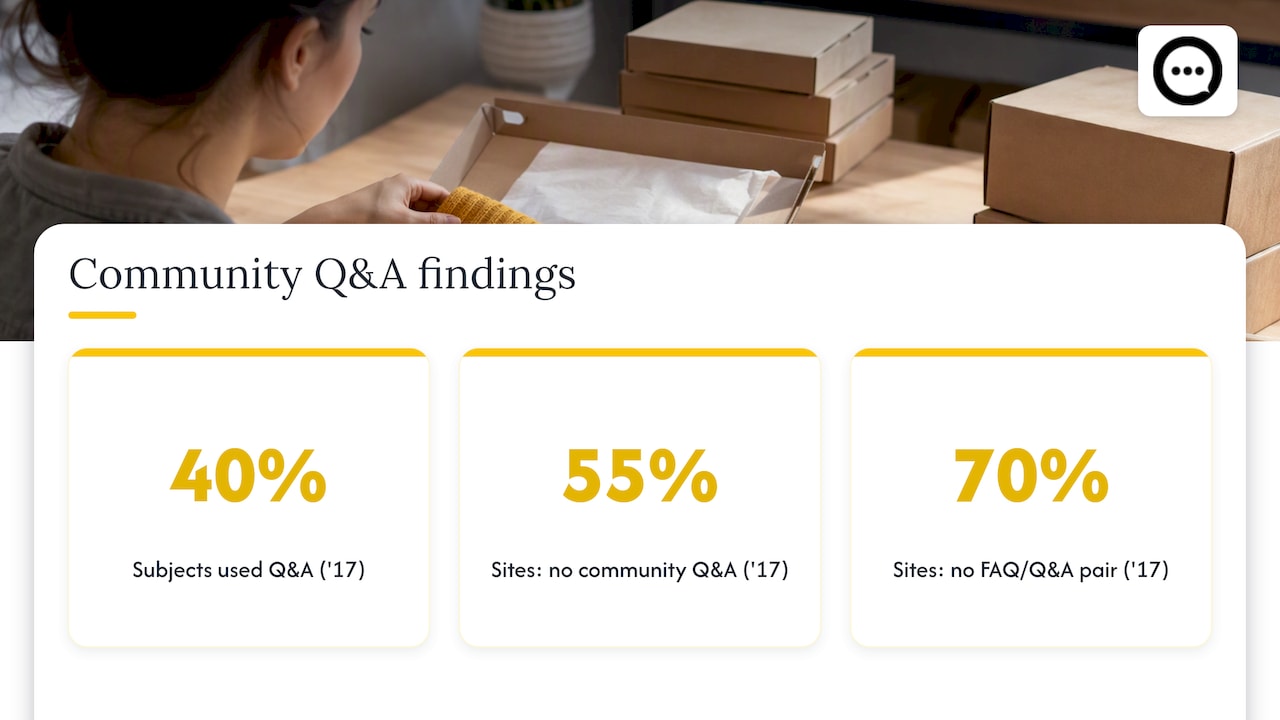
Baymard Institute’s product page research found that 40% of test subjects sought out and used community Q&A when it was available, even with standard reviews on the page. The same research reports that 55% of e-commerce sites offered no community Q&A, and 70% did not combine site-written FAQs with community Q&A. Note the date: that study was published in 2017, so treat the exact percentages as a directional signal, not a current benchmark. The behavior it describes, shoppers hunting for answers that reviews do not give, is easy to see in any store’s support inbox today.
That gap is the opportunity. A store that answers questions well, in public, on the product page, is doing something most competitors still skip.
The hybrid model: two kinds of questions, two kinds of answers
Baymard’s recommendation is a hybrid. It helps to sort every question you receive into one of two buckets.
Bucket 1: questions you should answer yourself
These are predictable and factual. They have one correct answer, and you are the authority.
- Shipping times and costs
- Return and exchange rules
- Materials, dimensions, ingredients, care instructions
- Sizing charts and compatibility
- Warranty terms
Write these as a store-authored FAQ and place the product-specific ones on the product page itself. Keep the answers short and unambiguous. Shopify’s own guide to building an FAQ page recommends starting from the questions customers ask most and organizing them into logical categories. That is sound advice for the store-wide page. For product pages, go narrower: three to six questions per product, chosen from real tickets and messages.
Bucket 2: questions customers answer better than you
These are situational. “Does this backpack fit a 16-inch laptop with a case on?” “Is the scent strong after a week?” “Is this too heavy for a long hike?” You can answer them, but a customer who owns the product answers with credibility you cannot fake.
This is where verified-customer Q&A earns its place. A shopper asks, a person who actually bought the item replies, and the next shopper with the same doubt finds the answer already there. When the reply is a short video, the proof is harder to dismiss: the shopper sees the product in someone’s real home, on a real body, next to a real laptop.
We cover the mechanics of replying in public in our guide to Shopify Q&A replies with public video answers.
Where Q&A should live on your store
Strategy starts with placement. There are four common locations, and they do different jobs.
| Location | Best for | Weakness |
|---|---|---|
| Dedicated FAQ page | Store-wide policies, SEO landing for general questions | Shoppers rarely leave the product page to find it |
| Product page FAQ block | Product-specific facts (size, materials, care) | Static, only covers what you thought of |
| Product page community Q&A | Use cases, edge cases, real-world detail | Needs moderation and a flow of answerers |
| Post-purchase email or support inbox | Private issues, order problems | Answers help only one customer |
The strongest setups use the middle two on every important product page, and keep the dedicated FAQ page for policies. If you are worried about touching your theme code, our walkthrough on adding product Q&A on Shopify without theme edits lays out four approaches.
Put it near the decision
Shoppers should not scroll past a footer to find answers. Place the Q&A block below the product description and above or beside reviews, so doubt and proof sit together. On mobile, where most browsing happens, a collapsed section with the first question or two visible works better than a long list. Our post on five Shopify spots for social proof goes through where else trust content pays off.
Build your question bank first
Before you publish anything, collect the questions you already have. You will find more material than you expect.
- Support inbox and chat logs. Tag every message by product and topic for a month.
- Pre-sale messages. Social DMs and “contact us” forms are full of purchase doubts.
- Site search terms. Shopify points to Search & Discovery for analyzing on-site search behavior and spotting gaps in your FAQ content.
- Returns reasons. “Not as expected” is a question you failed to answer upfront.
- Competitor-free sources: your own reviews. Phrases like “I wondered whether…” are questions in disguise.
Sort the results by frequency. The top ten questions per product line become your site-authored FAQ. The odd, specific ones become seeds for community Q&A.
Seed the section before launch
An empty Q&A block looks abandoned. Before you open it up, add a handful of genuine questions from your inbox, answered properly. Use real customer questions, and ask permission where you reproduce someone’s words or video. Our piece on publishing Q&A without overstepping consent covers three ways to do this cleanly.
Timing: ask after the product has done its job
The single biggest quality lever is when you ask customers to answer or contribute. Shopify-ecosystem marketers note that the best user content comes after a meaningful success, such as receiving the product or getting a support problem solved, and not right after checkout. That guidance is aimed at app developers, but it transfers directly to merchants.
A customer who just paid knows nothing about the product. A customer who has used it for two weeks knows exactly how it feels, fits and holds up.
A simple cadence:
- Day of delivery: confirm arrival, no ask.
- 7 to 14 days later (adjust by product type): invite them to answer open questions on that product, or record a short clip.
- After a resolved support ticket: a good moment to invite feedback while the positive experience is fresh.
Short and specific beats long and open. “Can you tell the next shopper whether this fits a 16-inch laptop?” gets more answers than “Please leave a review.” For the collection side, see how QR codes lead to a published video review in three steps, and how 15 to 20 second verified clips keep the effort low for the customer.
Answer in public, including the uncomfortable questions
The questions you least want to see are the ones shoppers most want answered. Baymard’s testing found that 53% of users specifically look for negative reviews before buying, and that 37% positively factor in how a site responds to critical feedback. Its data also shows 87% of sites do not respond to negative reviews at all.
The same logic applies to Q&A. A shopper asking “Does the zipper break?” is voicing what every other visitor is wondering. If you:
- answer fast,
- answer honestly,
- and do not get defensive,
you convert a risky question into evidence that real people run this store.
A response template that stays honest
- Thank them for the specific question.
- Give the direct answer, including the limitation if there is one.
- Offer what you can do about it (exchange, size advice, a better-fit product).
- Keep it free of marketing language.
Example: “Good question. The strap is rated for 15 lb, so a 16-inch laptop with a charger fits, but a second laptop will be tight. If you carry more than that, the larger model is a better fit, and we’re happy to exchange within the return window.” That reply admits a limit, and it is the sort of answer that earns trust.
Moderation rules that protect trust
Open Q&A needs guardrails. Without them you get spam, competitor jabs, and wrong answers stated confidently. Decide these rules before launch:
- Who may answer. Prefer verified purchasers for product-experience answers, and store staff for facts and policies.
- What gets held. Personal data, medical or safety claims, pricing disputes, and anything off-topic.
- What never gets deleted. Honest criticism that is on-topic. Removing it destroys the credibility of everything else.
- Response time. Pick a target you can keep, such as one business day, and assign an owner.
- Corrections. If a customer’s answer is wrong, add a clearly labeled store reply rather than quietly deleting it.
If you collect video, add disclosure and consent steps. Our overview of one-click video testimonials and FTC considerations is a useful checklist for US merchants. For legal specifics about endorsements in your situation, check the FTC’s guidance directly or ask a qualified attorney.
Make your answers work for search and AI shopping
Q&A content is also a source of searchable, specific language: the words real shoppers use. Two practical points for 2026.
First, Shopify now offers a Knowledge Base app that lets you view and customize the store facts AI shopping agents use to answer questions about your business. Shopify’s guidance on optimizing your store for AI also covers how product detail pages feed those assistants. Treat your store-authored answers (shipping, returns, materials) as the source of truth, and keep them consistent everywhere.
Second, if you want to go deeper on how Shopify stores earn visibility in classic and AI search, this Shopify SEO and AI search guide is a good next read.
Consistency matters more than cleverness. If your FAQ says returns take 30 days and a product answer says 14, a human will notice and an AI agent may repeat the wrong one.
Perspective: why we built around post-purchase voices
We work with Shopify merchants every day, and one pattern keeps showing up. Stores write excellent product descriptions, then lose the sale on a question the description cannot answer. The shopper does not email. They leave.
Our view is that the most believable answer to a buying doubt comes from a person who already bought. Text reviews help, but a short video from a verified customer, or a direct reply to a shopper’s question, carries a different weight. You see the product, hear the tone, and understand it is not copy written by the brand. That is why Peers is built only for Shopify and around post-purchase video reviews and shopper Q&A on the product page, with moderation in the merchant’s hands.
The second thing we believe: Q&A is a research tool disguised as a trust tool. Every repeated question is a gap in your page. Fix the page, and the support load drops along with the hesitation. Merchants who read their questions weekly make better product pages than those who only read their dashboards.
— Leo
Measure what the questions tell you
A Q&A strategy needs a short scorecard. Review it monthly.
| Metric | What it tells you | Action |
|---|---|---|
| Questions asked per product | Where doubt is concentrated | Improve copy, images, size guidance on top products |
| Unanswered questions older than 48 hours | Whether your process works | Reassign ownership or add automations |
| Repeated questions | Missing information on the page | Move the answer into the description or FAQ |
| Share of answers from verified customers | Credibility of the section | Adjust outreach timing and invitations |
| Conversion rate on pages with active Q&A vs. without | Whether the effort pays | Roll out to more products |
| Support tickets about product questions | Deflection | Tag and trend downward |
Be careful with the last comparison. Pages with Q&A are often your best-selling products, so a simple before-and-after on the same product is a fairer test than comparing different items.
Also review how your ratings are presented near Q&A. Baymard found that an exposed ratings distribution summary gets far more use than a hidden filter, with only 7% of users filtering when it required extra clicks. Show the breakdown openly, then let the Q&A fill in the why behind the stars.
A 30-day rollout plan
Week 1: Collect. Export or tag a month of support messages and pre-sale questions. Rank by frequency for your top five products.
Week 2: Write. Draft three to six store-authored answers per product page. Add store-wide policies to the FAQ page. Align shipping and return language everywhere.
Week 3: Open. Install your Q&A and review tools, set the moderation rules, and seed each page with real questions. Check mobile layout and speed.
Week 4: Invite. Turn on post-delivery invitations for verified buyers, assign one person to answer within a business day, and schedule the monthly scorecard.
Start with your five highest-traffic products. Expand only when you can keep up with the replies.

Add Q&A to your product pages with Peers
If you want the community half of this strategy without rebuilding your theme, Peers lets Shopify stores embed post-purchase video reviews and shopper Q&A directly on product pages. It includes moderation tools, customizable design, mobile compatibility, and analytics for engagement tracking. There is a Free plan, and Peers Growth is 15 USD per month. You can see both and install from the Peers page on the Shopify App Store.
If you want to compare the formats first, read video testimonials versus text reviews for Shopify stores, or see how to embed post-purchase video reviews without theme code.
FAQ
How many questions should a Shopify product page show?
Start with three to six store-written FAQs per product, covering the questions your support team hears most. Then let community Q&A grow beside them. Quality matters more than volume: a few accurate, recent answers beat a long list nobody maintains.
Should I use a separate FAQ page or put Q&A on product pages?
Use both, for different jobs. Keep policies like shipping and returns on a store-wide FAQ page, and place product-specific questions on the product page itself, where shoppers decide. Baymard’s research supports combining store-authored FAQs with community Q&A rather than choosing one.
What if a customer posts a negative answer or question?
Answer it publicly, calmly and factually, and do not delete honest criticism. Baymard’s testing found that 37% of users factor a site’s response to negative reviews into their evaluation. Only remove content that breaks your published rules, such as spam or personal data.
When should I ask customers to contribute answers?
After they have used the product, typically one to two weeks after delivery depending on what you sell, or after a support issue is resolved. Asking at checkout gets thin, generic input because the customer has no experience yet.
Do I need to be technical to set this up?
No. Several approaches on Shopify avoid theme edits entirely, and app-based Q&A blocks can be added from the app admin. Check mobile layout and page speed after installing anything new.
Sources
- Baymard Institute: Provide Both Site-Authored FAQs and Community-Driven Q&As
- Baymard Institute: Respond to Negative User Reviews
- Baymard Institute: 5 Requirements for the Ratings Distribution Summary
- Shopify Blog: How to Create an FAQ Page + 12 Examples
- Shopify Blog: FAQ SEO
- Shopify Help Center: Shopify Knowledge Base
- Shopify Help Center: Optimizing your store for AI
- Big Moves Marketing: Shopify App Store Growth FAQs