Post-Purchase Video Reviews on Shopify: A Practical Guide

A post-purchase video review is a short clip a real customer records after receiving your product, then submits to your store and you publish on the product page. To collect them on Shopify, you need four things: a well-timed request after delivery, an email that makes filming feel easy, a simple upload path, and a moderation step before anything goes live. This guide walks through each one, including how to automate the request with Shopify Flow and what the FTC expects when you offer incentives.
TL;DR
- Ask after the customer has had the product long enough to form an opinion, and time the request by product type, not by a single store-wide delay.
- Keep the request email short, ask for a clip of roughly 15 to 30 seconds, give two lines of filming advice, and put one clear button in it.
- Use Shopify Flow to trigger the request from an order event, then wait before sending, so the email lands after the product arrives.
- Moderate every clip before publishing, and never tie a reward to a positive opinion. The FTC treats that as a violation.
- Put approved videos where shoppers decide, high on the product page, and track views and add-to-cart behavior to see whether they work.
Table of Contents
- What a post-purchase video review is (and is not)
- When to send the request
- What the request email should say
- Automating the request with Shopify Flow
- Make filming easier than skipping
- Moderation and privacy before publishing
- Incentives and the FTC rule
- Where to show videos on the product page
- Measuring whether it works
- Our perspective: trust comes from real people answering real questions
- Try it on your own store
- FAQ
- Sources
What a post-purchase video review is (and is not)
The word “post-purchase” matters. These clips come from people who actually bought and received the item. That separates them from branded product videos shot by your team or an agency, and from influencer content you commissioned. A shopper recording a 20-second clip on their phone, holding the product in their kitchen or on their desk, says something a studio shot cannot: this person paid, and this is what showed up.
That is also why a video review does a different job from a star rating. A rating tells a visitor how many people were satisfied. A clip answers the questions behind the hesitation: how big is it really, what does the fabric look like in daylight, does it fit in a normal bag. Shoppers on a product page are usually looking for exactly that kind of reassurance before they click “Add to cart”.
There is a second layer worth planning for: shopper Q&A. When a visitor can ask a question and get an answer from a verified customer, the page stops being a brochure and becomes a conversation. Video reviews and Q&A feed each other, because questions often reveal which clips you are missing.
When to send the request
The most common mistake is sending the request when the order ships, or worse, at checkout. The customer has nothing to review yet. The better rule: ask after the product has arrived and been used enough to say something specific.
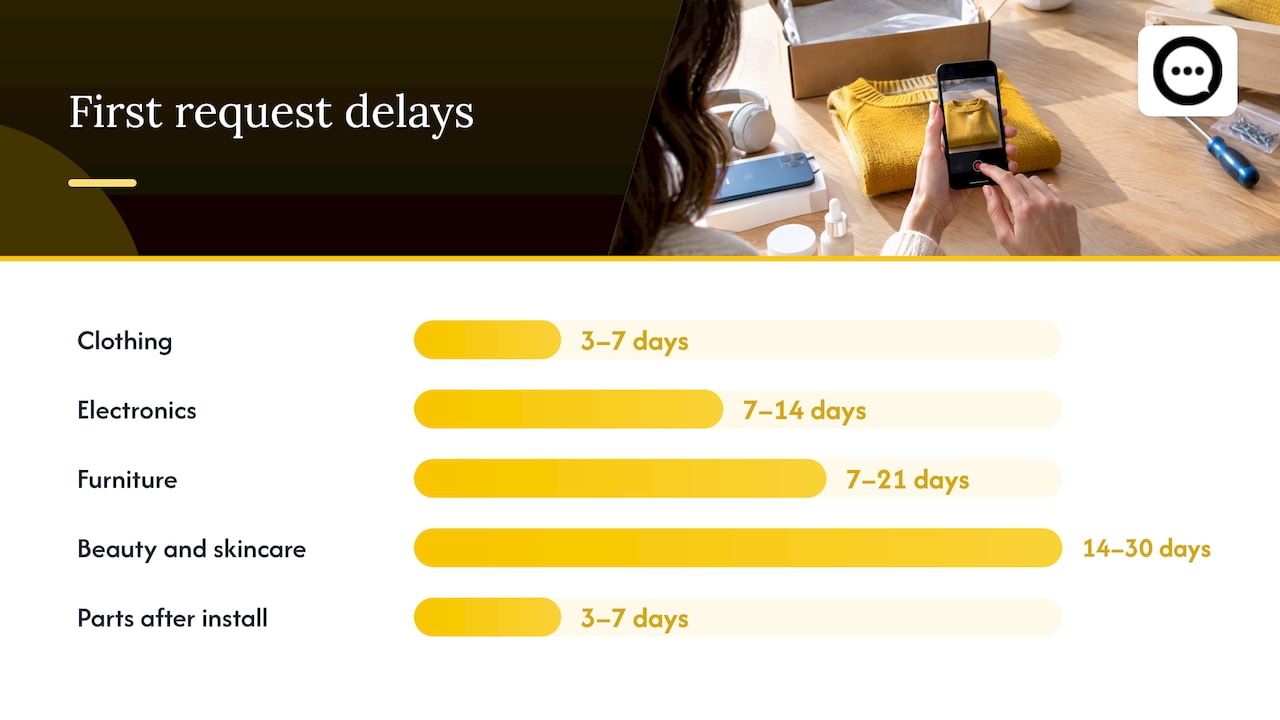
That means the right delay depends on what you sell. These are starting points we suggest you test, not fixed rules:
| Product type | Suggested first request |
|---|---|
| Clothing and accessories | 3 to 7 days after delivery |
| Electronics | 7 to 14 days after delivery |
| Furniture | 7 to 21 days after delivery |
| Beauty and skincare | 14 to 30 days after delivery |
| Replacement parts | 3 to 7 days after installation |
The logic is simple. A T-shirt reveals its fit on day one. A moisturizer needs weeks before someone can say whether it did anything. A bookshelf needs to be assembled and loaded first. If your catalog mixes categories, set different delays per product type rather than one number for everything.
One reminder email is usually enough. A second nudge a week later can lift submissions, but a third starts to feel like pressure, and pressured customers record worse clips.
What the request email should say
Video is a bigger ask than a star rating, so the email carries more weight than a typical “rate your purchase” message. A good one does five things:
- A subject line that names the product and the ask. For example: “How is your [product] working out? Show us in 20 seconds.”
- A specific request. Ask for a short clip, roughly 15 to 30 seconds. Open-ended asks like “send us a video” lead to silence.
- Simple filming instructions. Two or three lines: film vertically, face a window for light, say what you like and what you would change.
- One submission button. No login, no forms with six fields. The fewer steps between the email and the camera, the more clips you get.
- A note about any reward, if you offer one, worded so it is clearly not dependent on what the customer says (more on that below).
Here is a short template you can adapt:
Subject: Quick favor: show us your [product] in 20 seconds
Hi [first name], your [product] should have settled in by now. Would you record a short clip, about 20 seconds, telling other shoppers how it is working for you? Honest is best, good or bad. Film vertically, near a window, and tell us one thing you like and one thing you would change.
[Record my review]
Thank you, [Store name]
Notice what it leaves out: no script, no required wording, no request for a particular star count. That is both better for authenticity and safer legally.
Automating the request with Shopify Flow
Sending these by hand does not scale past a handful of orders a week. Shopify Flow, Shopify’s own automation tool, can run the sequence for you. The basic pattern is documented in a Flow walkthrough for review requests: the workflow starts on the Order fulfilled event, waits a set period so the product can arrive and be used, and then sends the request to the customer.
Here is how to adapt it for video:
- Trigger: Order fulfilled.
- Condition (optional): Check which products or tags are in the order, so you can branch by category.
- Wait: Set the delay from the table above. A clothing branch might wait a week after fulfillment, while a skincare branch waits a few weeks. Remember that fulfillment is not delivery, so add transit time to the delay.
- Action: Send the email, or pass the customer to the tool that sends it, with the product name and your submission link filled in.
- Exit check: If the customer already submitted a review, skip the reminder.
Start with one branch for your best-selling product. Watch the first 20 or 30 submissions, adjust the delay, then clone the workflow for other categories. A small setup that works is better than a large one nobody checks.
Make filming easier than skipping
Most customers who would happily say a few good words never do, because recording and uploading feels like homework. Remove every point of friction you can:
- Let them use their phone. Nobody wants to transfer files from a laptop. A mobile-friendly upload page is not optional.
- Keep the clip short. A 15 to 20 second target feels doable. Our guide on capturing 15 to 20 second verified video reviews with QR codes shows how a code on a packing insert can send a customer straight to the recording page.
- Know the file limits. Large phone videos can fail to upload. See our notes on uploading clips under 1 GB and on publishing video reviews within 1 GB and 10 minutes.
- Give a prompt. “What surprised you most?” is easier to answer on camera than “Tell us about your experience.”
- Offer a three-step path. Our walkthrough of going from QR code to product page breaks the flow into three steps.
A packing insert is an underrated channel. The customer is holding the product at the exact moment you want them thinking about it, and a code on a card needs no email open at all.
Moderation and privacy before publishing
Every clip should be reviewed before it appears on your store. Customer video is real life, so you will occasionally get a barking dog, a child in the background, a shipping label with an address on it, or a clip that is simply off-topic.
A workable moderation routine checks four things:
- Is it about the product, and is it the product the customer bought?
- Does it show anyone who has not agreed to appear, including children?
- Does it reveal personal information, such as an address, an order number or a face in a mirror?
- Does it contain abusive language or claims you cannot stand behind, such as medical promises?
We cover this in more detail in four privacy checks before customer videos go live and in a six-step workflow for moderating video reviews.
One principle matters more than the rest: moderate for safety and relevance, not for sentiment. If you delete every three-star clip, you lose the thing that makes video reviews credible, and you may cross a legal line.
Incentives and the FTC rule
If you sell to US shoppers, the FTC’s rules on reviews apply to you. The agency’s final rule on fake reviews and testimonials, announced in August 2024, prohibits buying or selling fake reviews and lets the FTC seek civil penalties against knowing violators.
For video review programs, the practical questions are about rewards. According to the FTC’s questions and answers on the rule, incentives are allowed only when they are not conditioned, expressly or implicitly, on a particular sentiment. Paying for five-star reviews violates the rule, and failing to disclose an incentive can violate the FTC Act.
In plain terms:
- Fine: “Submit a review of any kind and get 10% off your next order,” with the offer visible to everyone who sees the review.
- Not fine: “Submit a five-star video and get a gift card.” Or hiding the incentive so viewers think the praise is unprompted.
- Risky: Quietly skipping the reward for customers who left negative clips. That makes the incentive implicitly dependent on sentiment.
We lay out reward structures in rewarding customers for reviews compliantly and the one-click collection side in FTC-compliant video testimonials. If you are unsure whether a specific program fits the rule, ask a lawyer who handles advertising and consumer protection law. This guide is not legal advice. Shoppers outside the US may be covered by their own country’s rules, so check those if you sell internationally.
Where to show videos on the product page
Collecting clips is half the job. A review video nobody sees does nothing. The most common placement failure is burying the section far below the fold, behind the description, shipping policy and size chart. We describe the fix in why clips shouldn’t hide below the fold.
Some placement principles that hold up across store types:
- Put video near the buy button. A short strip of thumbnails beneath the product title or price catches the shopper in the moment of doubt.
- Show a mix. Two or three clips from different customers beat one polished hero clip.
- Match the clip to the product. On a variant-heavy product, surface clips that show the variant being viewed.
- Keep the page light. Autoplaying five videos at once slows the page and annoys mobile shoppers. Load thumbnails first and play on tap.
- Pair clips with Q&A. If a visitor’s question is already answered in a clip or thread, they do not leave to find out elsewhere.
If you would rather not edit theme files, our guide to embedding video reviews without theme code shows the no-code route.
Measuring whether it works
Treat video reviews like any other conversion element: set a baseline, change one thing, compare. Three groups of numbers tell you most of what you need:
- Collection: How many requests were sent, how many customers opened, and how many submitted a clip. If opens are healthy but submissions are low, the email or upload path is the problem.
- Engagement: Views, plays and clicks on the video section. Low plays usually mean poor placement or weak thumbnails.
- Commerce: Add-to-cart rate and conversion on products with video versus similar products without. Compare like with like, since a best seller will always outperform a niche item.
Give each test enough traffic to mean something. A product with 50 visits a month will not tell you much in two weeks. Start with your highest-traffic pages, where results arrive fastest.
Video reviews also give you material beyond the product page: clips can inform your FAQ, your ad creative briefs and your content plan. If you are building out that wider plan, a set of Shopify content marketing guides can help you connect customer content to search visibility.
Our perspective: trust comes from real people answering real questions
We built Peers for Shopify store owners only, and that focus shapes how we think about video reviews. Most shoppers do not distrust your brand. They distrust the gap between what a product page promises and what arrives. The fastest way to close that gap is to let verified customers talk, on video, right on the product page, and to let new shoppers ask them questions.
Three convictions come from that:
- Authenticity beats polish. A slightly shaky clip from a verified buyer persuades more than a perfect studio video, because the viewer can tell nobody scripted it.
- Moderation protects trust. Reviewing clips before they go live is not censorship. It keeps out the clips that would make visitors doubt everything else on the page. The line we draw is safety and relevance, never sentiment.
- Setup should be boring. If collecting video takes a developer and a weekend, most stores never do it. Collection, moderation, design and analytics should live in one app that installs from the Shopify App Store.
The stores that get the most from video reviews are not the ones with the biggest budgets. They are the ones that ask at the right moment, make it easy, and publish honestly.
— Leo
Try it on your own store
Peers lets you embed post-purchase video reviews and shopper Q&A directly on your Shopify product pages, with moderation tools, customizable design, mobile compatibility and analytics for engagement. There is a Free plan, and Peers Growth costs $15 per month. You can see Peers in the Shopify App Store and start with one product page before rolling it out across the catalog.
FAQ
Can I collect video reviews with Shopify Flow alone?
Flow can handle the trigger and the delay, for example starting on Order fulfilled and waiting before the request goes out. It does not record, host, moderate or display video itself. You still need a tool that accepts uploads and shows the approved clips on your product pages.
How long should a customer video review be?
Ask for about 15 to 30 seconds. That is long enough to say what they like and one thing they would change, and short enough that people finish it. Shorter, specific prompts get better clips than open-ended ones.
Can I offer a discount for a video review?
In the US, yes, as long as the reward is not conditioned, expressly or implicitly, on the review being positive, and you disclose it. Never pay for five-star reviews or hold back rewards from critical customers. For a specific program, check with a lawyer who handles advertising law.
Should I delete negative video reviews?
Not because they are negative. Remove clips for safety, privacy, abuse or irrelevance. Keeping honest mixed feedback makes the positive clips more believable, and selectively removing criticism can create legal exposure.
When is the best time to send the review request?
After the product has arrived and been used long enough to judge. That might be a few days for clothing and a few weeks for skincare. Start with a category-based delay, then adjust using your own submission rates.
Sources
- Federal Trade Commission: final rule banning fake reviews and testimonials
- Federal Trade Commission: Consumer Reviews and Testimonials Rule, questions and answers
- Shopify Flow: send a review request after fulfillment
- Shopify content marketing guides