6 Step Shopify Workflow to Moderate Video Reviews and Meet FTC Rules

Yes, you can and should moderate video reviews on your Shopify store, and the fastest path is a simple workflow: ingest the video, run automated scans, send borderline cases to a human reviewer, then publish. Use Shopify apps or widgets plus Flow automations to handle the heavy lifting, keep Federal Trade Commission disclosure rules front and center, and lean on a Shopify-native tool if you want this built in from day one.
TL;DR:
- Automated scans and human review should be used to detect personal information, illegal content, and off-label claims in video reviews, with clear policies guiding moderation.
- Video content must be optimized for fast upload and page load, with transcripts used to speed inspection and ensure accessibility, especially for authentic user-generated submissions.
- Shopify apps should support moderation actions, mobile uploads, and Flow-based automations, with pre-launch testing to confirm performance and display consistency across devices.
- A documented, consistent workflow that automates file checks and flags legal or fake reviews helps maintain compliance and builds audit trails for moderation decisions.
- Stricter criteria are essential for regulated or safety-related products, while automated filtering with targeted spot checks can suffice for everyday items to balance trust and conversion.
Table of Contents
- Moderation basics: what you’re actually trying to protect
- What makes video reviews different to moderate
- Setting up Shopify tools: apps, widgets, and Flow automations
- Building a repeatable moderation workflow
- Staying compliant: FTC rules and Shopify policy in practice
- Measuring whether your moderation is actually working
- When to be strict and when to let it ride
- Try Peers for Shopify-native video review moderation
- FAQ
- Sources
Moderation basics: what you’re actually trying to protect
Before you pick a tool, decide what moderation is for. Every review program balances four goals: authenticity, shopper safety, buyer trust, and legal compliance. A video that passes all four earns its spot on the product page; one that fails any of them gets edited, hidden, or removed.
Most stores run into the same handful of problems: spam or promotional content unrelated to the product, personally identifiable information caught on camera (addresses, phone numbers, faces of children), defamatory statements about competitors or staff, and content that depicts illegal or unsafe use of the product. None of these require a legal team to catch, just a clear policy and someone paying attention.
When a video comes in, a moderator typically has five options:
- Approve the video as submitted, no edits needed.
- Reject it outright when it violates policy or adds no value.
- Edit it (trim audio, blur a face) and disclose that an edit was made.
- Hide it temporarily pending more information from the reviewer.
- Reply publicly to acknowledge feedback, especially on critical reviews.
Assign a named owner for this queue, even if it’s a part-time task for one team member, and set a service-level target: a prompt first-pass review keeps the queue from piling up and keeps reviewers from losing interest in a response that never comes.
What makes video reviews different to moderate
Text reviews are easy to scan in seconds. Video adds layers: file format, audio content, background visuals, and pacing all carry risk that text never does.
Start with the technical basics. Most Shopify apps accept MP4 or MOV uploads and compress them automatically, but large, uncompressed files slow down your product page if an app doesn’t optimize on upload. Codec choice and file size affect both upload success rates on mobile and how fast your page loads once the video is embedded, which matters for conversion as much as for moderation.
On the content side, watch for:
- Visible personal information, like mail with an address or a reflected screen showing private data.
- Copyrighted background music that triggers takedown notices or audio muting on some platforms.
- Unsafe product demonstrations, particularly for anything regulated (supplements, electronics, children’s items).
- Off-label claims that go beyond what your product packaging or marketing states.
Transcribing videos speeds up moderation because a reviewer can scan text instead of watching every second, and it doubles as an accessibility feature and a source of searchable metadata for detecting duplicate or incentivized submissions. Require captions for any video you plan to feature prominently, both for compliance with accessibility expectations and because many shoppers watch with sound off.
Raw post-purchase clips, phone footage, imperfect lighting, genuine reactions, tend to convert better than polished influencer-style content because shoppers read them as authentic. Treat a submission that looks professionally produced with more scrutiny: verify it came from an actual purchaser rather than a sponsored partner before it goes live.
Pro Tip: Batch-transcribe incoming videos overnight using your app’s built-in tool or a third-party service, then review transcripts first and only watch the video itself for anything flagged.
Setting up Shopify tools: apps, widgets, and Flow automations
Shopify gives you three integration points for video reviews: the product page widget (where shoppers see the video), the Shop channel (Shopify’s native storefront app review system), and your app’s admin panel (where you moderate). Getting the setup right the first time saves you from re-platforming later.
- Choose an app with a real moderation queue, not just a display widget. Look for approve, reject, edit, and reply actions in one dashboard.
- Confirm mobile upload handling. Most post-purchase video comes from phones, so test the upload flow on iOS and Android before launch.
- Set up Shopify Flow triggers. The Shop review published trigger fires with review metadata, rating, product variant ID, line item ID, display name, and timestamp, so you can automatically notify your team or kick off a scan the moment a review lands.
- Place the widget where shoppers actually look. Just below the add-to-cart button or inside a dedicated reviews tab both work; test placement on your staging theme first.
- Run a pre-launch checklist: upload a test video from a phone, confirm it displays correctly on mobile and desktop, check page-speed impact with the video live, and confirm your moderation queue receives a test submission.
Prioritize apps that compress and lazy-load video automatically as outlined in our Video SEO guide: boost visibility and organic reach. A reviews widget that tanks your page speed defeats its own purpose, since slow pages lose shoppers before they ever see the review that might have convinced them.
Building a repeatable moderation workflow
A workflow only works if it’s written down and consistent, not reinvented every time a review comes in. Here’s a version you can adopt with minor tweaks for your team size:
- Ingest: the video arrives through your app, tied to an order ID.
- Auto-scan: automated checks run for file type, size, and obvious policy violations (nudity, hate speech detection where available).
- Metadata capture: record order ID, reviewer consent, and whether the review was incentivized.
- Human review: a moderator watches flagged or random-sample videos and makes the call.
- Publish or reject: approved videos go live; rejected ones get a reason logged.
- Reply and close: respond publicly where appropriate, especially to critical but legitimate reviews.
Automate what’s repetitive and keep judgment calls human. File-type and size checks, duplicate detection, and auto-rejection of blurry or silent uploads are safe to automate. Anything touching legal risk, a possible fake review, an undisclosed incentive, visible PII, should always get human eyes.
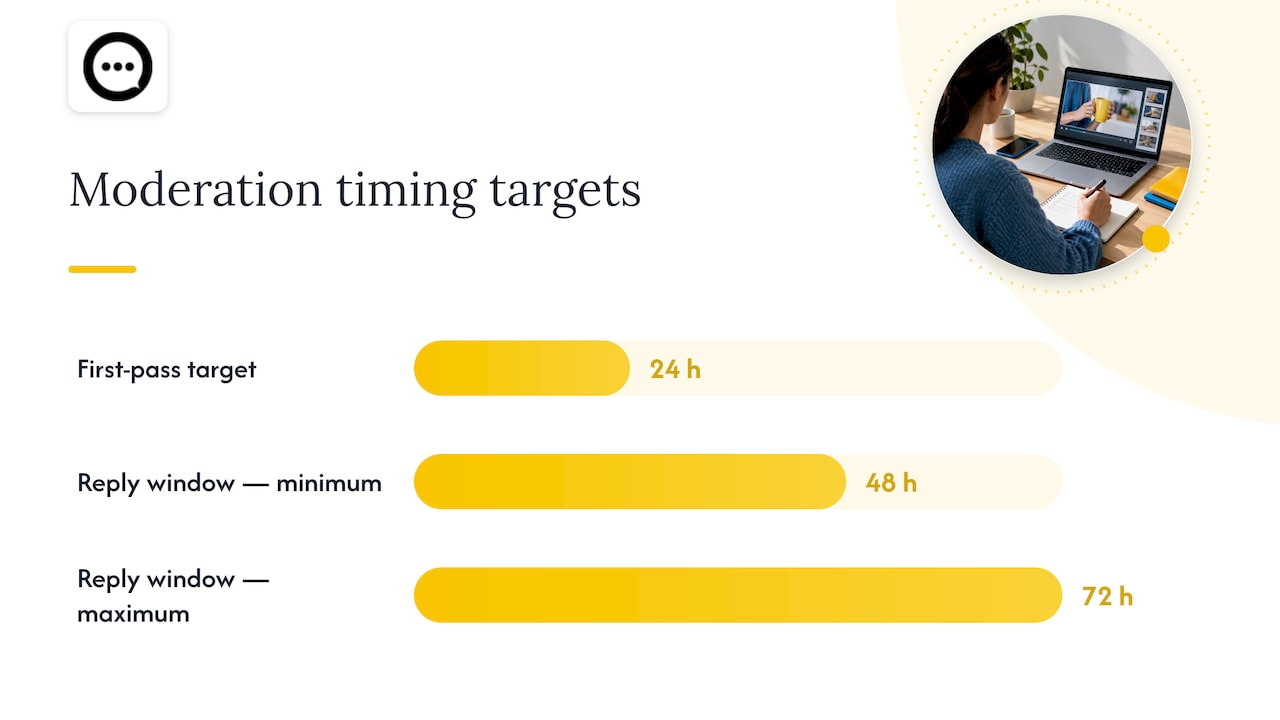
Staff the queue with a 24-hour first-pass target and a 48 to 72 hour window to reply to published reviews, especially negative ones. Shoppers notice when a brand responds quickly, and a fast, reasonable reply to a critical video often does more for trust than ten five-star clips.
Pro Tip: Capture a disclosure flag in your metadata the moment a review comes in, whether it was incentivized, gifted, or unprompted, so you’re never reconstructing that history later under pressure.
Staying compliant: FTC rules and Shopify policy in practice
Compliance isn’t optional window dressing here. The FTC’s final rule on consumer reviews prohibits several specific practices: selling or buying fake reviews, undisclosed insider reviews, company-controlled sites dressed up as independent, review suppression, and fake indicators of social influence. Video doesn’t get a pass because it is harder to fake convincingly. If anything, the rule treats it with more scrutiny because disclosures need to be visually obvious to a viewer, not buried in a caption no one reads.
Practical steps that keep you on the right side of this:
- Disclose incentives clearly and visibly in the video itself, not just in text below it, if a reviewer received a discount or free product.
- Document your moderation decisions, including why a review was approved, edited, or rejected.
- Use Shopify’s reporting tools to flag and investigate suspicious reviews rather than quietly deleting them.
- Keep records long enough to demonstrate you didn’t ignore clear signs a review was fake.
According to the FTC’s own guidance, businesses hosting third-party reviews generally aren’t liable for reviews they didn’t create, unless there were clear signs the review was fake and the business should have known. That “should have known” standard is exactly why a documented moderation process matters: it’s your evidence that you were paying attention.
Shopify’s own help documentation confirms that Shop review reports are investigated, a process that can take up to five business days, and that merchants can request reviews between 1 and 180 days after delivery. Build your recordkeeping around both the FTC’s documentation expectations and Shopify’s reporting timeline so nothing falls through the cracks while a report is pending.
Measuring whether your moderation is actually working
Moderation isn’t just a compliance task, it’s an input to conversion, so track it like one.
On the operational side, watch queue size (is it growing or shrinking?), time to first action on new submissions, publish rate (what percentage of submissions make it live), and how often your automated filters agree with human reviewers. A filter that disagrees with your moderators constantly needs retuning, not more trust.
On the business side, track:
- Conversion lift on product pages with video reviews versus those without.
- Watch rate and average duration watched per video.
- Average order value impact on sessions that included a video view.
- Assisted conversions, where a video view preceded a purchase days later.
Combine Shopify’s native analytics, your review app’s dashboard, and GA4 events into one view rather than checking three separate tools. Once you have a baseline, run small experiments, testing stricter versus looser moderation thresholds, or different video placements, to see what actually moves the numbers rather than guessing.
When to be strict and when to let it ride
Strict moderation protects you; loose moderation converts better. The honest answer is you need both, applied selectively. Regulated products, anything involving children, health claims, or safety demonstrations, deserve a human look every time, no exceptions. Everyday products with low PII risk can run through automated filters with only spot checks. Start conservative on your thresholds, watch what gets rejected that shouldn’t have been, and loosen gradually as your filters prove themselves. The mistake most stores make is tuning for speed before they’ve tuned for accuracy.
— Leo
Try Peers for Shopify-native video review moderation
Setting up moderation from scratch across a generic review app, a separate transcription tool, and manual Flow configuration takes real time. We built a solution specifically for Shopify stores that want authentic post-purchase video reviews and shopper Q&A live on product pages without assembling that stack themselves.
With this tool, you get:
- A built-in moderation queue so you approve, edit, or reject video submissions from one place.
- Shopper Q&A embedded on the product page alongside video reviews, so buyers can ask real customers questions before they buy.
- Mobile-friendly upload handling, since most post-purchase video comes straight from a phone.
- Analytics that track engagement so you can see which videos are actually influencing purchases.
If you’re currently relying on Shopify’s native admin controls and Flow triggers alone, those tools work, but they require you to wire up transcription, display, and analytics separately. We built a tool to handle embedding, moderation, and measurement together, with a free plan to start and a paid growth plan once you’re ready to scale.
Install the app from the Shopify App Store, turn on the moderation queue, and test it with one product this week before rolling it out store-wide.
FAQ
Is Shopify still worth it in 2026?
Shopify remains a leading platform for merchants who want built-in tools for sales channels, payments, and now native review features like the Shop product reviews system. Whether it’s worth it depends on your specific business needs, but the platform’s growing set of review and automation tools, including Flow triggers for review events, make it easier to run a trustworthy storefront without custom development.
What is the best reviews app for Shopify?
There’s no single best app for every store. Look for one with a genuine moderation queue, mobile upload support, and Flow integration. For stores specifically focused on post-purchase video reviews and shopper Q&A, Peers offers a Shopify-native option built around those features.
Can you make $10,000 a month on Shopify?
Revenue outcomes on Shopify vary widely by product, niche, and marketing effort, and no platform guarantees a specific income. Features like video reviews can support conversion, but results depend on traffic, product fit, and execution rather than any single tool.
What video format is supported on Shopify?
Shopify and most review apps commonly support MP4 and MOV uploads, which cover the vast majority of phone-recorded videos. Check your specific app’s documentation for exact format and file-size limits, since these vary by app.
How do I handle a negative or inappropriate video review?
Review it against your written policy first: if it violates clear rules (harassment, false claims, unsafe content), reject or report it through Shopify’s review reporting process, which Shopify investigates directly. If it’s simply negative but legitimate, publish it and reply publicly within your standard response window, since a thoughtful reply often builds more trust than hiding criticism.