Fix Auto Frames on Shopify PDPs: 3 Crops for Better Video Thumbnails

Use a literal poster image that shows the product in action or a reviewer demonstrating it, cropped so the subject stays legible at phone size. Upload several crops instead of trusting one auto-generated frame, and route every thumbnail into one shared gallery overlay so shoppers can browse all customer video and Q&A content without hunting for it. That combination is the single highest-leverage decision most Shopify merchants can make on a product page.
TL;DR:
- Using a custom poster image for videos ensures consistent, sharp thumbnails and avoids blurry or poorly cropped auto-generated frames across devices.
- Displaying real product use or reviewer in the thumbnail helps shoppers quickly judge scale and texture, especially at thumbnail size.
- Routing all review media into one shared gallery overlay improves discoverability and reduces friction for mobile users browsing multiple reviews.
- Tracking click-to-play rates and downstream purchase metrics provides clear insights into thumbnail effectiveness and guides ongoing improvements.
- Merchants often undermine review trust by inconsistent thumbnails; uniform, well-chosen posters appear more credible than auto-captured frames.
Table of Contents
- 1. Priority checklist for PDP video review thumbnails
- 2. Shopify’s technical rules for poster images and video
- 3. Building a unified gallery overlay for review media
- 4. Composition and cropping rules that survive theme resizing
- 5. Testing thumbnails and tracking the right metrics
- 6. Step-by-step deployment checklist for Shopify PDPs
- 7. What most merchants get wrong about thumbnails
- How Peers helps you put this into practice
- Sources
- FAQ
1. Priority checklist for PDP video review thumbnails
Before touching design software, get the fundamentals right. A thumbnail’s job is to tell a shopper exactly what they will see if they tap play, not to tease them into guessing.
- Show the real thing: picture the product in use or the reviewer holding it, never a vague lifestyle shot or a random paused frame.
- Include a person when it clarifies scale: a face or a pair of hands next to the product helps shoppers judge size, fit, or texture faster than text can.
- Design for a thumbnail-sized crop: strong contrast between subject and background matters more than fine detail, since most shoppers see this at under 100 pixels wide.
- Standardize on dedicated poster images: never let the platform pick a stray frame, since consistency across a review grid builds trust faster than any single great shot.
- Keep text overlays sparse: a duration stamp, “Q&A,” or “size demo” is useful; a full sentence of marketing copy is not.
- Plan for accessibility: pair every poster image with descriptive alt text and avoid relying on color alone to signal categories like “verified buyer” or “video.”
Pro Tip: Batch-export three crops of every approved thumbnail the same day you approve the video, before the raw footage gets buried in a folder.
2. Shopify’s technical rules for poster images and video
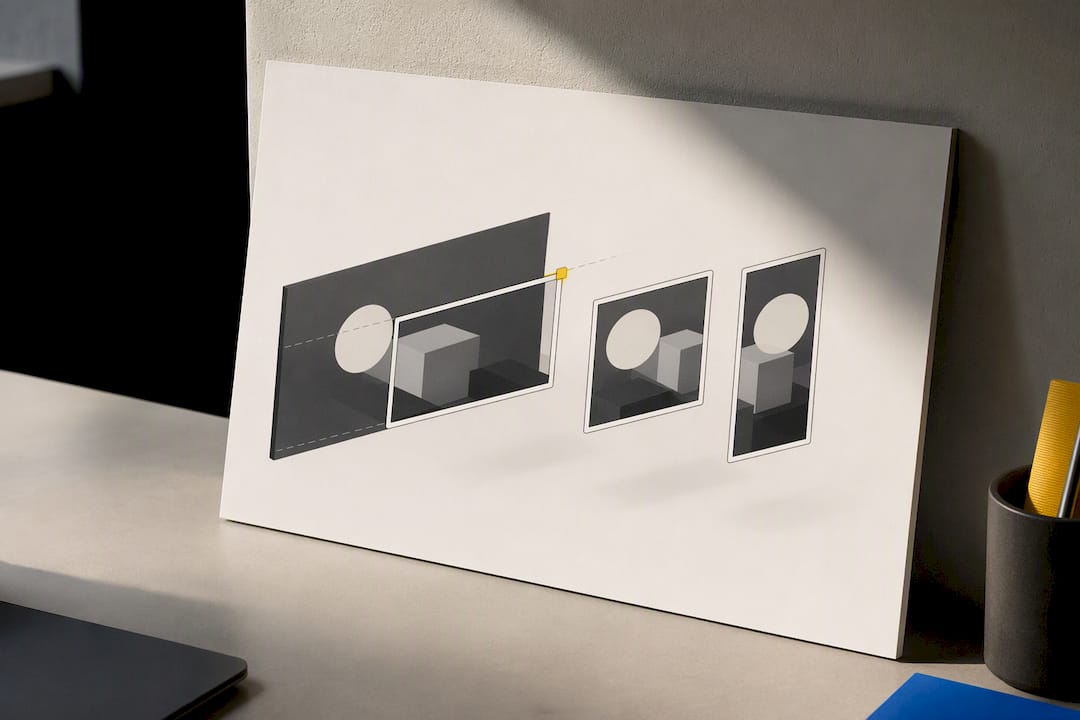
Shopify’s product media system supports MP4, MOV, and WebM uploads, converting them for delivery and allowing resolutions up to 4K. What actually displays on the page, though, is controlled by the theme, not the raw file, which is exactly why a custom poster image matters.
Without one, browsers often grab an arbitrary frame, sometimes a blurry mid-motion moment or a blank background, and that becomes the permanent thumbnail every visitor sees. Shopify’s own guidance on media types confirms that themes determine how videos and images are displayed and cropped, so the same clip can look sharp on desktop and cut off a face on mobile.
- Always attach a manually chosen poster image rather than relying on auto-generated frames.
- Export at least three aspect ratios (1:1, 4:5, and 16:9) so whichever crop a theme applies still keeps the subject centered.
- Compress poster images to WebP or an optimized JPEG, and set video to lazy-load so the PDP doesn’t slow down for shoppers who never scroll to the reviews section.
Practitioner guidance also favors shorter clips for product pages, since long videos add load weight without adding proof.
3. Building a unified gallery overlay for review media
Baymard’s research on reviewer-submitted images found that shoppers expect a single overlay that lets them navigate across every reviewer’s images and videos, not a maze of separate pop-ups tied to individual reviews. Forcing someone to close one review and open another to see more customer footage adds friction that kills discoverability.
- Route every thumbnail, whether it sits in the main gallery or inside an individual review, into the same shared overlay experience.
- Give the overlay visible arrow controls plus swipe gestures, since Baymard’s supporting research found most mobile sites fail to represent additional images clearly as thumbnails in the first place.
- Surface metadata inside the overlay itself, such as the reviewer’s name, purchase date, or the variant they bought, so shoppers can judge relevance without leaving the view.
- Never limit browsing to media from one review at a time. If a shopper opens a thumbnail from review three, they should still be able to arrow forward into review four’s video.
4. Composition and cropping rules that survive theme resizing
A thumbnail that looks great full-size can fall apart once a theme squeezes it into a square grid cell. Design against the smallest crop your theme will apply, not the largest.
- Export dedicated 1:1 or 4:5 crops for gallery grids and a 16:9 version for any wide banner placement.
- Keep the product or the key action centered, with a margin of empty space near every edge so cropping never slices off a hand, a label, or a face.
- Favor natural light and plain or gently blurred backgrounds. Busy backdrops lose all contrast once the image shrinks to thumbnail size.
- If you add text or icons, keep them large, high-contrast, and legible at roughly 100 pixels wide before you approve the asset.
- Write specific alt text for every poster image, describing the product and context rather than a generic label like “video thumbnail.”
Pro Tip: Hold your phone at arm’s length and glance at the thumbnail for one second. If you can’t tell what it shows, neither can a shopper scrolling past it.
5. Testing thumbnails and tracking the right metrics
Treat thumbnail design as an ongoing experiment rather than a one-time asset job. The clearest signal of a thumbnail’s effect is play rate, the share of PDP visitors who see the thumbnail and tap it, since that isolates the thumbnail’s pull from everything else on the page.
- Track play rate as the primary KPI, then layer in view-through rate or average watch time to see whether the thumbnail set the right expectation.
- Watch downstream behavior too: add-to-cart rate among visitors who played a video, and overall PDP conversion for that segment versus visitors who never played one.
- Run head-to-head variants: a literal product shot against a stylized one, a version with a face against one without, and text overlay against a clean frame.
- Instrument specific events, thumbnail click, video play, watch thresholds at 3 and 10 seconds, and any post-play action, so each test has a measurable goal rather than a vague impression.
A well-chosen poster image is what a shopper decides to trust in about half a second, which is why the visual choice carries more weight than any caption you could write around it.
6. Step-by-step deployment checklist for Shopify PDPs
Once your design rules are set, deployment is mostly a sequencing problem.
- Create poster images in your three planned crops, compress them to WebP or optimized JPEG, and write alt text for each before uploading anything.
- Upload the video files and poster images to Shopify, assign each poster image as its video’s thumbnail, and confirm your theme actually renders custom poster images rather than defaulting to a random frame.
- Turn on a single-stream gallery overlay so any thumbnail, wherever it lives on the page, opens the same unified browsing experience.
- Set up event tracking for clicks and plays, launch your first A/B test, run it to a clear result, and roll the winning thumbnail out across the rest of the gallery.
7. What most merchants get wrong about thumbnails
Most Shopify merchants treat the thumbnail as an afterthought, something the platform generates automatically once the video is uploaded. That habit is backwards. The thumbnail is the only part of a video review a shopper sees before deciding whether it’s worth ten seconds of attention, and a stray auto-captured frame is often the least flattering moment in the whole clip.
The bigger mistake is inconsistency: one review with a crisp custom poster next to three with blurry auto-frames makes the entire review section look unmoderated, even when the actual video content is strong. This kind of post-purchase video review and shopper Q&A section is common among many Shopify merchants, with a pattern where uniform, literal thumbnails tend to be perceived as more trustworthy than any individual video’s production quality.
— Leo
How Peers helps you put this into practice
There are Shopify widgets designed for embedding post-purchase video reviews and shopper Q&A on product pages, often with moderation tools to control which thumbnails and clips go live.
Instead of stitching together a gallery plugin, a separate Q&A tool, and manual poster image uploads, Peers handles the unified overlay and thumbnail display in one setup. You still choose your poster images and crops using the rules above, but you’re not building the gallery logic from scratch. Merchants can start on the Free plan or move to Peers Growth at $15 per month once they need more volume, both listed on the Peers app page. After installation, check your theme’s video block settings to confirm poster images are displaying, then watch play rate and review engagement in your analytics dashboard.
FAQ
What makes a good thumbnail for a product review video?
A good thumbnail shows the product clearly, in use or in a reviewer’s hands, rather than a vague or stylized shot. It should stay legible at a small size, use a manually chosen poster image instead of an auto-generated frame, and avoid heavy text overlays.
Should I use a custom poster image instead of the default frame?
Yes. Shopify’s product media documentation confirms that themes control how video displays, so an auto-selected frame can end up blurry or oddly cropped depending on the device. A custom poster image keeps the thumbnail consistent across desktop and mobile.
How do I test whether a thumbnail is actually working?
Track play rate, the percentage of visitors who tap the thumbnail to start the video, as your primary signal, then compare add-to-cart rates between shoppers who played a video and those who didn’t. Run literal versus stylized variants and face versus no-face variants separately to isolate what changed behavior.
Should every video thumbnail open the same gallery?
Yes. Baymard’s research found shoppers expect one overlay that lets them browse all reviewer-submitted images and videos, not separate pop-ups tied to individual reviews. Any thumbnail on the page, whether in the main gallery or inside a single review, should open that same unified view.
Can Peers help me manage video review thumbnails on Shopify?
Peers is a Shopify widget for embedding post-purchase video reviews and shopper Q&A, including a unified gallery overlay and moderation tools for the media shown on your product pages. Plans are listed on the Peers app page, starting with a Free option.