Video Testimonial Layout for Shopify Product Pages

The best video testimonial layout for a Shopify product page puts a short, captioned customer clip close to the price and Add to Cart button, uses a vertical or square crop on mobile, and loads the player only when a shopper needs it. Everything else is detail: how many clips to show, how to label them, and how to keep the page fast. This guide covers each choice, and which parts Peers handles inside Shopify Admin and which parts are your own design decisions.
TL;DR
- Place video testimonials near the buy box or directly below the product gallery, not buried at the bottom of the page.
- Keep clips short, use vertical or square framing for mobile, and make each one understandable with the sound off.
- Add captions, a visible pause control and a static fallback. Captions for prerecorded speech are a WCAG Level A requirement.
- Preview mobile playback and measure performance before and after launch. No layout has zero performance impact.
- Set up in Shopify Admin with theme app blocks or the app embed. Peers Free includes moderation, widgets and up to 10 published video reviews per product.
Table of Contents
- What a video testimonial layout actually is
- Where to place testimonials on the product page
- Choose a format: carousel, grid or single clip
- Framing: aspect ratio, length and sound-off design
- Show the reviewer, not just the review
- Accessibility: captions, pause and reduced motion
- Speed: keep clips from slowing the page
- What the evidence says about conversion
- How to set up the layout with Peers
- Our perspective on testimonial layouts
- Start with Peers on your product pages
- FAQ
- Sources
What a video testimonial layout actually is
A layout is the set of decisions about where clips sit on the page, how they are framed, what surrounds them and how they behave when a shopper taps them. It is not the same as the video itself. Two stores can show the same customer clip and get very different results from how they present it.
For a product page there are four decisions:
- Position: where on the page the clips appear.
- Format: a carousel, a grid, a single featured clip or a media gallery slot.
- Framing: aspect ratio, thumbnail, caption and length.
- Context: what tells the shopper who the reviewer is and what they bought.
The last one is easy to overlook. A clip with no context is just a face talking. A clip with a first name, the product name and a clear label is evidence a shopper can weigh.
Where to place testimonials on the product page
The most common recommendation is to put customer clips where the buying decision happens. One Shopify video guide suggests placing them near the price and Add to Cart button or below the product gallery, and also on collection pages, in the cart drawer and on landing pages. These are the placements worth considering, in order of how often we would start with them:
| Placement | Best for | Watch out for |
|---|---|---|
| Directly under the price and Add to Cart | Shoppers close to deciding | Pushing the buy button down on small screens |
| Below the product gallery | Stores with a rich image set | Clips below the fold that nobody sees |
| A dedicated section under the description | Stores with many clips and Q&A | Needs a clear heading so shoppers find it |
| Collection page cards | Browsing shoppers comparing items | Heavy pages if every card loads a player |
| Cart drawer | Last-moment reassurance | Keep it to one short clip |
A “video-anchor” pattern is also being discussed: a vertical or square video as the first item in the media gallery, with the usual product photos kept below it. It is an experiment worth running on a few products, not a rule. If you want a deeper look at the page-position question from a search angle, there are Shopify product page SEO guides that cover how to arrange page elements.
A product page with extra video on it is still a product page. It is not a dedicated watch page, and you should not describe or mark it up as one.
One mistake we see often is a good clip placed so low that most shoppers never scroll to it. If you have already collected clips, stop hiding them below the fold and move the strongest one up.
Choose a format: carousel, grid or single clip
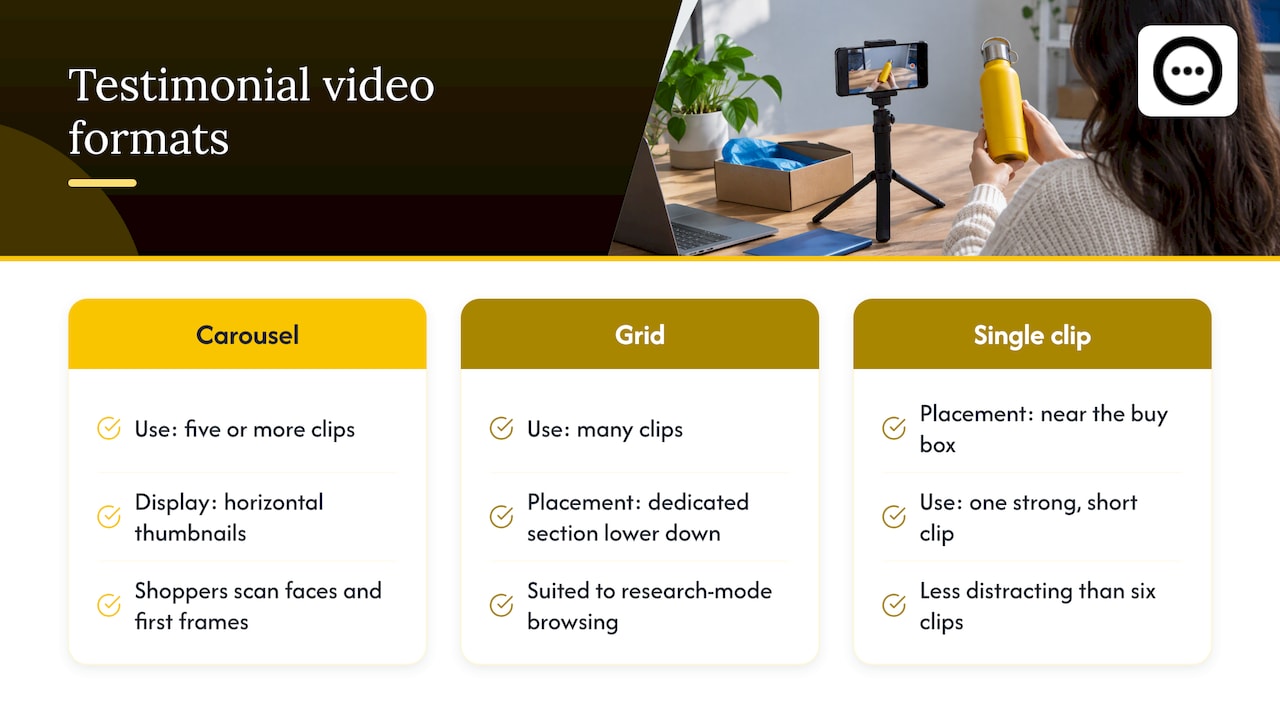
A horizontal carousel of vertical thumbnails works well when you have five or more clips. Shoppers scan faces and first frames, then tap the one that looks relevant. Keep thumbnails the same size so the row looks tidy.
A grid suits a dedicated section lower on the page, where shoppers are in research mode and happy to browse many clips.
A single featured clip works near the buy box. One strong, short clip is less distracting than a row of six.
A good starting combination for most stores: one featured clip near the price, and a carousel or grid in a reviews section further down. Test it on a handful of products before rolling it out across the catalog.
Framing: aspect ratio, length and sound-off design
Aspect ratio
Most customers record on phones, and most shoppers browse on phones. A vertical (9:16) or square (1:1) crop usually fits mobile layouts better than forcing widescreen footage into a narrow column, as this Shopify video walkthrough also advises. Pick one ratio for your layout and keep it consistent, so cards do not jump around when clips load.
Length
Short is the safe default. Shopify’s own testimonial guide cites a survey in which 64% of people said video ads should be at most one minute, and advises trimming long pauses and keeping the structure tight. For customer clips, 15 to 30 seconds is a sensible starting target, and you can adjust after watching your own engagement data. That figure is a starting point, not a measured law.
If you use Peers, the customer is the one who records, so you shape length through the invitation. A short prompt like “Tell us what you use it for and what you noticed” produces tighter clips than “Share your thoughts.”
Designing for sound off
You cannot assume the sound is on. Make each clip legible silently:
- Show captions for spoken words.
- Add a short text line under the thumbnail, such as the product variant and what the customer used it for.
- Use a clear first frame, because the thumbnail is the first impression.
Controls
Put a large play button, a visible pause control and an obvious sound toggle on every clip. Touch targets should be easy to hit with a thumb. Autoplay, if you use it, should be muted, and a shopper must be able to stop it.
Show the reviewer, not just the review
The question that matters most for credibility is how shoppers can assess both the product and the person speaking. A few rules help:
- Label the source clearly. Show first name and the product reviewed. Do not invent a location, job title or result.
- Keep the clip tied to a product. A clip about a different item confuses the shopper.
- Separate reviews from questions. Customer clips and shopper Q&A answer different needs. Reviews show the product in use, Q&A answers specific concerns like sizing or compatibility. Give each its own heading.
- Do not edit away honest detail. Moderate for relevance, safety and rights. Do not remove clips because they are mild or critical.
Purchase verification, permission and consent are three different things
These three get mixed up, so keep them apart in your layout and in your head:
- Purchase verification says whether the reviewer bought the product. In Peers, a customer-specific post-purchase invitation can link a review to an order. Public Q&A, replies and merchant recordings are not automatically verified purchases, so do not label them that way.
- Permission to publish is the customer’s agreement that you may show their video. Peers’ standard video permission covers its service and store community. It does not cover unrelated advertising or model training. Permission requirements depend on context, and a signed release is not a universal GDPR rule, so ask your counsel if you plan uses beyond the store.
- Browser tracking consent is about cookies and similar tracking on your site. It is a separate matter from the first two.
Only show a “verified purchase” label where the content actually came from an order-linked invitation. For more on privacy checks before clips go live, read these four checks for customer videos.
Accessibility: captions, pause and reduced motion
Captions are not optional polish. WCAG 2.2 Success Criterion 1.2.2 requires captions for prerecorded audio in synchronized media at Level A, which covers customer testimonial clips with speech. Beyond the standard, captions are what make a silent-scroll layout work.
A practical accessibility checklist for your layout:
- Captions on every clip with spoken audio.
- A visible pause or stop control on anything that moves.
- A static thumbnail as the default for shoppers whose browsers request reduced motion.
- Sufficient contrast for any text on top of video.
- Keyboard access to play, pause and close.
This is merchant implementation advice, and it depends on your theme. Check how your theme and any widget behave with a keyboard and a screen reader. Accessibility law is a matter for your own legal adviser, and we do not promise compliance from any layout.
Speed: keep clips from slowing the page
Video is heavy. A common remedy is the facade pattern: show a static thumbnail with a play button and load the player only on click. That article, summarizing Lighthouse guidance, describes cutting the initial load of an embed from over a megabyte to a few dozen kilobytes. Your numbers will differ by theme and device.
For your layout, that suggests a few habits:
- Show thumbnails first and avoid autoplaying many clips at once.
- Limit how many clips appear above the fold.
- Compress clips before any you upload yourself.
- Do not load players on collection pages for every card.
We will not tell you a widget has no performance impact, because no widget does. Preview playback on a real phone, then measure your page speed before and after you add clips, and adjust the number of visible clips if the page slows.
What the evidence says about conversion
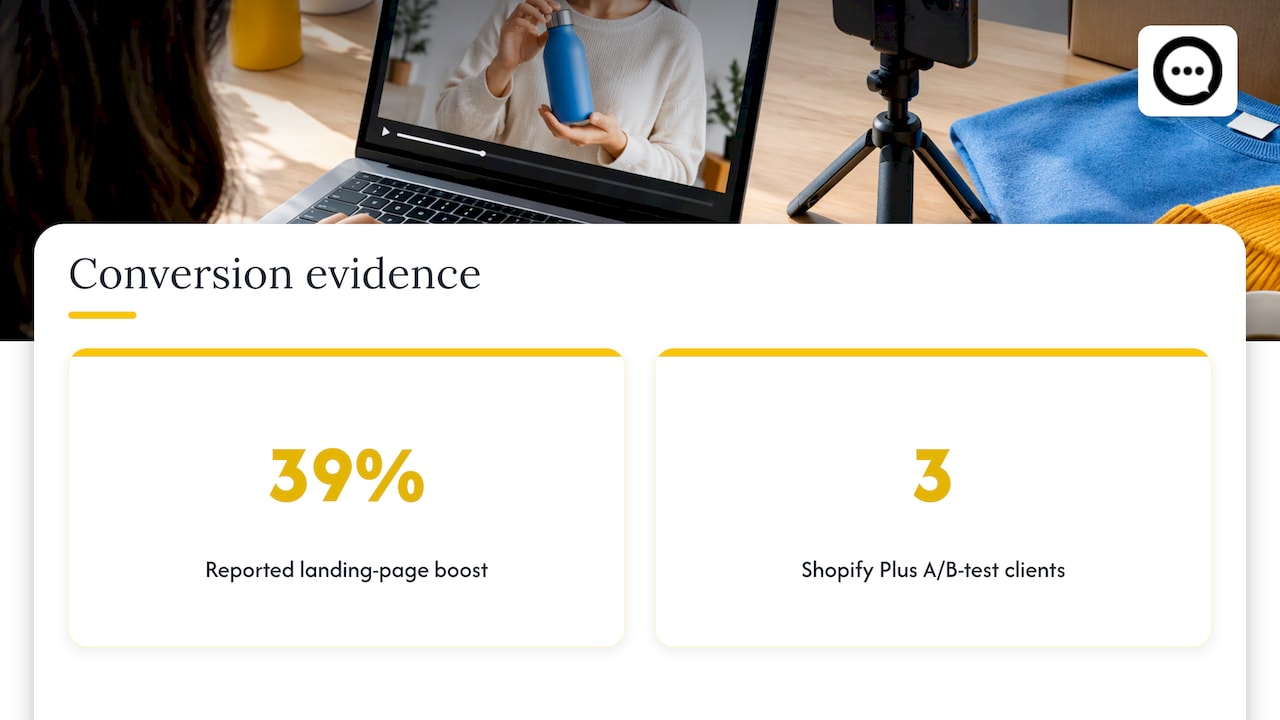
You will see big numbers online. One testimonial statistics roundup reports a 39% conversion boost for landing pages with video testimonials against written reviews, and another benchmark article reports that most mobile viewers watch with sound off. A trade site also describes A/B tests from three Shopify Plus clients where video-first pages beat image-carousel pages on add-to-cart rate.
Treat these as directional. They come from vendor and trade blogs, from small samples or compiled datasets, and from stores that are not yours. They do not show that any layout will raise your conversion rate, and we do not promise one. The reliable way to know is to test your own pages: change one placement, keep it live long enough to collect meaningful traffic, and compare.
If you want a closer look at how clips compare with written reviews, see our piece on video testimonials versus text reviews.
How to set up the layout with Peers
Peers is a Shopify-only app, and you manage it inside Shopify Admin. You never log in to a separate merchant site, and you do not paste a generic code snippet into your theme.
- Install Peers from the Peers listing on the Shopify App Store.
- Invite customers. Customer-specific post-purchase invitations are supported, and so is browser recording, so customers can record a clip without leaving the page. Request honest feedback using neutral eligibility criteria, such as “customers who received the product”, never a prediction that someone will be happy.
- Moderate. Review submitted videos and questions, then publish the ones you choose.
- Place the widget. Open the theme editor and add the Peers block to your product template. Shopify explains how theme app blocks and app embeds work in its help center. Use the app block where you want the section to sit, and the app embed for site-wide elements.
- Preview on mobile. Play a clip on a real phone before publishing the template.
- Measure. Compare page speed and engagement before and after.
Peers customer uploads have a 150 MB control limit. That is separate from Shopify’s own product-media limits, which apply to media you upload to the product gallery yourself. For file questions, see our guide to uploading clips and file formats, and for the whole process, publishing video reviews in ten minutes. If you prefer to avoid theme code, here is how to embed post-purchase video reviews with blocks instead.
A note on QR codes
A QR code on your packaging can be a good way to invite clips, but handle it carefully. A generic packaging QR needs a separate public landing page and a purchase-verification flow of your own. Never publish a private customer invitation link or a merchant recording-session link as a public QR code, because anyone could use it. Our guide to QR codes for verified video reviews explains the safer pattern.
Rewards and incentives
Peers lets you offer Rewards, including on the Free plan. If you use them, never make a reward depend on whether the review is positive or negative. Disclose the incentive wherever the content appears, and check the rules of any platform where you republish it. Nothing here guarantees compliance with FTC rules, so check the current guidance for your situation.
Our perspective on testimonial layouts
Most stores treat video reviews as decoration: a carousel added at the bottom of the page, an afterthought. We think the layout should do the work a good salesperson does at the shelf: show a real person using the product, near the moment the shopper is deciding.
That is why Peers is built around collecting clips after purchase, moderating them, and publishing selected ones through theme app blocks or the app embed, all inside Shopify. Merchants choose what goes live, and shoppers can also ask questions on the same page, so the product page becomes a conversation rather than a brochure.
Our advice is simple: start with one clip near the buy box, make it work with the sound off, preview it on a phone, and measure. Add more only when the page earns it. We do not promise sales or ranking results, because your products and your audience decide that. What we can do is make honest customer experience easy to collect and show.
Leo
Start with Peers on your product pages
Peers has two plans. The Free plan costs $0 per month and includes moderation, widgets and up to 10 published video reviews per product, with Rewards available too. Growth includes a 14-day trial and costs $6 per 30-day billing cycle for the first 12 cycles, then $15 per cycle. Growth removes the video-review limit and Peers branding. Check the current Peers listing on Shopify for live pricing before you subscribe.
If you are testing your first layout, the Free plan is enough to put a few clips near your buy box and see how shoppers respond. You can see both plans on the Peers site.
FAQ
Where should video testimonials go on a Shopify product page?
Start near the price and Add to Cart button, or directly below the product gallery. Put a longer collection of clips in a dedicated reviews section lower down. Test one placement at a time so you know which change made the difference.
How long should a testimonial video be?
A 15 to 30 second clip is a practical starting target for product pages. Shopify’s own guidance stresses keeping testimonial videos brief and well structured. Check your own engagement data and adjust.
Do testimonial videos need captions?
If a clip has spoken audio, yes. WCAG 2.2 Success Criterion 1.2.2 requires captions for prerecorded audio, and captions also let shoppers understand clips with the sound off. Ask your legal adviser about your specific obligations.
Will adding video slow down my store?
It can, so we never promise zero impact. Show thumbnails first, limit the clips visible at once and preview playback on mobile. Measure page speed before and after you publish.
Can I label every Peers video as a verified purchase?
No. Only reviews that come from a customer-specific post-purchase invitation can be linked to an order. Public Q&A, replies and merchant recordings are not automatically verified purchases.
Sources
- Understanding Success Criterion 1.2.2: Captions (Prerecorded), W3C
- Shopify Help Center: apps and theme customization
- How To Create Testimonial Videos, Shopify Blog
- Shopify Video Optimization: Faster Product Videos
- How to Add Video Testimonials to Shopify
- Landing Page Video Benchmarks 2026
- Shopify SEO academy