Video Review Thumbnails on Shopify: Choose, Set and Fix Them

A video review thumbnail is the still frame a shopper sees before pressing play, and on Shopify it comes from two different places. Product media (the videos you upload under a product) get a thumbnail you can replace in Shopify admin. Customer video reviews shown through an app are shaped mostly by how the clip was framed when it was recorded and how your theme displays it. This guide covers both, so you know which lever to pull.
TL;DR
- Shopify creates thumbnails for product videos automatically, and you can replace them under Products, Media, using the pencil icon next to the cover image.
- Customer reviews are different: the first frame mostly depends on the clip itself, so a clear, vertical-friendly recording matters more than editing afterward.
- Pick a frame with one subject (a face or the product), keep text minimal and preview on a real phone.
- Most broken-preview problems come from file limits, theme crops, caching or unsupported formats, and each has a quick check.
- Peers lets you moderate customer videos and questions, then publish them with theme app blocks or the app embed inside Shopify Admin.
Table of Contents
- What a review thumbnail is, and what it is not
- How to change a product video thumbnail in Shopify
- Where customer review thumbnails come from
- Choosing a good frame
- Specs that affect how thumbnails appear
- Check thumbnails on mobile before you publish
- Troubleshooting missing, stretched or broken previews
- Thumbnails, permission and trust
- Our perspective
- Start collecting clips worth publishing
- FAQ
- Sources
What a review thumbnail is, and what it is not
A thumbnail is a small, clickable image that previews content before someone opens it, as Shopify’s own guide describes it. On a product page, that image does a lot of work: it decides whether a shopper taps the clip at all.
It helps to separate three things that people often mix up:
- Product video thumbnails. These belong to videos you upload to a product’s media gallery. Shopify generates them and lets you swap them.
- Customer review thumbnails. These are the preview frames for shopper-recorded clips in a reviews widget. You are not designing these in a studio. You are choosing which clips to publish and how to display them.
- Structured data and search previews. Thumbnails in Google results are a separate subject from what shoppers see on the page. We cover that in our guide to nesting VideoObject server side.
The difference matters because a product demo and a customer testimonial do different jobs. Demos show what a product does, while testimonials carry a customer’s experience and emotion, a distinction commonly drawn in Shopify conversion guides. A good thumbnail for each looks different: a demo preview can show the product in use, while a testimonial preview works best when a real person’s face is visible and the frame feels honest rather than polished.
How to change a product video thumbnail in Shopify
When you add videos to a product, Shopify creates a thumbnail for them automatically, and you can replace it with an image you choose. Per the Shopify Help Center, the steps are:
- In Shopify admin, go to Products.
- Open the product you want to edit.
- Under Media, click the video.
- Click the pencil icon next to the cover image.
- Select the image you want to use.
- Close the media preview with the X.
That is the whole process, and it applies to videos in the product media gallery. It is the right tool for your own demo clips, unboxings and how-to videos.
Two practical tips:
- Export your replacement image at the same aspect ratio as the video. A mismatch is the most common reason a thumbnail looks cropped or stretched.
- Choose a frame that still reads at small sizes. If you shrink the image to the size of a gallery tile and the subject disappears, pick another frame.
Where customer review thumbnails come from
Customer reviews follow a different path. Shoppers record or upload a clip, you moderate it, and you publish selected ones. The preview a shopper sees is tied to that clip and to how your theme or widget renders it. So the biggest thumbnail decision is made earlier: how you invite customers to record, and which clips you select.
With Peers, you work inside Shopify Admin. You invite customers to share honest feedback, moderate submitted videos and questions, then publish chosen content through theme app blocks or the app embed. Peers invitations and browser recording are both supported, so customers can respond to a customer-specific invitation by recording in the browser. Customer uploads have a 150 MB control limit in Peers, which is separate from Shopify’s product-media limits.
That means you improve review thumbnails mostly through three habits:
- Ask for a simple, well-lit recording. A short prompt such as “hold the product up and tell us what you noticed” tends to produce a frame with a face and the item in view.
- Curate when you moderate. Publish the clips whose opening frame is clear, and leave the dark, blurry or off-center ones in the queue.
- Place the widget where shoppers see it. A perfect thumbnail is wasted if it sits far down the page. Our note on not hiding clips below the fold covers placement.
Choosing a good frame
The same rules apply whether you are picking a cover image for your own video or deciding which customer clip deserves a prime slot.
One subject, clean background
Busy frames look cluttered once shrunk. A single face or the product against a plain background reads instantly. Skip frames caught mid-blink or mid-motion.
Keep text short or skip it
Captions burned into a thumbnail get tiny on phones. If you add words at all, keep them to two or three, in a bold, high-contrast style. For customer testimonials, we usually leave text out entirely: it can make a real review feel like an ad.
Match the frame to the layout
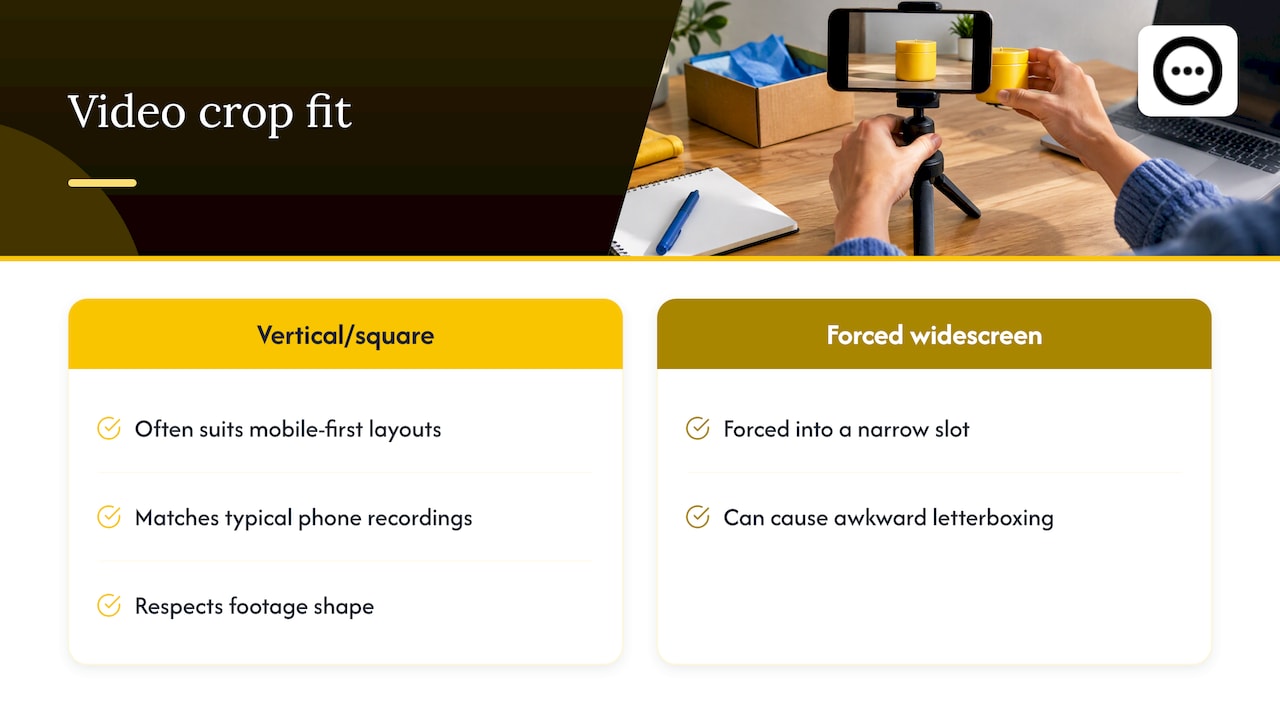
Vertical or square crops often suit mobile-first layouts better than forcing widescreen footage into a narrow slot, as video testimonial guides for Shopify note. Customers recording on phones usually shoot vertical, so a layout that respects that shape avoids awkward letterboxing. If your clips arrive with dead space at the top and bottom, our walkthrough of three crops for better video thumbnails shows how to handle it.
Reflect what the video really contains
A thumbnail that promises something the clip does not deliver trains shoppers to ignore your videos. Use a frame from the actual review. Do not stage a face you did not record.
Specs that affect how thumbnails appear
Shopify’s published limits for uploaded product videos are the baseline for the media gallery. According to the Shopify Help Center on product media types, uploaded videos can be up to 10 minutes long, up to 1 GB, and up to 4K resolution, in .mp4, .mov or .webm format. The same page notes that Shopify converts and serves all videos as .mp4 or HLS for compatibility.
| Item | What to know | Where it applies |
|---|---|---|
| Product video file | Up to 10 minutes, 1 GB, 4K; .mp4, .mov or .webm | Shopify product media |
| Product video thumbnail | Created automatically; replace via the pencil icon under Media | Shopify product media |
| Customer upload in Peers | 150 MB control limit, separate from Shopify product-media limits | Peers customer submissions |
| Aspect ratio | Match your replacement image to the video; consider vertical or square for mobile layouts | Your theme and widget layout |
We deliberately keep the Peers limit in its own row. A 150 MB customer clip is a different thing from a 1 GB product video, and mixing them up causes confusing support tickets. For a deeper look at formats, see our post on uploading clips under 1 GB.
Check thumbnails on mobile before you publish
Most of your shoppers will see the thumbnail on a phone, so judge it there.
- Open the product page on a real phone. Not just a browser window resized on your laptop.
- Look at the tile at actual size. Can you tell who or what is in the frame in one second?
- Tap through. Does the video play, and does it fill the screen sensibly in portrait?
- Scroll quickly. If the thumbnails look like an indistinct strip of colors, the framing needs work.
- Test on both a fast and a slow connection. A thumbnail that arrives late makes the section look empty.
We cannot promise that adding video has zero effect on page speed, and no honest vendor can. Preview mobile playback and measure performance yourself before and after you publish, using the tools you already trust for your store. Pages with many large videos stacked high up are the usual culprit, so show a few strong clips rather than a wall of them.
If your theme needs layout changes to get a clean mobile result, a team that does conversion-focused Shopify development can help adapt the layout around your video section.
Troubleshooting missing, stretched or broken previews
Work from the simplest cause to the hardest.
The thumbnail is missing
- Processing is not finished. Large uploads can take a while before a preview appears. Wait, refresh, and check again.
- The file is outside the limits. Check the length, size and format against the Shopify specs above. For Peers customer uploads, also check the 150 MB control limit.
- The widget is not placed. In Shopify Admin, open your theme editor and confirm the Peers theme app block is added to the product template, or that the app embed is switched on.
The thumbnail looks stretched or cropped
- Aspect ratio mismatch. A widescreen cover on a square or vertical slot gets cut. Replace product video covers with an image that matches the video, or change the layout.
- Theme crops previews. Some themes crop media tiles so mixed images and videos look uniform. Look for a media-ratio setting in the theme editor.
The wrong image still shows after you changed it
- Refresh the product page and clear your browser cache. If an app or integration stores the file address, Shopify advises requesting the current address each time rather than storing it.
- Remember that the pencil-icon replacement only changes product media. It does not change how a customer review clip is previewed in a reviews widget.
The video will not play
- Re-export as .mp4 and upload again if a format causes trouble.
- Test in a second browser and on a second device to separate a device issue from a store issue.
- Preview with your theme’s default settings to rule out a conflicting customization.
Thumbnails, permission and trust
A clear thumbnail draws attention to a real person’s face, which makes three separate questions worth keeping apart:
- Purchase verification. Customer-specific post-purchase invitations from Peers can link a review to an order. Public Q&A, replies and merchant recordings are not automatically verified purchases, so do not label them as such.
- Permission to publish. Peers’ standard video permission covers its service and store community, not unrelated advertising or model training. Permission requirements depend on context, and a signed release is not a universal GDPR rule. Check what applies to your use.
- Browser tracking consent. This is a separate matter again, handled by your store’s own consent setup.
If you offer rewards, request honest feedback using neutral eligibility criteria, never predicted satisfaction, and never tie a reward to positive or negative sentiment. Disclose incentives and check the rules of any platform where you republish. We cannot promise legal compliance, and you should ask a qualified adviser about your situation. Our video privacy checklist walks through four checks before clips go live.
One more point: a generic QR code on packaging needs a separate public landing page and its own purchase-verification flow. Never share a private customer invitation link or a merchant recording-session link as a public QR code. The 3-step guide from QR code to product page explains the setup.
Our perspective
We see merchants spend hours on cover images and almost none on the question that decides everything: what did the customer actually record?
A real review thumbnail is rarely pretty. It is a person, a product and a moment of honest opinion. That is exactly why it works. Shoppers can tell the difference between a staged frame and a real one, and Peers is built around the real one.
So our advice is to collect well, moderate with care and publish the clips whose first frame is clear. Peers gives you moderation tools, widgets you place with theme app blocks or the app embed, and invitations that can link a review to an order. We make no promise of rankings or sales, but we do believe shoppers judge products better when they hear from other customers.
Start with a small set of strong clips near the top of the product page, check them on your phone, and grow from there.
Leo
Start collecting clips worth publishing
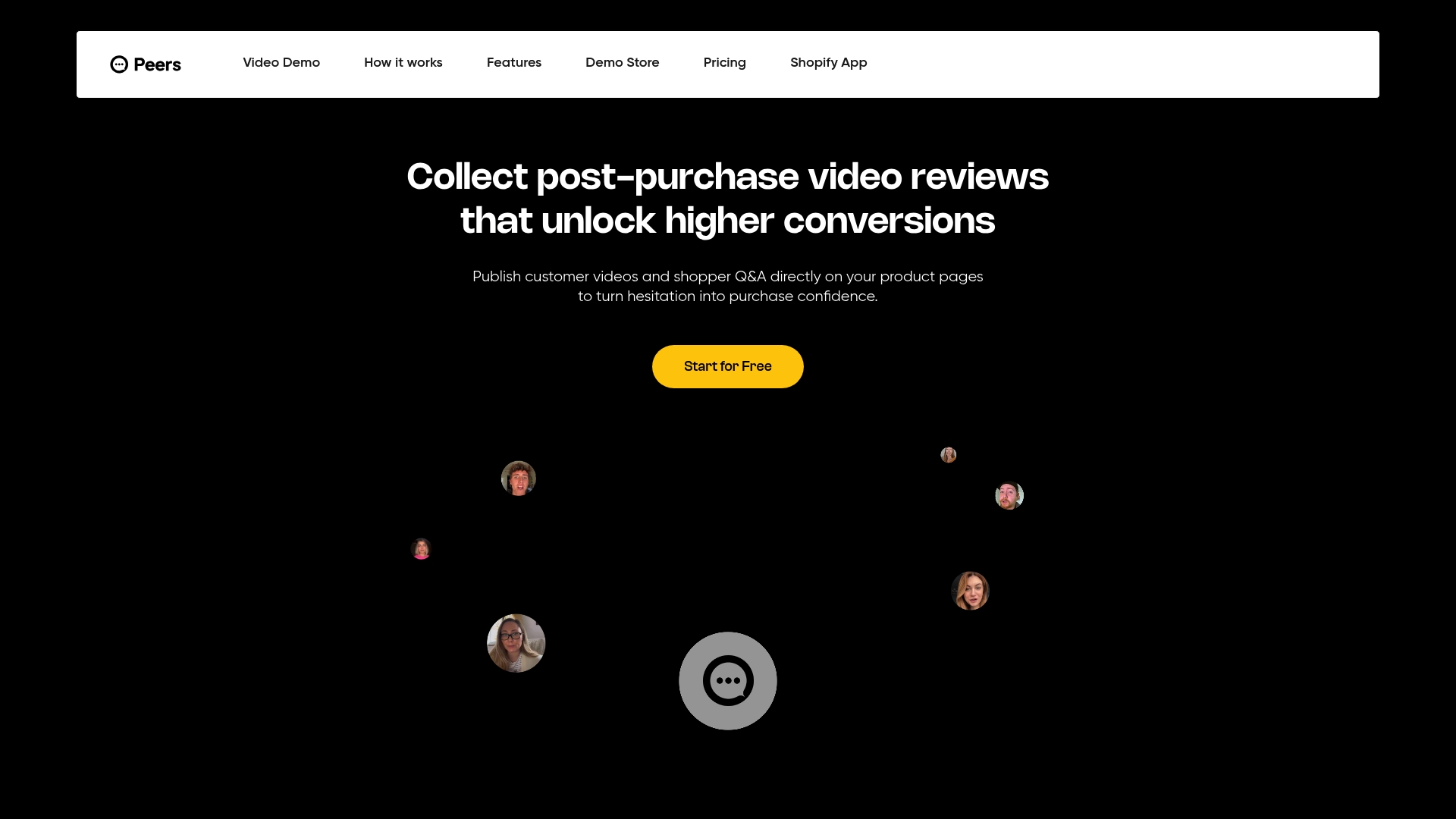
Peers is a Shopify app for customer video reviews and shopper Q&A on product pages. You manage it inside Shopify Admin and publish through theme app blocks or the app embed.
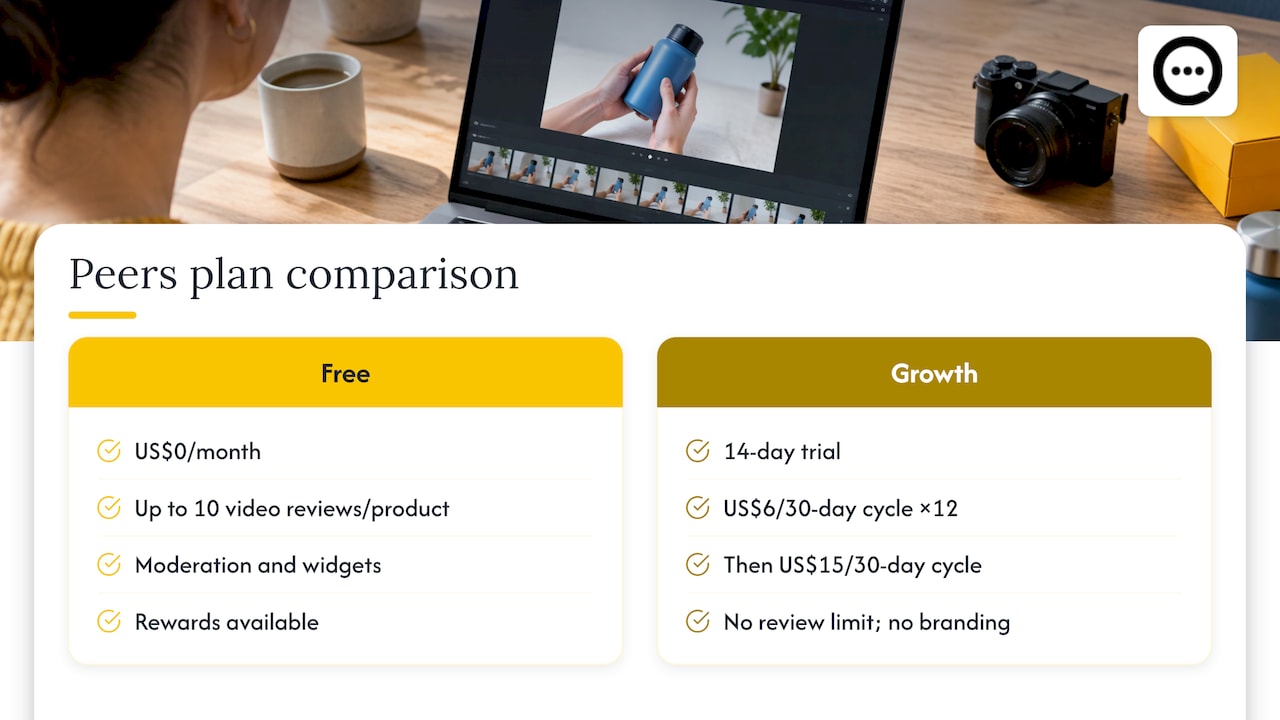
The Free plan costs US$0 per month and includes moderation, widgets and up to 10 published video reviews per product. Rewards are available on Free too. Growth has a 14-day trial and costs US$6 per 30-day billing cycle for the first 12 cycles, then US$15 per cycle. Growth removes the video-review limit and branding. See Peers on the Shopify App Store for the current listing and pricing.
For a fuller process, read our practical guide to post-purchase video reviews, or see how video testimonials compare with text reviews.
FAQ
Does Shopify create video thumbnails automatically?
Yes. When you add videos to a product, Shopify generates a thumbnail, and you can replace it with an image of your choice. Open the product, click the video under Media, then use the pencil icon next to the cover image.
Can I change the thumbnail of a customer video review the same way?
No. The pencil-icon method works on product media in the gallery. A customer review clip is previewed in the reviews widget and shaped mostly by how it was recorded. You control it by inviting clear recordings and choosing which clips to publish.
What aspect ratio should my thumbnails use?
Match the thumbnail to the video, and choose vertical or square layouts when most of your shoppers browse on phones. Then preview on a real device. If your theme crops media tiles, adjust its media-ratio setting.
Do video thumbnails slow down my store?
They can add weight, and no one can promise zero performance impact. Preview mobile playback and measure your page speed before and after publishing. Showing a handful of strong clips is lighter than a long wall of videos.
Is a Peers review always a verified purchase?
No. Reviews collected through a customer-specific post-purchase invitation can be linked to an order. Public questions, replies and merchant recordings are not automatically verified purchases.
Sources
- Shopify Help Center: Replacing thumbnails for media
- Shopify Help Center: Product media types
- Shopify Help Center: Adding product media
- Shopify Blog: What Is a Thumbnail?
- Video Implementation Guide: Using Product Demos and Testimonials
- How to Add Video Testimonials to Shopify
- Peers on the Shopify App Store