Thank You Page Reviews on Shopify: What to Put There

A Shopify thank you page is the right place to confirm the order and set expectations. It is the wrong moment to ask for a finished review, because the customer has not received the product yet. The setup that works has three parts: a short, optional prompt or promise on the thank you page, a review invitation tied to the order after delivery, and the resulting reviews shown on your product pages where shoppers are deciding. Peers handles the last two for video reviews and shopper questions inside Shopify, and this guide shows how the pieces fit together.
TL;DR
- The thank you page is the first confirmation after checkout. Shopify lists survey requests among its extension uses, so a light prompt belongs there, but a real product review does not.
- Ask for the review itself after delivery, once the customer has formed an opinion. Shopify’s own blog suggests a week or two after delivery.
- Reviews that come from a customer-specific, post-purchase invitation can be linked to an order. Public questions and replies are not automatically verified purchases.
- Disclose incentives, publish genuine reviews fairly, and keep purchase verification, permission to publish and tracking consent as three separate things.
- Peers has a Free plan (moderation, widgets, up to 10 published video reviews per product) and a Growth plan with a 14-day trial.
Table of Contents
- What the thank you page is actually for
- Why the review ask belongs after delivery
- How a block gets onto the Thank you page
- Where the reviews themselves should live
- What to say in the request
- Keeping reviews honest and permitted
- Peers on your store
- Our view
- FAQ
- Sources
What the thank you page is actually for
Shopify defines the Thank you page as the initial purchase confirmation shown after checkout. Its developer documentation lists survey requests among the things apps can add there, and it describes a second page, the Order status page, which customers revisit when they come back to check their purchase. Product-review feedback forms are one of the examples Shopify gives for that second page.
That split matters for reviews. On the Thank you page the customer has just paid. They are thinking about the order, the delivery date and whether the payment went through. They have no product experience to report. Anything you ask for there should be about the purchase itself: how they found you, whether they want updates, or whether they would be willing to share a video once the product arrives.
On the Order status page the customer returns later, sometimes with the package in hand. That is a more natural place for a review prompt, and Shopify’s own tutorial uses exactly this layout: one extension with an attribution survey on the Thank you page and a product-review survey on the Order status page.

Shopify’s post-checkout guidelines also say to show only one survey per session and to give merchants control over the survey content. Treat that as a design rule for your own page: one ask, clearly worded, and nothing that competes with the order confirmation.
Why the review ask belongs after delivery
A review written before the product arrives is a guess. A request that arrives too early also looks careless: the customer has nothing to say, so they ignore it, and the next request gets ignored too.
Shopify’s blog on post-purchase experience frames communication as two steps. First comes transactional reassurance: the confirmation, shipping updates with tracking and the delivery notice. Relationship-building follow-ups such as review requests come after that, and the guide suggests sending the review request a week or two after delivery. It also advises keeping the thank you page asks light so the page is not overwhelming.
For most stores the practical sequence looks like this:
- At checkout completion: confirm the order, show the real delivery estimate and, if you want, mention that you will invite feedback once the product has arrived.
- At delivery: send the order-linked invitation, or schedule it from the delivery date rather than the order date.
- After the first invitation: one reminder is usually enough. If you want a deeper look at spacing, our guide to review request timing on Shopify covers when to ask and remind, and the same logic of timing review requests after delivery applies whichever channel you use.
Slow-shipping products need the longest gap. A skincare item and a piece of furniture do not reach the same point of “I know what I think” in the same number of days. Set the delay per product type where you can.
How a block gets onto the Thank you page
This part is merchant implementation advice about Shopify itself, not a Peers feature. Shopify customizes the Thank you and Order status pages with checkout UI extensions. An app defines targets such as purchase.thank-you.block.render in its extension configuration. As the merchant, you then place the app’s block in Shopify’s checkout editor, which you open from your Shopify admin under Settings, Checkout, Customize.
Two details are worth knowing before you plan the page:
- The order is not created yet on the Thank you page. Shopify’s documentation says the order ID is available through the order confirmation API, while on the Order status page the order is always available. Anything that needs the full order record is better placed on the Order status page.
- Per-item prompts exist. The order summary area supports per-item review prompts that invite buyers to review individual products, using the purchase.thank-you.cart-line-item.render-after target. For a multi-item order, that keeps the ask specific to each product.
Shopify also introduced announcement bar extensions for the Thank you page and customer account pages in August 2025, a more prominent format Shopify says suits tasks such as surveys and reviews. Use it sparingly. A banner that shouts for a review on the confirmation page works against the calm, reassuring tone that page needs.
Whichever app you use, test with a real order flow and preview on a phone. Checkout previews do not always show every block the way a customer sees it.
Where the reviews themselves should live
The thank you page collects intent. The product page collects the payoff. Shoppers deciding whether to buy want to see other customers using the product, so the reviews you gather belong next to the buy button, not on a confirmation page that only existing customers see.
That is the job Peers is built for. Peers is a Shopify app for collecting customer video reviews and answering shopper questions on product pages. You manage it inside Shopify, invite customers to share honest feedback, moderate submitted videos and questions, and publish selected content through theme app blocks or the app embed. Setup happens in your Shopify admin with theme app blocks or app embeds, so there is no separate merchant login to maintain and no code snippet to paste.
A few specifics that help you plan:
- Invitations and browser recording are supported. Customers can respond to a Peers invitation and record in the browser.
- Order matching. Customer-specific post-purchase invitations can link a review to an order. Public Q&A, replies and merchant recordings are not automatically verified purchases, so label and moderate them with that in mind.
- Upload size. Peers customer uploads have a 150 MB control limit. That is separate from Shopify’s own product-media limits.
- Mobile. Preview playback on a phone before publishing, and measure your page performance after adding any video widget. We do not promise zero performance impact, and no honest vendor can.
For the mechanics of video collection, see our walkthrough of post-purchase video reviews on Shopify and how to embed them without theme code edits.
A note on QR codes
A QR code on the packaging is a popular way to bridge the box and the review. A generic packaging QR needs a separate public landing page and its own purchase-verification flow, because a code printed on every box cannot tell who scanned it. Never print a private customer invitation link, or a merchant recording-session link, as a public QR. Anyone could scan it and submit under someone else’s order. Our guide on moving from QR code to product page shows the steps.
What to say in the request
Keep the ask short and specific. A good thank-you-page line is a promise, not a demand: “Once your order arrives, we’ll send you a quick invitation to share how it works for you. Video is welcome, text is fine too.” The invitation itself can then be sent at the right time.
For the invitation, choose who receives it by neutral criteria, such as “delivered orders of this product”, rather than by who you think will be happy. Inviting only the customers you expect to be satisfied skews the picture and is the kind of selective practice the FTC warns about. If you offer a reward, it must not depend on whether the review is positive or negative. Peers Rewards are available on the Free plan too, so you can set that up without paying first.
If you want wording to start from, our email review request templates and video review scripts give you ready phrasing, and the post-purchase Q&A prompts cover what to ask shoppers who have questions rather than reviews.
Keeping reviews honest and permitted
Three different questions get mixed up in review programs. Keep them apart.
| Question | What it answers | Example |
|---|---|---|
| Purchase verification | Did this reviewer buy the product? | A review submitted from an order-linked invitation |
| Permission to publish | May you show this person’s video or words? | The customer agreed when submitting |
| Browser tracking consent | May analytics or marketing scripts run for this visitor? | A cookie banner choice |
A verified purchase does not give you permission to use the video in an ad. Peers’ standard video permission covers its service and store community, not unrelated advertising or model training. If you want to reuse a video elsewhere, ask for that separately. Permission requirements also depend on context, and a signed release is not a universal GDPR rule, so check your own situation with a lawyer if you use customer video in regulated markets.
On disclosure, the FTC’s guide for featuring online customer reviews (January 2022) advises publishing genuine reviews without excluding negative ones, not displaying reviews in a misleading way, clearly disclosing any material connection between reviewer and company, and explaining how reviews are collected and displayed. If you give an incentive, say so next to the review and check the rules of any platform where the content will appear. None of this guarantees legal compliance, but it is the baseline. Our piece on four post-purchase checks to verify Shopify reviews turns it into a routine.
Peers on your store
Peers has two plans. Free costs $0 per month and includes moderation, widgets and up to 10 published video reviews per product, with Rewards available. Peers Growth starts with a 14-day trial and costs $6 per 30-day billing cycle for the first 12 cycles, then $15 per cycle. Growth removes the video-review limit and the Peers branding.
You install it from the Peers listing in the Shopify App Store, then add the widgets to your product pages with theme app blocks or the app embed. Check the listing for the current plan details before you choose.
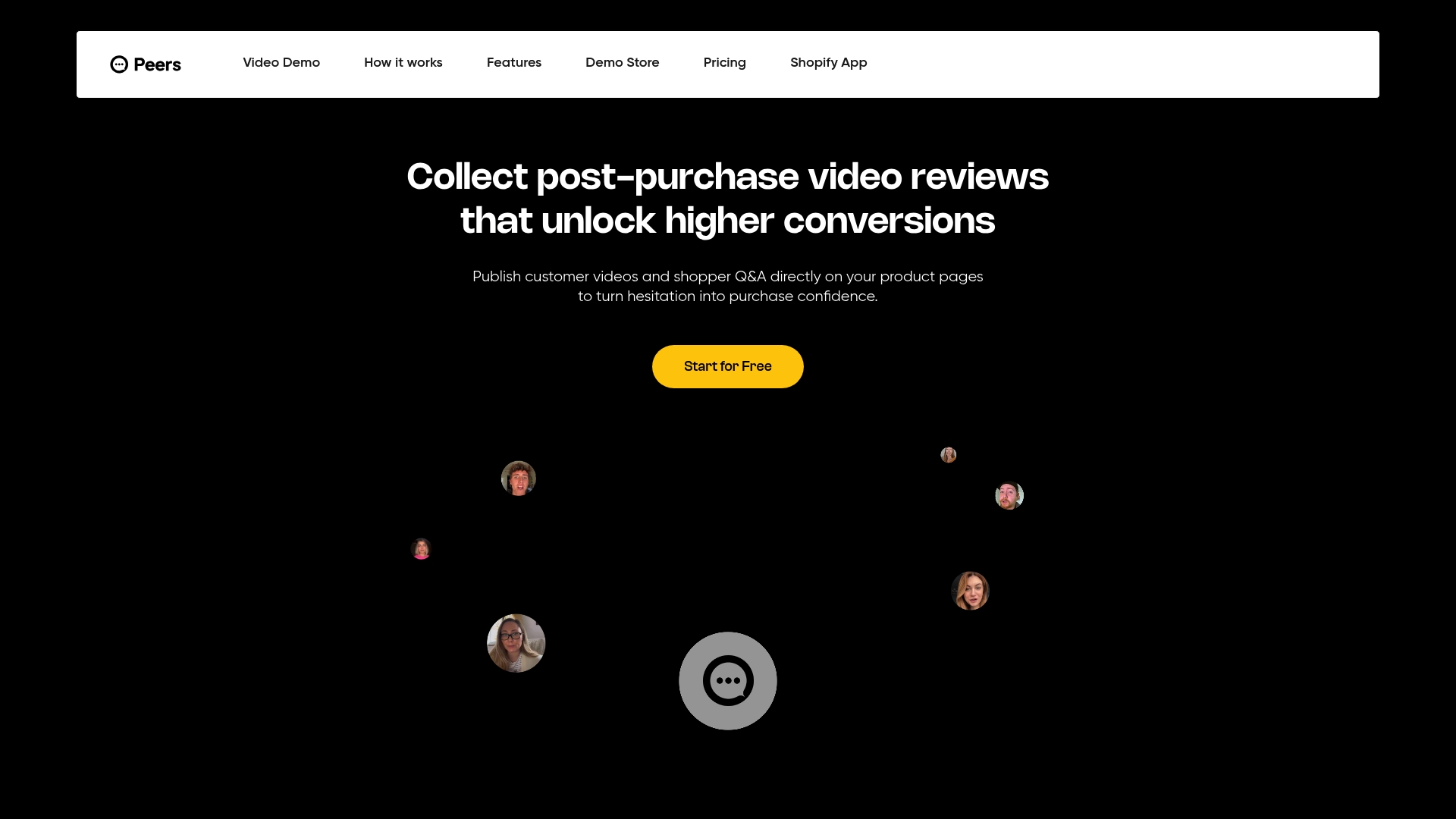
If you want to see how video reviews and shopper questions look on a product page first, the Peers demo store shows them in a storefront.
Our view
We think merchants ask too much of the thank you page. It is a confirmation, and the best thing it can do is make the customer feel the purchase was a good decision.
The real review comes later, when the product has been used. That is when a customer can say something a future shopper will believe, and a short video says it faster than a paragraph. So we built Peers around the invitation that follows the order, the moderation you control and the product page where the content does its work.
Start with a Free plan, ask by neutral rules, disclose incentives and preview on mobile. Honest reviews, shown fairly, are what build trust with shoppers. We make no promises about rankings or conversion, because those depend on your products and your store.
Leo
FAQ
Can I collect product reviews directly on the Shopify thank you page?
You can place a review or survey block there using a checkout extension app, and Shopify lists review-feedback forms as an example for the Order status page. But the customer has not received the product yet, so a real review is better requested after delivery. Use the thank you page to set expectations for that invitation.
Do I need Shopify Plus to add blocks to the thank you page?
Shopify’s documentation describes placing app blocks on the Thank you page through the checkout editor, and does not limit that to Plus. Plan eligibility can change, so confirm in your own checkout editor and in Shopify’s current documentation before building your flow.
How do I make sure a review is from a real buyer?
Use a customer-specific invitation sent after the purchase, which can link the review to an order in Peers. Public questions, replies and merchant recordings are not automatically verified purchases, so do not label them as such.
How should I thank customers who leave a review?
Send a brief, sincere message that does not mention the rating, and respond publicly where it helps other shoppers. If you reward participation, apply the reward to every eligible review whatever it says, and disclose it.
Sources
- About Thank you and Order status page customization, Shopify
- Add a survey to Thank you and Order status pages, Shopify
- Order summary targets, Shopify checkout UI extensions
- Announcement bar extensions for after checkout, Shopify changelog
- Post-Purchase Experience and How to Turn Buyers Into Fans, Shopify blog
- Featuring Online Customer Reviews: A Guide for Platforms, FTC