How Customers Can Record Video Reviews on a Smartphone

Most of your customers already own a phone that can shoot a usable review. What stops them is not the camera. It is not knowing what to film, where to stand, and how to get the clip to you. If you run a Shopify store, the best results come from giving customers a short, plain set of instructions and a submission path that needs no file hunting. Peers supports customer invitations and browser recording, so a customer can respond from the message you send after purchase.
This guide is written for store owners and e-commerce managers. It covers what to tell customers about phone settings, light, sound and content, how the clip reaches your store, and what to keep separate on the legal side.
TL;DR
- A review clip needs steady hands, soft light near a window, a clean lens and a voice that is close to the microphone. Phone model matters far less.
- Lock exposure and focus, avoid digital zoom, silence notifications, and record a short test clip before the full take.
- Ask for honest feedback in a neutral way. Never tie a reward to positive or negative sentiment, and disclose any incentive.
- Send customers an invitation link instead of asking them to email files. Peers invitations and browser recording are supported, and customer uploads have a 150 MB control limit.
- Keep three things separate: purchase verification, permission to publish, and browser tracking consent.
Table of Contents
- What actually makes a phone review watchable
- The settings to pass on to customers
- A one-minute test clip saves a bad take
- What customers should say without sounding scripted
- How the clip gets from the customer’s phone to your store
- Three things to keep separate
- Asking fairly and handling rewards
- Our perspective
- Plans and what they include
- FAQ
- Sources
What actually makes a phone review watchable
Shoppers watching a review do not expect studio footage. They want to see the product in a real hand, hear a real voice and understand what the customer thought. Three things decide whether a clip is watchable: stability, light and sound.
Stability. Shaky footage reads as careless. Phone makers fight shake with two methods. As Trusted Reviews explains, optical stabilization physically moves the lens to compensate for shake, while electronic stabilization crops the image in software and can leave jitters. Your customers cannot choose their phone, so the practical lesson is to help them hold it still: two hands, elbows tucked in, or the phone propped against a stack of books or a shelf edge.
Light. Soft, even light beats a better camera. YouTube’s mobile filming guide recommends soft, even lighting, shade on sunny days and placing the phone near a window at home. The customer should face the window, not stand in front of it, or their face turns into a silhouette.

Sound. The same guide advises keeping the speaker close to the microphone, using an external mic in noisy places and not covering the phone’s mic with a finger. Photography Icon adds that halving the distance between mic and speaker makes the voice clearly louder against unchanged room noise. A clip-on lavalier mic is the biggest single upgrade, but you cannot ask every customer to buy one. A quiet room and a short distance do most of the job.
The settings to pass on to customers
Do not send a photography lesson. Send five lines. Here is what each line should say and why.
Resolution and frame rate
Photography Icon advises recording at 1080p or 4K and 24 to 30 frames per second. Most phones default to something close to this, so the instruction for customers is simply to leave the camera on its standard video setting. Higher settings produce bigger files, which matters when a clip has to travel to your store. Peers customer uploads have a 150 MB control limit, separate from Shopify’s own product-media limits, so a short clip at standard quality is the safer choice than a long 4K take.
Rear camera, clean lens, no digital zoom
YouTube’s guide recommends the rear camera for higher resolution. Customers can wipe the lens with a clothing hem before they start, since a smudge makes the whole clip look hazy. Finger zoom degrades the image, so the instruction is to move the phone closer to the product instead.
Lock exposure and focus
A phone that keeps adjusting brightness or hunting for focus makes a clip hard to watch. YouTube’s guide advises locking both exposure and focus so brightness and sharpness do not shift mid-shoot. On most phones this means tapping and holding on the product until a lock label appears. The exact wording varies by phone, so tell customers to tap and hold on the product rather than naming a menu.
Silence the phone
One notification banner or buzz can ruin a clean take. YouTube’s guide advises turning off notifications. A line such as “switch on Do Not Disturb before you record” is enough.
Orientation
YouTube’s guide says to hold the phone horizontally for 16:9 video. Store pages are a different case, because many shoppers browse on phones in portrait. Rather than telling customers one rule is right, preview how clips look in your own theme on a phone and decide which orientation to suggest. That is merchant implementation advice, not a Peers setting, so test it on your own store.
A one-minute test clip saves a bad take
The single habit worth teaching is the test clip. Ask customers to record five seconds, play it back and listen. Photowant’s guide and several creator guides recommend the same step, because it exposes the three common faults at once: a muffled voice, a blown-out window behind the speaker and a finger over the microphone.
A checklist you can paste into an invitation message:
- Face a window, with the light on your face.
- Clean the lens and switch on Do Not Disturb.
- Hold the phone with two hands, or lean it on something steady.
- Tap and hold on the product to lock focus and brightness.
- Record a five second test, play it back, then record the real clip.
This fits on a single screen and does not require any app besides the camera.
What customers should say without sounding scripted
The usable review is specific. Give customers prompts, not a script. Three prompts work for almost any product:
- What were you hoping this would do, and did it?
- Show the part you use most, in your hand.
- Who would you suggest it to, and who might want something different?
The last question matters because honest reviews help shoppers decide. A useful clip separates what the brand promised from what the customer actually experienced. If the customer received the product free or was rewarded in any way, they should say so in the clip.
Keep clips short. Fifteen to thirty seconds is enough to show the product and give an opinion, and short clips are also easier to upload. For more prompt ideas, our list of video review CTA ideas for Shopify gives wording you can adapt, and the video testimonial questions guide covers question design for marketers.
How the clip gets from the customer’s phone to your store
This is the step most guides skip, and it is where many programs lose customers. If your instructions say “record a video and email it to us”, the customer has to find the file, check its size and write to you. Many will not.
With Peers, the merchant works inside Shopify Admin. You send a customer-specific invitation after purchase, and the customer responds from that link. Peers invitations and browser recording are supported, so the customer can record from the phone they already hold. Uploads from the customer have a 150 MB control limit. Submitted videos and questions come to you for moderation, and you choose what to publish through theme app blocks or the app embed. There is no separate merchant login to manage and no code snippet to paste.
The practical consequences for your store:
- Link the invitation to the order. Invitation-linked reviews can be matched to a purchase. That is the route to verified-purchase content.
- Moderate before publishing. You review each submitted video before it appears on a product page.
- Preview on mobile. Check playback on a real phone, then measure your page’s performance. Video on a product page adds weight, and no store should assume zero performance impact.
For a fuller walk-through of the post-purchase flow, see our practical guide to post-purchase video reviews on Shopify and the three-step guide from QR code to product page.
A note on QR codes on packaging
A QR code on a box seems like a shortcut, but a generic packaging QR needs two things behind it: a separate public landing page and a purchase-verification flow. Never print a private customer invitation link, or a merchant recording-session link, as a public QR. Anyone could scan it, and the link would no longer belong to one buyer. Our guide to verified video reviews with QR codes explains the setup.
Three things to keep separate
Stores often blur these three, and mixing them causes problems later.
- Purchase verification. This tells shoppers the reviewer bought the item. Customer-specific post-purchase invitations can link a review to an order. Public Q&A, replies and merchant recordings are not automatically verified purchases, and you should not label them that way.
- Permission to publish. This is the customer agreeing that you may show their video. Peers’ standard video permission covers its service and store community, not unrelated advertising or model training. If you want to reuse a clip in paid social ads, handle that permission separately. What permission is needed depends on context, and a signed release is not a universal GDPR rule, so ask your own legal adviser for your situation. Our partner-linked reading on user-generated content and brand trust shows why reuse beyond the product page is a common temptation.
- Browser tracking consent. Cookies and analytics on your storefront are governed by their own consent rules. Collecting a video does not answer them, and answering them does not give you publishing permission.
Asking fairly and handling rewards
Choose who to invite by neutral criteria, such as everyone whose order was delivered and who passed a set number of days. Never choose by predicted satisfaction, because inviting only likely fans skews the picture and undermines the point of honest feedback.
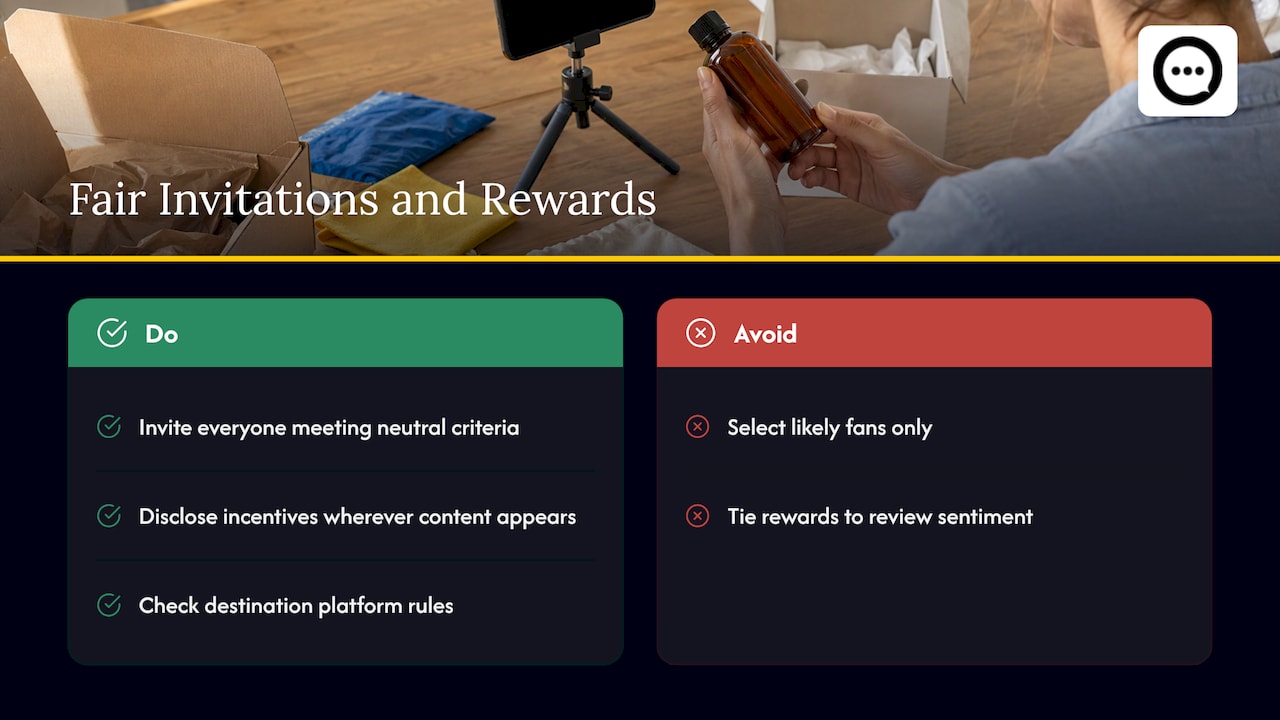
Rewards are available on the Free plan too. If you offer one, do not condition it on positive or negative sentiment. Disclose the incentive wherever the content appears, and check the rules of any destination platform before you republish a clip there. Nothing here guarantees legal compliance on its own, so treat it as a checklist for your own review with an adviser.
Our perspective
Customers do not fail to leave video reviews because they are shy. They fail because the path is long: find the file, check the size, find an address, send it. Every step loses people.
We built Peers around the shorter path. The merchant sends a post-purchase invitation from Shopify, the customer answers from the link, you moderate, and you publish selected content on the product page. Shoppers get to see real people using the product, and you decide what goes live.
Our advice is to put the effort into the invitation. Five lines of filming tips, three questions and a clear note on how the video will be used do more than any equipment advice. We do not promise sales or SEO results. We promise a simpler way to collect honest customer video and answers to shopper questions.
Leo
Plans and what they include
Peers has two plans, both listed on the Peers Shopify App Store page.
| Free | Growth | |
|---|---|---|
| Price | US$0 per month | 14-day trial, then US$6 per 30-day billing cycle for the first 12 cycles, then US$15 per cycle |
| Moderation and widgets | Included | Included |
| Published video reviews | Up to 10 per product | No video-review limit |
| Peers branding | Shown | Removed |
| Rewards | Available | Available |
Free is enough to collect your first customer clips and see how they look on a product page. Growth removes the 10-video limit and the branding once your best sellers have more reviews than the limit allows. You can start on Free from the Peers listing on the Shopify App Store, and if you are an early merchant, the Founding Stores page shows the published founding offer.
If you already have a customer-recording flow in mind, our guide to embedding post-purchase video reviews without theme code shows how published clips reach the page, and the thumbnails guide covers choosing and fixing the preview image shoppers see first.
FAQ
Do customers need a new phone to record a good review?
No. Shake, harsh light and poor sound ruin clips far more often than an older camera does. A steady grip, a window and a short distance from the microphone matter more than the phone model. A test clip before the real take catches most problems.
How long should a customer review video be?
Fifteen to thirty seconds is a good target. That is enough to show the product and say what worked and what did not, and a short file is easier to submit within the 150 MB control limit on Peers customer uploads.
Is a review recorded on a phone automatically a verified purchase?
No. A review is linked to a purchase when it comes through a customer-specific post-purchase invitation. Public Q&A, replies and merchant recordings are not automatically verified purchases, so label them accordingly.
Can I give a reward for a video review?
Yes, and Rewards are available on the Free plan too. Offer the same reward whatever the customer says, disclose the incentive, and check the rules of any platform where you republish the clip.
Sources
- Tips to film with mobile, YouTube Help
- How to choose the perfect smartphone for Zoom and video, Trusted Reviews
- Smartphone Videography: How to Shoot Better Video on a Phone, Photography Icon