Multi-Storefront Reviews on Shopify: A Merchant's Guide
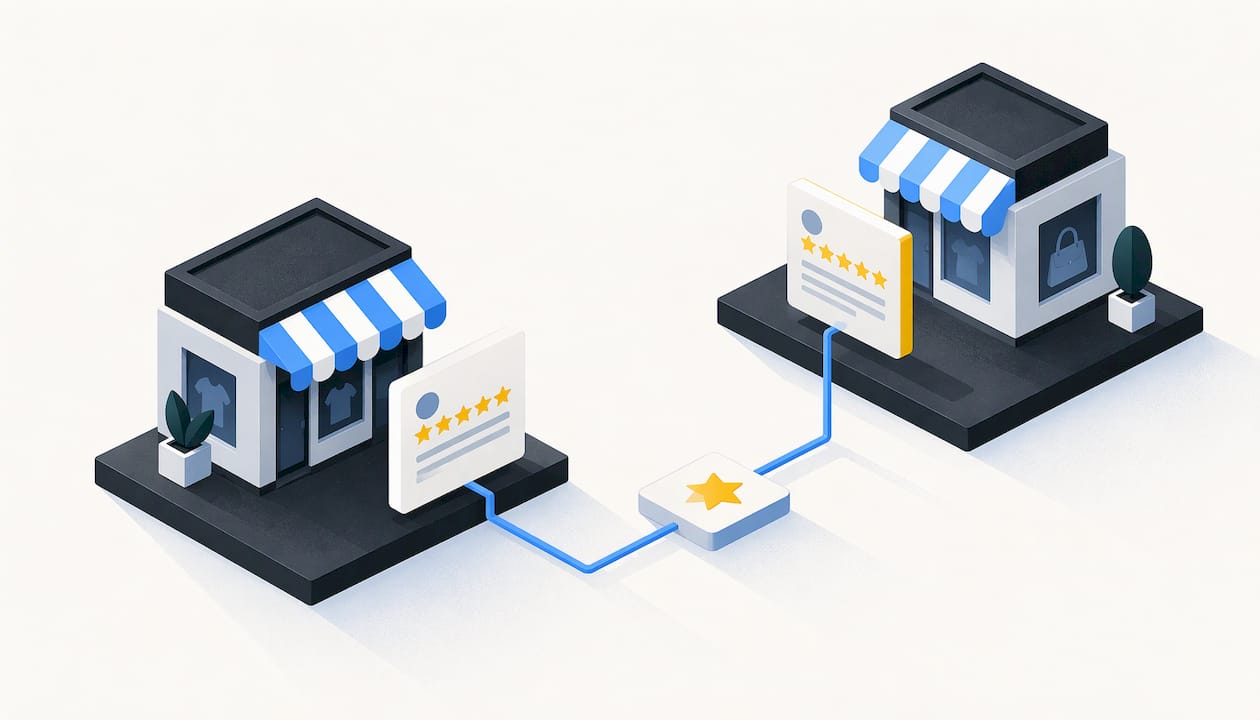
If you sell the same products through more than one Shopify storefront, say a US store and a regional one, the review question comes up fast: can the proof you earned in one store work in the others? The answer depends on three separate things: which purchase a review belongs to, whether the customer allowed it to be shown elsewhere, and whether a shopper can tell where it came from. Peers is a Shopify app for customer video reviews and product-page Q&A. Invitations you send after a purchase can tie a review to an order, and you moderate and publish each piece of content from Shopify, so every storefront can carry reviews you have actually reviewed and approved.
TL;DR
- “Multi-storefront reviews” means showing reviews for the same product on more than one store. The hard part is not the display. It is provenance, permission and clear labeling.
- Keep three things apart: purchase verification, permission to publish, and browser tracking consent. One does not stand in for the others.
- Peers invitations sent after a purchase can link a video review to an order. Public Q&A, replies and merchant recordings are not automatically verified purchases.
- Free includes moderation, widgets and up to 10 published video reviews per product. Growth has a 14-day trial, then US$6 per 30-day cycle for the first 12 cycles and US$15 after that.
- Disclose incentives, never tie rewards to sentiment, and check the rules of every destination platform.
Table of Contents
- What multi-storefront reviews actually means
- How reviews get matched to products and variants
- Collect where you sell: post-purchase invitations
- Three permissions people mix up
- Show shoppers where a review came from
- Keep every storefront compliant
- Packaging QR codes across storefronts
- A practical routine for several storefronts
- Peers pricing for stores running reviews
- FAQ
- Sources
What multi-storefront reviews actually means
A Shopify merchant can end up with several storefronts in different ways: separate stores for separate countries, a second store for a wholesale or B2B audience, a rebranded store for a new market, or a store for a sister brand that stocks some of the same items. In each case a product page in one store has no reviews, while another store already has plenty.
The tempting move is to copy the reviews across. Before you do, ask what a shopper reads into a review on a product page. They assume a real customer bought this item, used it, and said so. If a review was collected on a different store, with a different price, shipping time or return policy, that assumption is only partly true. A review of a product is still about the product, but a comment such as “arrived in two days” or “customer service was great” describes one store’s service, not the other’s.
So the useful question is not “how do I sync everything?” but “which reviews are honestly relevant on this storefront, and how do I show where they came from?”
When showing reviews across stores makes sense
- The product is physically identical in both stores, with the same manufacturer, formulation and size.
- The review is about the product, not about shipping, pricing or the store.
- The customer agreed to wider use, or your permission wording covers it.
- The origin is visible to the shopper.
When it does not
- The two stores sell different variants, bundles or regional versions of an item (voltage, sizing, ingredients, labeling).
- The reviews mention a store-specific promotion or policy.
- You cannot show who wrote them or when.
When those conditions fail, collecting fresh reviews in each storefront is the cleaner route, and it is also the one that keeps every review connected to a purchase made on that store.
How reviews get matched to products and variants
Any review display depends on a match: this piece of content belongs to this product. On Shopify, products have a handle, an ID and variants, and a store’s theme reads those through Liquid, Shopify’s template language. Shopify documents the fields available on the product object in its Liquid reference. If you map anything in your own theme, such as structured data, keep it to those documented fields rather than inventing properties.
Two storefronts usually do not share identifiers. The same sweater can have a different product ID and sometimes a different handle in each store. That has practical consequences:
- Check handles and titles before you rely on any match. A renamed product, a localized handle or a changed title can leave a review without a home.
- Decide how you treat variants. A review of the large size may say little about the small. Decide whether reviews show at product level or per variant, and write that down so your teams treat both stores the same way.
- Watch for merged and split products. If one store lists five colors as one product and another lists them separately, the review pool will not line up.
- Audit after catalog changes. Product imports, archived items and relaunches are the usual reasons reviews vanish from a page.
This part is merchant implementation advice, not an app feature. It applies whichever review tool you use, and it is worth a spreadsheet: one row per product, one column per storefront, with the handle and the number of published reviews.
Collect where you sell: post-purchase invitations
The most reliable way to have trustworthy proof on every storefront is to ask the buyers of that storefront. With Peers, you send customer-specific post-purchase invitations, and a review that comes back through such an invitation can be matched to the purchase. The customer can record in the browser, and Peers invitations and browser recording are both supported, so a shopper does not need a separate app or an account to answer.
The merchant side stays inside Shopify. You install Peers from the Peers listing on the Shopify App Store, manage it in Shopify Admin, moderate submitted videos and questions, and publish selected content through theme app blocks or the app embed. You do not need a standalone merchant login or a pasted code snippet.
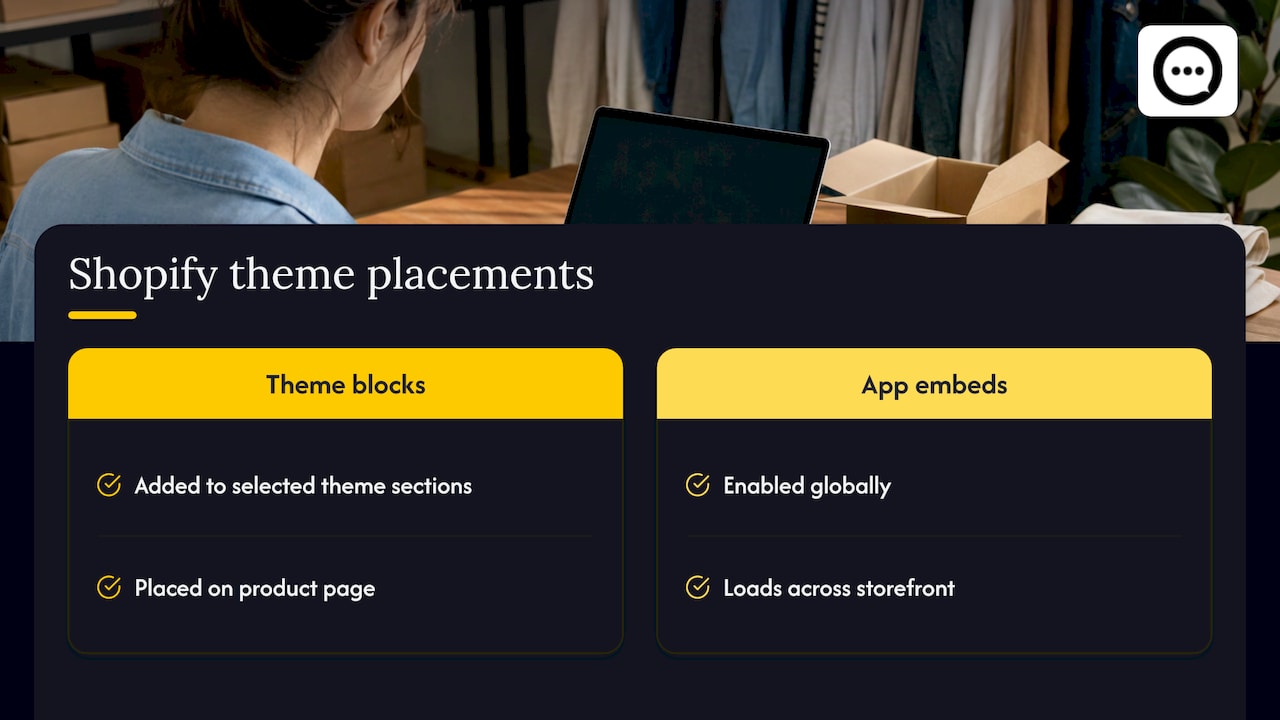
Theme app blocks and app embeds are the two ways Shopify lets apps appear in an Online Store theme. Shopify’s theme app extension documentation describes app blocks as components a merchant adds to sections in the theme editor, and app embeds as components that are enabled globally rather than placed in a section. For review content, that usually means a block on the product page where you want it to sit, and an embed for anything that should load across the storefront.
A note on what is and is not verified
This is where the multi-storefront question gets honest. In Peers:
- Reviews that arrive through a customer-specific post-purchase invitation can be linked to an order.
- Public questions, replies and merchant recordings are not automatically verified purchases.
That distinction should show up in how you label things. Do not describe a public question as a verified buyer comment, and do not present a recording you made yourself as a customer review.
Three permissions people mix up
Most multi-store mistakes come from treating three different things as one.
| What it answers | Example question | Who decides |
|---|---|---|
| Purchase verification | Did this reviewer buy the product from us? | Your order data and how the review was invited |
| Permission to publish | May we show this video, and where? | The customer, through the wording they agreed to |
| Browser tracking consent | May the page set cookies or tracking for this visitor? | The visitor, through your consent setup and applicable law |
A verified purchase does not mean the customer agreed to be shown on a second storefront. A customer agreeing to appear on your product page does not say anything about cookies on a visitor’s browser. And a cookie banner has nothing to do with whether a review is real.
Peers’ standard video permission covers its service and the store community. It does not extend to unrelated advertising or to training models. If you plan to reuse a customer’s video in a campaign or on a separate brand’s site, treat that as its own permission question and ask for it in plain words. What is needed depends on context: a signed release is not a universal requirement under GDPR or anywhere else, and the right basis differs by where your customers are. If you sell into the EU or UK, get legal advice from a qualified privacy lawyer for the wording you use.
Show shoppers where a review came from
A shopper on a regional storefront should be able to tell, at a glance, what they are looking at. A few habits that help:
- Label the origin. If a review was collected on another storefront, say so in plain words on the page, rather than letting it pass as a local purchase.
- Show the date. Product formulations and packaging change. A review from three years ago on an older version is context, not current proof.
- Keep purchase status accurate. Only use a verified-style label where the review really came through an order-linked invitation.
- Keep store-specific comments out. If a review praises a shipping time, a discount or support, it does not belong on a storefront where that does not apply.
- Preview on mobile. Video is heavy. Check playback on a phone before you publish, and measure page performance with your own tools afterward. Embedding video does not come with a guarantee of zero performance impact, and it is better to find out in your own store than assume.
Uploads in Peers have a 150 MB control limit for customer videos. That is separate from Shopify’s own limits on product media, so do not assume that a file that fits one fits the other.
Keep every storefront compliant
In the United States the Federal Trade Commission’s rule on fake reviews and testimonials, announced in August 2024, bans buying or selling fake reviews and prohibits incentives that are conditioned on a particular positive or negative sentiment; see the FTC’s announcement of the final rule. The rule also covers reviews that misrepresent the reviewer’s existence or experience, and certain insider reviews that need a disclosed relationship. The FTC’s separate Endorsement Guides address disclosure of incentives.
For merchants with more than one storefront, a few practical rules follow:
- Use neutral eligibility criteria. Invite customers for honest feedback based on something like a delivered order or a time window, never on whether you expect them to be happy.
- Never condition a reward on sentiment. A reward for leaving a review must be the same whether it is glowing or critical. Rewards are available in Peers on the Free plan too.
- Disclose incentives clearly. Say so near the review. Peers does not automatically label incentives, so add the disclosure in your own wording and placement.
- Check destination rules. If you also feed reviews to another platform, such as a marketplace or a shopping surface, read that platform’s own rules on incentivized and imported reviews.
- Do not copy reviews between storefronts to inflate numbers. A review that never described the product a shopper is looking at, or a reviewer who never bought it from the store shown, is the kind of misrepresentation the rule is aimed at.
None of this makes a store immune from enforcement, and no tool can promise that. It does reduce the chance that your review program creates a problem. Our own guides go deeper on FTC endorsement rules with copy-ready disclosures and on how to reward customers for reviews compliantly.
Reviews also feed search visibility, and the way you present them matters beyond trust; this overview of online reviews and ecommerce SEO covers the review-compliance angle that merchants with several storefronts often overlook. Peers does not guarantee SEO results or rankings, and you should not expect any review tool to do so.
Structured data, carefully
If you add product or video markup in your theme, map it only to documented Liquid fields and test it. Markup describing a video does not guarantee that the video is indexed or earns a rich result, and a product page with a supplementary video is still a product page, not a dedicated watch page. Peers does not automatically generate VideoObject markup, so any such markup is your own theme work.
Packaging QR codes across storefronts
Merchants with several stores often print one insert for all of them. A generic QR code on packaging can work, but it needs its own public landing page and its own purchase-verification flow. The code does not know which order it came from.
Two things to avoid:
- Never share a private customer invitation link as a public QR. It belongs to one customer and one order.
- Never share a merchant recording-session link as a public QR either.
If you want the QR route, our guide to capturing short verified video reviews with QR codes shows how to set it up.
A practical routine for several storefronts
- List your storefronts and products. Note handles, variants and whether each item is truly identical.
- Set one review policy. Who is invited, when, with which wording, and what permission the customer gives. Use the same neutral criteria everywhere.
- Collect locally. Send post-purchase invitations from the storefront where the order was placed.
- Moderate before publishing. Review each video and question for relevance, accuracy and store-specific comments.
- Place the content in the theme. Use a theme app block on product pages, or the app embed, from Shopify Admin.
- Preview and measure. Check mobile playback, then watch page speed with your usual tools.
- Disclose and document. Add incentive disclosures, and keep a record of the permission each customer gave.
- Audit quarterly. Look for products with no reviews, renamed products and reviews that no longer match the current version.
The merchant-side steps here are your implementation work. What Peers adds is the order-linked invitation, the moderation queue and the placement through theme blocks, all inside Shopify.
Our view
We built Peers around one idea: a shopper trusts a real person talking about a real purchase more than a star count. With several storefronts, the temptation is to treat reviews as a pool you can pour from one store into another. We would rather you treat each storefront as its own place where customers are invited, asked honestly, and shown clearly.
That is why invitations are customer-specific and why we keep verification, permission and tracking consent apart. A review matched to an order says something a copied one cannot. Moderation lets you decide what appears, and the theme app blocks put it where the shopper is deciding.
We do not promise conversion or ranking results, and neither should anyone selling you a review tool. We promise a clear way to gather honest video feedback and answer shopper questions on your product pages.
Leo
Peers pricing for stores running reviews
Peers is built for Shopify store owners, and you can start on the Free plan, which includes moderation, widgets and up to 10 published video reviews per product. Rewards are available there too. Growth removes the video-review limit and branding. It has a 14-day trial, costs US$6 per 30-day billing cycle for the first 12 cycles, and US$15 per cycle after that. The Free plan is US$0 per month.
You can install Peers from the Shopify App Store and see which plan fits each store, or read the plan summary at trypeers.com. Check the current listing for the latest pricing before you decide.
FAQ
Can I show the same reviews on two Shopify storefronts?
You can show reviews wherever you have the right to, but it should be honest about origin. Make sure the product is identical, the customer’s permission covers it, and the shopper can see where and when the review was collected. Otherwise, collect fresh reviews in each storefront.
Are reviews collected with Peers verified purchases?
Reviews that come back through a customer-specific post-purchase invitation can be linked to an order. Public questions, replies and merchant recordings are not automatically verified purchases, so label them for what they are.
Does a customer’s permission cover use in ads or other brands?
Not by default. Peers’ standard video permission covers its service and the store community, not unrelated advertising or model training. If you want wider use, ask for it separately in clear wording and check which rules apply where your customers live.
Can I reward customers for reviews on every storefront?
Yes, as long as the reward does not depend on whether the review is positive or negative, and you disclose the incentive. Rewards are available on Peers’ Free plan as well. Check the rules of any platform where the reviews also appear.
Will adding video reviews slow my storefront?
Video can affect page performance, and no one can promise otherwise. Preview playback on mobile, then measure your page speed before and after you publish.
Sources
- FTC announcement of the final rule banning fake reviews and testimonials
- Shopify theme app extensions documentation
- Shopify Liquid product object reference