How to Compress Video Reviews on Shopify Without Losing Quality
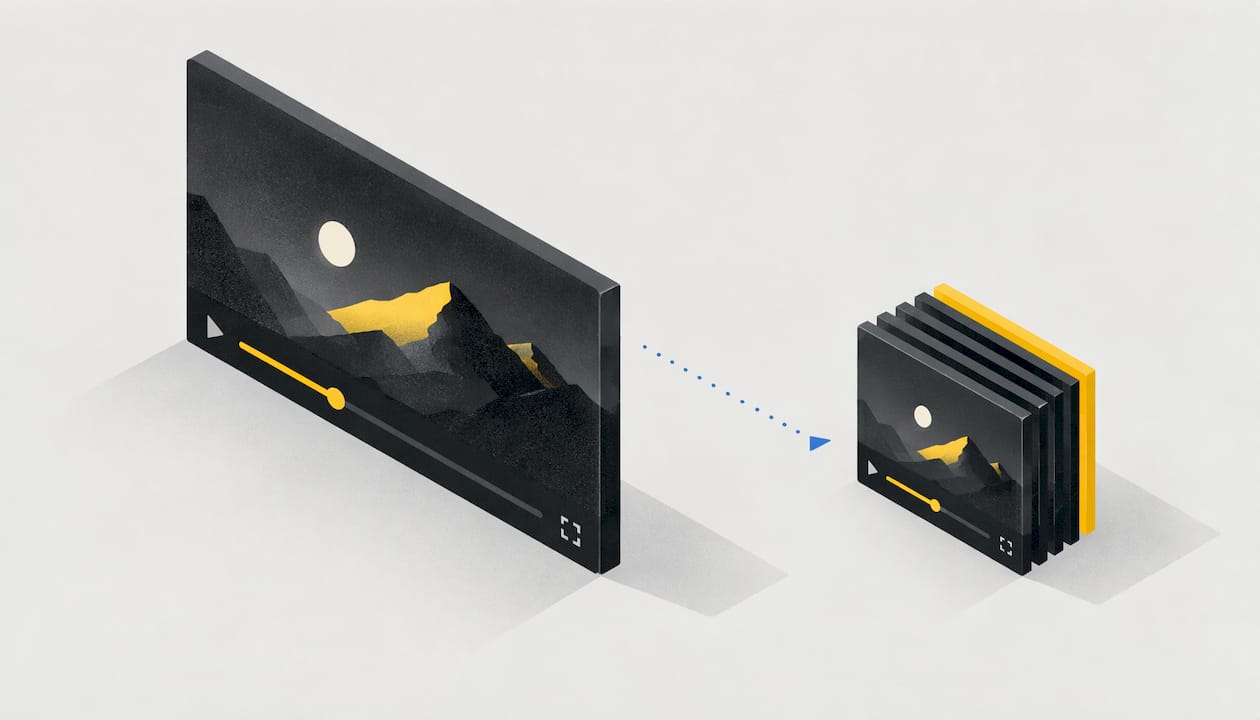
Compress any review clip you control to a 1080p H.264 MP4, trim dead time, and set a clear cover frame. Then load it lazily below the fold and check it on a real phone. Shopify already re-encodes whatever you upload, so the goal is not the smallest possible file. The goal is a clean source that survives that second pass and does not weigh down the page. With Peers, you manage and publish video reviews from inside Shopify, so the work is a short pre-upload routine plus a mobile preview.
TL;DR
- Shopify accepts MP4, MOV and WebM up to 1 GB and 10 minutes per product video, then converts everything for streaming. A 1080p H.264 MP4 is the safe source.
- Heavy video hurts page speed even when it loads below the fold. Shopify’s own data shows mobile pages with over 5 MB of video had roughly double the median Speed Index of pages with none.
- Compress clips you record or edit yourself with HandBrake or FFmpeg. For customer clips, your levers are lazy loading, placement, thumbnails and a mobile preview.
- Peers customer uploads have a 150 MB control limit, separate from Shopify’s product-media limits.
- Never assume zero performance impact. Preview mobile playback and measure before and after you publish.
Table of Contents
- What Shopify does to your video after you upload it
- Why file weight matters for review videos
- Which clips you can compress, and which you can’t
- How to compress a review video, step by step
- Load review videos lazily, and know when not to
- Thumbnails: the cheapest speed and quality win
- A quick troubleshooting order
- Setting up Peers on a performance-conscious page
- Keep permission and tracking separate from file handling
- Perspective
- Try it on your own store
- FAQ
- Sources
What Shopify does to your video after you upload it
Before you compress anything, know what happens next. Shopify’s Help Center on product media says product videos can be up to 10 minutes, 1 GB and 4K (4096 × 2160 px) in .mp4, .mov or .webm. It also says .mov and .webm files are converted and served as .mp4 or HLS. HLS is an adaptive streaming format that lets the player pick a quality level to match the shopper’s connection. Streaming browsers show 480p, 720p or 1080p depending on connection speed and the resolution you uploaded.
The video_tag Liquid filter documentation adds two details. Shopify generates an m3u8 HLS file as an extra source when you upload an MP4, and players fall back to the MP4 when HLS is not supported.
That has three practical consequences:
- You cannot opt out of re-encoding. A clip is compressed twice: once by you, once by Shopify. Starting from a clean, moderate-bitrate source gives the best result.
- Bigger uploads do not mean sharper playback. Streaming tops out at 1080p, so a 4K file mostly adds weight.
- The served file may not be the file you uploaded. Shopify community threads from 2023 describe a tiny 255 KB banner video being served as a roughly 1 MB transcoded version. Tiny clips can grow rather than shrink, which is another reason not to over-compress.
Why file weight matters for review videos
Review sections usually sit below the product description, and video is heavier than anything around it. Shopify’s Performance team published the numbers in its video_tag lazy loading analysis. Mobile pages with no video had a median Speed Index of 7,243 ms across 565,145 pages. Mobile pages with over 5 MB of video had 14,582 ms across 81,270 pages. Speed Index measures how quickly a page visually fills in.
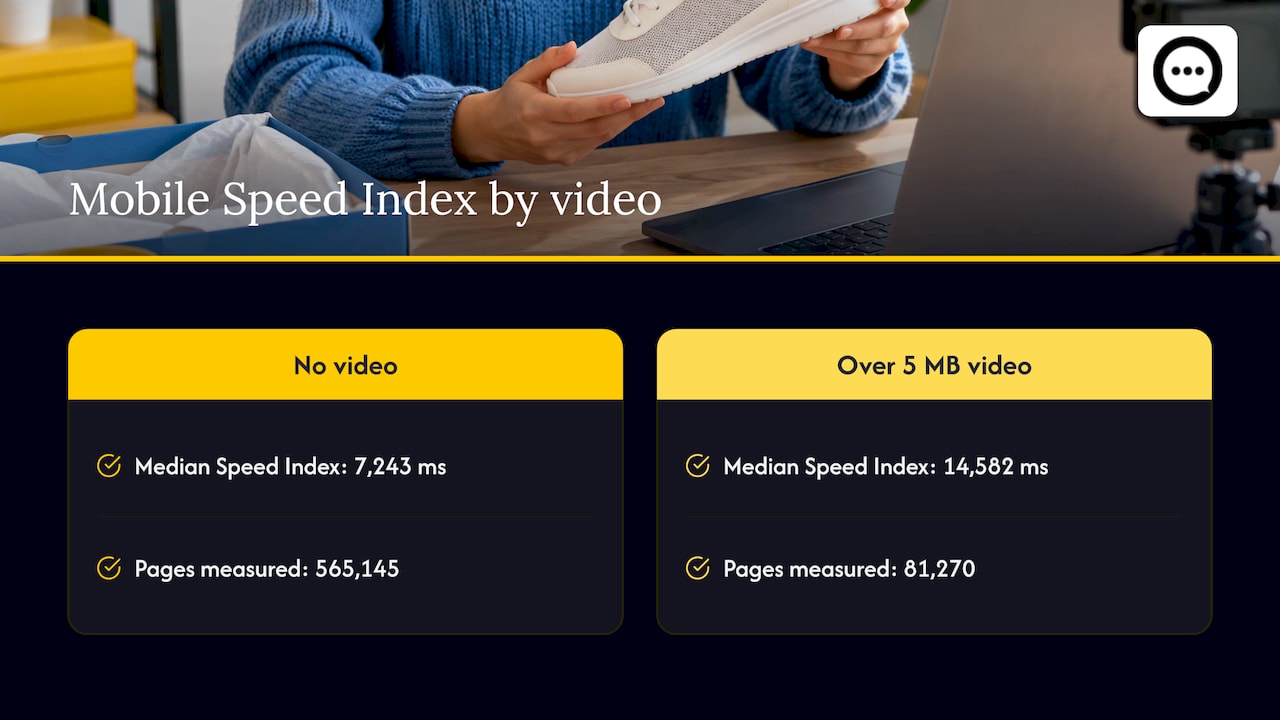
The same post explains why. A video paints its first frame as soon as enough data decodes, so Largest Contentful Paint barely changes. But the extra megabytes keep downloading and crowd out images, fonts and CSS that shoppers are waiting for. This is a correlation across many stores, not a promise about your page, which is why you measure your own.
The same logic applies on the network side. In Smashing Magazine’s guide to video size and quality, Doug Sillars explains that bitrate sets the minimum connection a viewer needs, and that smaller files start faster and stall less. A shopper on a weak mobile connection feels that difference first.
Which clips you can compress, and which you can’t
It helps to split review video into two groups.
Clips you control. These are founder demos, merchant recordings you edit, and clips a customer sends you by email that you decide to feature. You can export these at whatever settings you like, so the compression steps below apply directly.
Clips customers submit themselves. Customers record on their phones, and you do not control the settings they shot with. For these, the useful work is on your side of the page: how many clips load, where they sit, which cover frame shows, and how the page behaves on mobile. Peers supports invitations and browser recording, so customers can record from a link without sending files around by hand. Customer uploads through Peers have a 150 MB control limit, which is separate from Shopify’s product-media limits.
If you want the file-level rules for clips under Shopify’s ceiling in more depth, our guide on video review file formats on Shopify covers them.
How to compress a review video, step by step
1. Trim first
Cut silence, fumbled starts and repeated sentences. Trimming dead time shrinks a file without touching quality, and it keeps the part shoppers actually watch. A 30 to 60 second review often says everything a buyer needs.
2. Export a 1080p H.264 MP4
Shopify’s own guidance on web video formats recommends MP4 with H.264 because it plays on almost any browser or device without ballooning file size. If you are converting from MOV, use a higher quality setting, keep the same frame rate and resolution, and avoid repeated re-encodes to limit quality loss.
Keep the aspect ratio your design needs. Vertical 9:16 suits phone-shot reviews, while 1:1 or 4:3 works in grids that sit next to square product photos.
3. Pick a quality setting, not just a size
Constant quality encoding lets the encoder spend bits where the picture needs them. In HandBrake that is the Constant Quality (RF) slider. In FFmpeg it is the CRF value. In Smashing Magazine’s tests, CRF values of 23 to 28 still produced high-quality web video. Raising CRF from 23 to 28 on a test file cut it from 81.5 MB to 35.4 MB.
A practical starting point for a talking-head review:
| Setting | Starting value | Why |
|---|---|---|
| Container | MP4 | Plays everywhere and is what Shopify serves |
| Video codec | H.264 | Broadest device support |
| Resolution | 1080p (720p for small cards) | Shopify streams at up to 1080p |
| Quality | CRF/RF 23 | Good quality with a modest file size |
| Web optimization | Enabled (“fast start”) | Lets playback begin before the whole file downloads |
| Audio | AAC, stereo | Clear speech, small footprint |
Export one version, watch it on your phone, and only then move CRF up or down a few points. Do not drop quality so far that fabric, skin tones or product detail smear, because Shopify’s re-encode will degrade it further.
4. Match resolution to where it displays
If your review cards render about 350 px wide, a full 1080p file is overkill for the card itself. A Shopify partner write-up from Innovate Partners describes five 1080p clips totaling just over 90 MB. By serving the smallest streaming rung that fills the card and lazy-loading, they cut the phone load to a single clip of around 5 MB. That is one agency’s test, not a guarantee, but the principle holds: show the small version first and let the shopper open the large one.
The same write-up warns against guessing the URLs of Shopify’s transcoded files from the original filename. Use the streaming manifest or the theme tools, because guessed URLs can break later.
5. Keep a master copy
Store your uncompressed original on your own drive. Shopify can produce lower quality levels from what you upload but cannot add detail that was never there, and you may want to re-export later.
Load review videos lazily, and know when not to
Compression reduces the cost of each clip. Lazy loading reduces how many clips load at all. Shopify’s video_tag documentation says that when you do not set a loading attribute, videos in sections further down the page are lazy-loaded automatically. It also says you should not lazy-load videos above the fold.
Shopify’s Performance team reported on the rollout in July 2026. Page views loading video up front dropped 75%, and video data per page view fell 78%, an average of 1.23 MB less. Those are Shopify’s measurements across its platform.
For review sections, the rule is simple. A review carousel lower on the product page benefits from lazy loading. A hero clip at the top, which may be the largest element on screen, should load eagerly. Our notes on lazy-loading storefront videos cover when each approach fits. If you want the placement side of this, our post on not hiding video clips below the fold explains how to keep reviews visible without paying for it in load time.

Thumbnails: the cheapest speed and quality win
A video shows its cover image before anyone presses play, so a good one does two jobs. It gives the page something to paint immediately, and it tells the shopper what the clip contains.
Shopify generates a cover for every video, but the default frame is often a blurry first frame. In the product’s Media section you can open the video and replace the cover image. Pick a frame where the product is large and sharp, with no motion blur and no cut-off text. Keep the poster at a consistent aspect ratio with your product photos so the gallery does not jump around.
If thumbnails look stretched or soft, check the theme. A Liquid image filter set to a small size such as 300x300 can blur a poster even when the video itself is sharp, as one Stack Overflow answer described. For a deeper walk-through of crops, see our guide to video thumbnails that avoid awkward auto frames.
A quick troubleshooting order
When a review video loads slowly or looks wrong, work from the cheapest check to the most involved:
- Open the page in a private window. This rules out stale cache.
- Compare desktop and mobile. A problem only on mobile usually points to file size or autoplay behavior.
- Try a second browser. A clip that fails in one browser can indicate a codec issue, which is another reason to export H.264.
- Check the browser console for errors. Conflicts between the theme and an app show up here.
- Retest after disabling recent changes. If it started after an install or edit, turn that off and compare.
For blank previews, wait a few minutes after upload because newly uploaded videos can take time to process. If the preview is still blank, the first frame may simply be empty, and a custom cover image or a re-export with a visible opening frame fixes it.
Setting up Peers on a performance-conscious page
Peers is managed inside Shopify. You collect customer video reviews and shopper questions, moderate what comes in, and publish selected content on product pages through theme app blocks or the app embed, all configured from Shopify Admin. You do not need a separate merchant login or pasted code snippets.
A sensible rollout looks like this:
- Add the Peers block to a product template in the theme editor and publish a small set of approved reviews rather than every submission.
- Preview on a real phone. Tap play, scroll, rotate, and watch how the cover frames render.
- Measure the page before and after with the speed tool you already use. Peers cannot promise zero performance impact, and no video widget can, so treat your own numbers as the answer.
- Adjust placement, the number of clips shown and the cover frames based on what you see.
Our walkthrough on publishing video reviews within 1 GB and 10 minutes covers the publishing side in more detail.
Keep permission and tracking separate from file handling
Compression is a technical task, but publishing customer video brings three separate questions that should not be mixed up:
- Purchase verification. Reviews collected through a customer-specific post-purchase invitation can be linked to an order. Public questions, replies and merchant recordings are not automatically verified purchases.
- Permission to publish. Peers’ standard video permission covers use within its service and your store community, not unrelated advertising or model training. Permission requirements depend on context, and you should check what applies to your store and your customers’ location.
- Browser tracking consent. Cookie or tracking consent is a different matter from either of the above.
A generic QR code on packaging needs its own public landing page and a purchase-verification flow. Never turn a private customer invitation link or a merchant recording-session link into a public QR code. If you offer rewards, which are available on the Free plan too, do not tie them to positive or negative sentiment, and disclose incentives and check the rules of any platform where the content appears. Our post on customer video privacy checks goes through this in order.
Perspective
Most compression advice assumes you hold every file. In review video, you usually do not: the best clips come from customers, on their phones, in their kitchens. So we think the useful question is not how to squeeze each file, but how to build a review section that stays light however the clips arrive.
That is why Peers works inside Shopify. You invite customers, moderate what they submit, and publish only the clips worth showing, through theme app blocks or the app embed. Customer uploads have a 150 MB control limit, and you choose how many clips appear and where.
Our advice is to compress what you record yourself, curate what customers send, and preview on mobile before you publish. Then measure. Shoppers believe real customers on camera, and a page that loads fast lets them see it.
Leo
Try it on your own store
Peers has a Free plan with moderation, widgets and up to 10 published video reviews per product, and Rewards are available on Free too. Growth has a 14-day trial and costs US$6 per 30-day billing cycle for the first 12 cycles, then US$15 per cycle. It removes the video-review limit and branding. You can install it from the Peers listing in the Shopify App Store and set it up from Shopify Admin.
If you want a collection routine to go with it, our guide on going from QR code to product page in three steps shows how clips get from customers to your page.
FAQ
Does Shopify compress my review videos automatically?
Yes. Shopify converts uploads and serves them as MP4 or HLS, and streaming browsers show 480p, 720p or 1080p depending on connection speed and your source resolution. Because of that second pass, start from a clean 1080p H.264 MP4 rather than an already heavily compressed file.
What file size should a review video be?
Shopify allows up to 1 GB and 10 minutes per product video, but that is a ceiling, not a target. Short customer-style clips are usually far smaller. Trim dead time first, then export with constant quality around CRF 23 and judge the result on a phone. Peers customer uploads have a 150 MB control limit.
Should I lazy-load video reviews?
Yes for reviews placed lower on the product page, and Shopify applies lazy loading by default to videos further down the page when you do not set it. Keep any video at the very top of the page, especially one that may be the largest element, set to load eagerly.
Will video reviews slow down my product page?
They can add weight, which is why previewing and measuring matter. Shopify’s data shows pages with over 5 MB of video had a higher median Speed Index, though that is a pattern across stores. Publish a curated set of clips, lazy-load them, and compare your page speed before and after.
Sources
- Shopify Help Center: Product media types
- Shopify.dev: video_tag Liquid filter
- Shopify Performance blog: video_tag lazy loading
- Shopify blog: Best video format for web
- Smashing Magazine: Optimizing video for size and quality
- Innovate Partners: Five customer videos without the ninety megabytes
- Shopify Community: Shopify recompressing MP4 videos
- Stack Overflow: Blurry video thumbnails in Shopify theme