How to Answer Shopper Questions on Your Shopify Store

The most reliable way to answer shopper questions on Shopify is to answer them where they arise, on the product page, and to keep the answers public so the next shopper does not have to ask. That means three habits: fix the obvious gaps in your product copy, collect real questions through a Q&A widget you moderate, and review what comes in on a regular schedule. This guide walks through each one, including how we handle it in Peers.
TL;DR
- Most pre-purchase questions are about fit, compatibility, materials, delivery, returns and guarantees. Answer those in the product page itself first.
- Put a public Q&A on the page for everything that does not fit in the description, so one answer helps every later visitor.
- Moderate before you publish, name who is answering, and revisit old answers when a product, policy or price changes.
- Use AI or live chat for speed if you like, but keep a person responsible for anything about safety, sizing, compatibility or policy.
- Track which questions repeat. Each repeat tells you which sentence is missing from the page.
Table of Contents
- Where shopper questions come from
- Start with the product page itself
- Why public Q&A beats private replies
- How to add product Q&A on Shopify
- Write answers shoppers can trust
- Separate three things that get mixed up
- Use customer feedback next to your answers
- When to use live chat or AI, and when a person steps in
- Measure whether it is working
- Perspective
- Try it on your store
- FAQ
- Sources
Where shopper questions come from
A shopper question is any moment of doubt that stops a purchase. On a Shopify store those moments show up in a handful of places: the contact form, the inbox, social messages, live chat, comments on ads, and, for the shoppers who never write at all, a quiet exit from the tab.
The last group is the one that costs you the most. Most visitors with a doubt do not email you. They leave. That is why the best place to answer questions is the page where the doubt appears, in front of everyone, instead of in a private thread that only one person ever sees.
We have gone deeper on what shoppers tend to ask in pre-purchase questions on Shopify. The short version is that questions cluster. A few themes account for most of them, which makes them easy to get ahead of.
Start with the product page itself
Before you add any tool, check whether the page answers the basics. Usability research on product pages finds that descriptions should be complete but not wordy, and that text and images should work together to answer questions. Shoppers in that research also valued multiple product views, and one relied on detailed images of a bag to choose it without reading the description at all.
A practical checklist for each product:
- Fit and size. Include measurements, not just labels. Say who the sizing suits and how it compares with similar items you sell.
- Compatibility. Name the models, versions or setups it works with, and the ones it does not.
- Materials and care. List what it is made of and how to look after it.
- Use case. Say who it is for and where it shines.
- Delivery, returns and guarantees. State them plainly, close to the buy button.
This lines up with advice that product descriptions should address doubts about fit, compatibility, materials, use case, delivery, returns and guarantees before buyers have to hunt for answers. The same source suggests using an FAQ for specific objections that did not fit near the relevant decision point. If you want a deeper look at turning buyer doubts into page copy, this piece on how to optimize product pages for sales covers the same ground from the page-structure side.
A description answers the questions you can predict. A Q&A section answers the ones you could not.
Why public Q&A beats private replies
A private email answer helps one person. A public answer on the product page helps everyone who lands there afterward, and it works while you sleep. It also shows shoppers that real people ask real questions and that you reply.
For a longer treatment of how this plays out commercially, see our notes on how shopper questions affect conversion on Shopify and the broader Q&A strategy for Shopify. Public Q&A can also cut avoidable returns, because many returns start with an expectation the page did not set. We cover that in reducing returns with Q&A.
How to add product Q&A on Shopify
There are a few ways to put questions and answers on a product page. The right one depends on how much control you want over design and how much time you have.
- Write a static FAQ in the product description or a page section. It is free and fast. It only answers questions you already thought of, and it does not let shoppers ask.
- Use a Q&A app that installs through Shopify. Shoppers can submit questions, you review them, and approved answers appear on the page.
- Add live chat or an AI assistant. Quick for conversation, but answers live in a chat window, not on the page for the next visitor.
If you go the app route, look for one that installs through Shopify’s own theme tools, so you are not editing code. We walk through the options in 4 ways to add product Q&A on Shopify without theme edits.
How setup works in Peers
Peers is a Shopify app for collecting customer video reviews and answering shopper questions on product pages. You manage it inside Shopify Admin. You display content with theme app blocks or the app embed, so there is no separate merchant login to maintain and no code snippet to paste into your theme.
The typical flow looks like this:
- Install Peers from the Peers listing in the Shopify App Store.
- Open the app in Shopify Admin and add the Peers block to your product template in the theme editor, or turn on the app embed.
- Shoppers submit questions on the product page. You review and moderate them in Shopify Admin.
- Publish the questions and answers you want visible. Add replies, including public video replies if you want to show the product in use.
- Preview the page on a phone before you go live.
For video answers specifically, our guide to Shopify video Q&A covers how to add it and run it well, and the post on instant answers and public video replies shows the reply workflow.
Write answers shoppers can trust
A fast answer that is wrong costs more than a slow one that is right. A few rules keep your Q&A credible.
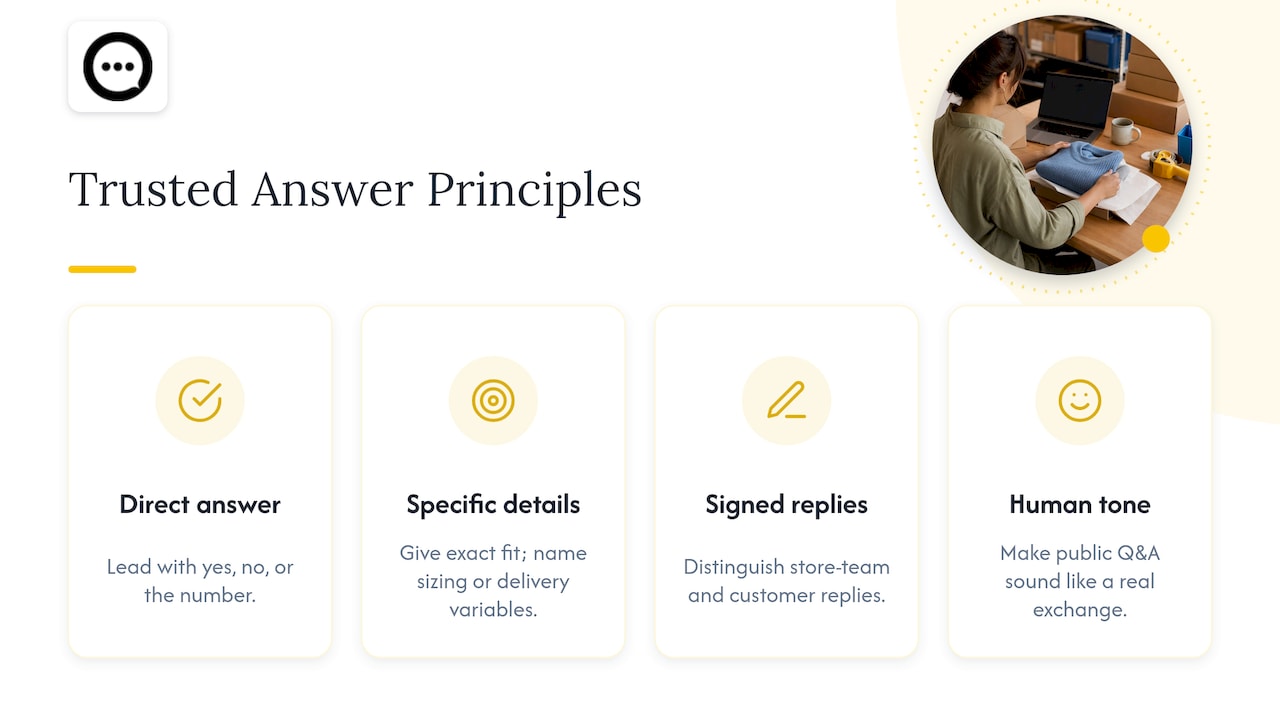
Answer the actual question first. Lead with yes, no or the number, then add one line of context. Shoppers skim.
Be specific. Say “fits a 15-inch laptop” and not “fits most laptops”. If you do not know, find out before you publish.
Say when the answer depends. Sizing, shade, compatibility and delivery time often vary. Name the variable.
Sign your replies. A reply from the store team reads differently from a reply from another customer. Make the difference visible.
Keep the tone human. The point of public Q&A is that it sounds like a real exchange, not a policy page.
Moderate before you publish
Moderation protects the page from spam, off-topic posts, private details and wrong information. In Peers, submitted videos and questions go through your moderation before you publish selected content to the page. Set a review habit, for instance a short check each weekday, so questions never sit unanswered for long.
Keep answers current
Answers go stale. Prices change, materials are swapped, return windows shift, and a new version of a product replaces the one the answer described. Build a light maintenance routine:
- Review answers on your top-selling products every quarter.
- Update or unpublish any answer that mentions a policy you have changed.
- When you launch a new product version, check old questions that refer to the previous one.
- Turn repeated questions into description copy, then retire the Q&A entry if it is now redundant.
Separate three things that get mixed up
When you collect customer content alongside questions, three different permissions are in play. Keep them apart.
- Purchase verification tells shoppers whether a person bought the product. In Peers, customer-specific post-purchase invitations can link a review to an order. Public questions, replies and merchant recordings are not automatically verified purchases, so do not label them that way.
- Permission to publish is the customer’s agreement that you may show their content. Peers’ standard video permission covers its service and store community, not unrelated advertising or model training. If you want to use content in ads, get the right permission for that use. What permission you need depends on context, and a signed release is not a universal GDPR rule, so ask your own counsel for your situation.
- Browser tracking consent is about cookies and analytics on your storefront. It is a separate matter from the first two and handled through your store’s privacy settings.
Peers invitations and browser recording are supported. A customer can record from the invitation link in their browser. A generic QR code on packaging needs its own public landing page and a purchase-verification flow, because it is not tied to one order. Never share a private customer invitation or a merchant recording-session link as a public QR code.
Customer uploads in Peers have a 150 MB control limit, which is separate from Shopify’s product-media limits.
Use customer feedback next to your answers
Answers explain the product. Customer videos show it. A shopper who asks whether a jacket runs warm gets more from a short clip of a real owner wearing it in cold weather than from another sentence of copy. We compare the two formats in video testimonials vs reviews.
Asking for feedback after purchase works best when the prompts are specific. Questions such as how the item compares with what the customer expected, or how they use it day to day, produce content that answers future shoppers’ questions. We list ideas in post-purchase Q&A prompts.
A few practices keep this honest:
- Invite customers using neutral eligibility rules, such as everyone whose order was delivered at least a set number of days ago. Never choose invitees by how happy you think they are.
- If you offer a reward, never tie it to positive or negative sentiment.
- Disclose incentives to shoppers, and check the rules of any platform where you republish the content. Peers does not automatically label incentives, so add your own disclosure where it is needed.
- Rewards are available on the Free plan as well as Growth.
This is merchant practice, not a legal guarantee. Rules on incentivized reviews differ by country and platform, so check the current guidance that applies to you.
When to use live chat or AI, and when a person steps in
Live chat and AI assistants are good at speed. They can handle order status, store hours and simple product lookups at any hour. Public Q&A is good at durability: one answer keeps working. Most stores benefit from both, and we compare them in Q&A vs live chat on Shopify.
Whatever tool answers first, set a rule for when a person takes over:
- Anything about safety, allergies, health or children.
- Sizing and compatibility where a wrong answer means a return.
- Policy exceptions, refunds and warranty claims.
- Any answer the tool is unsure about, or that the shopper disputes.
Also make sure automated answers draw only on information you have checked. An assistant that guesses is a liability on a product page.
Measure whether it is working
You do not need a complex dashboard. Start with a few questions you can answer from your own data:
| What to look at | What it tells you | What to do with it |
|---|---|---|
| Most repeated questions | Gaps in your description or images | Add the answer to the page copy |
| Time from question to published answer | How responsive the process is | Set a review schedule |
| Products with many questions and few sales | A doubt the page does not resolve | Improve images, sizing or policy copy |
| Return reasons that match old questions | Expectations the page did not set | Add clarifying Q&A or description lines |
| Engagement with videos and answers | Which formats shoppers actually open | Make more of what gets watched |
Compare periods before and after a change, and change one thing at a time. No tool can promise a particular sales or SEO result, and neither do we. What you can do is remove doubts one at a time and see which ones mattered.
If you add video, preview mobile playback and measure your page performance before and after. Do not assume the change is free. Check load behavior on a real phone and on a slower connection, then decide how many videos to show above the fold.
Perspective
We built Peers because most product pages leave shoppers alone with their doubts. A shopper with a question about fit or use usually does not write to you. They look for a sign that someone like them already asked, and that the store answered honestly.
That is why we think public, moderated Q&A belongs on the product page, next to real customer video. You stay in control of what is published. Shoppers see real experiences instead of polished claims. And each answer you write once keeps working for every visitor after.
We also think restraint matters. Peers does not turn text reviews into videos, and it does not promise sales or SEO outcomes. It gives you a clean way to collect honest feedback, answer questions in the open and show both through theme app blocks or the app embed in Shopify Admin. The rest is the work of knowing your customers, and you are the best person for that.
Leo
Try it on your store
Peers has a Free plan at US$0 per month. It includes moderation, widgets and up to 10 published video reviews per product, and Rewards are available on it too. That is enough to put questions and a few customer videos on your best-selling pages and see what shoppers ask.
When you want more, Peers Growth comes with a 14-day trial. It costs US$6 per 30-day billing cycle for the first 12 cycles, then US$15 per cycle after that. Growth removes the video-review limit and the Peers branding. You can install from the Peers listing in the Shopify App Store and check the current plan details there before you decide.
FAQ
Where should I answer shopper questions on Shopify?
Answer them on the product page wherever you can, so the answer helps every later visitor. Use email and chat for order-specific issues that only concern one customer. Then turn repeated questions into page copy.
Are questions and answers in Peers verified purchases?
No. Public questions, replies and merchant recordings are not automatically verified purchases. Reviews collected through a customer-specific post-purchase invitation can be linked to an order.
Can I set up Peers without editing my theme code?
Yes. You manage Peers inside Shopify Admin and display it using theme app blocks or the app embed. You do not need a separate login or a pasted code snippet.
How often should I review my published answers?
Check new questions on a regular schedule, such as every weekday, and review answers on your top products at least every quarter. Update them whenever a product, price or policy changes, so shoppers never read outdated information.
Can AI answer shopper questions for me?
It can help with speed on simple, checked information. Keep a person responsible for safety, sizing, compatibility and policy answers, and for anything a shopper disputes.
Sources
- UX Guidelines for Ecommerce Product Pages, Nielsen Norman Group
- Shopify Product Descriptions for Buyer Objections, Thankik