Migrate Loox Reviews to Shopify: Keep Photos and Verified Flags
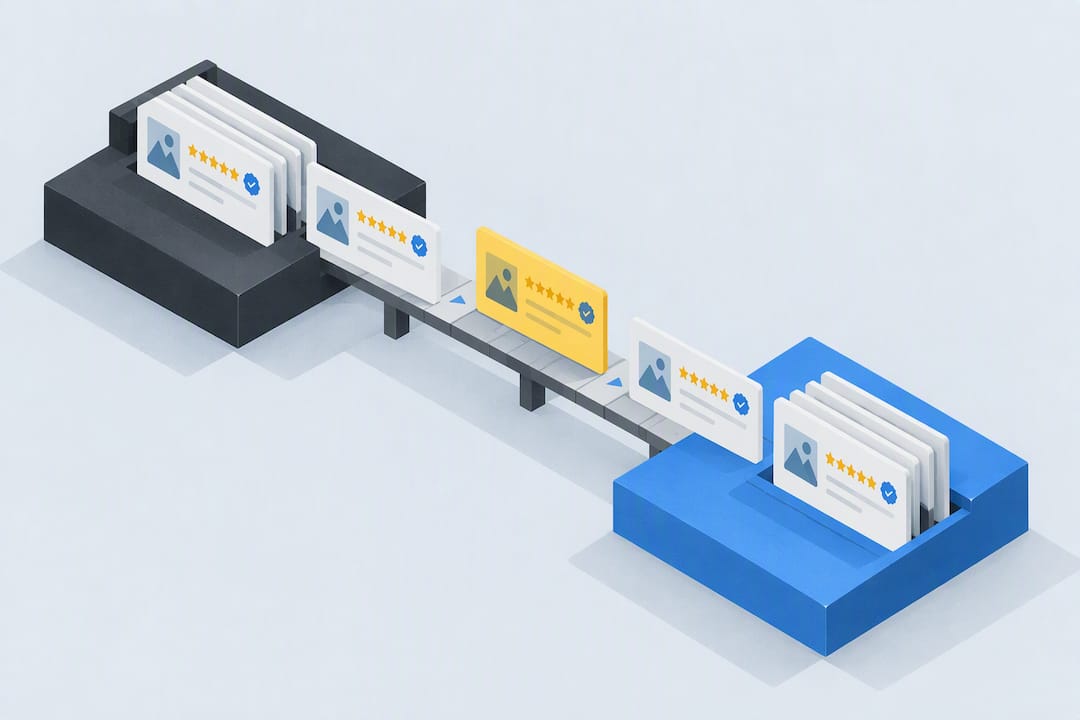
The reliable way to migrate Loox reviews to another Shopify app is to export a CSV from Loox, rehost any photos before uninstalling the app, and import the file into your new review tool with careful column mapping. Test the process on a handful of reviews first, and pause Loox’s automated review request emails so customers don’t get duplicate requests from two apps at once.
TL;DR:
- Loox hosted photo links can stop working after uninstalling, so download images or move them to a controlled host and update CSV URLs first.
- Import five to ten reviews first, then check live product pages for correct product assignment, ratings, photos, reviewer names, and dates before uploading the rest.
- Verified purchase badges often disappear because destination apps may not map that field; check import support beforehand or use a site level trust badge.
- Keep Loox installed until the new app displays imported reviews correctly, and back up the CSV and image files before changing anything.
- After checking product SKUs and updated star averages, resubmit failed rows with the destination app’s partial import feature, if available.
Table of Contents
- Quick checklist before you start migrating
- How to export reviews from Loox
- How to preserve photos and videos linked from Loox
- How to import and map your CSV into a new review app
- Checklist for verifying your migration worked
- Common migration problems and how to fix them
- Author perspective and operational recommendations
- What most migration guides get wrong
- Rethinking social proof while you migrate
- FAQ
- Sources
Quick checklist before you start migrating
Running through a short checklist before you touch anything prevents most of the headaches people run into mid-migration.
- Export your Loox CSV and open it to confirm the fields and row count look right.
- Download or rehost every photo and video asset referenced in the export.
- Install your destination review app and review its import template before uploading anything.
- Run a small test import (five to ten reviews) and check the results on a live product page.
- Turn off Loox’s review request emails once the new app is confirmed working.
Each step takes a few minutes for a small catalog, but working through them in order is what keeps photos, ratings, and reviewer names intact once the switch is done.
How to export reviews from Loox
You’ll find the export option inside Loox under Settings, then General, then Export reviews. This generates a CSV file containing your review data rather than pulling anything automatically into another app, so you’ll need to handle the file yourself.
A typical Loox export includes:
- Product handle, which ties each review to a specific product
- Review text and star rating
- Reviewer name and the review date
- Photo URLs pointing to Loox’s hosted images
Loox exports include review fields plus photo URLs, and migrating photos carefully matters because Loox-hosted CDN links can break after the app is uninstalled, according to guidance on review app migration. Before moving on, open a few of those photo URLs in a browser to confirm they still load, and check the file size: a small store with a few hundred reviews exports in minutes, while a large catalog with thousands of photo-heavy reviews can produce a much larger file that’s worth checking for size warnings before you proceed. Community discussions on Shopify’s forum confirm this CSV export is the standard route people use when moving Loox reviews elsewhere.
How to preserve photos and videos linked from Loox
This is the step people skip, and it’s the one that causes broken images weeks after migration. Loox stores photos on its own content delivery network, and those links often stop resolving once you uninstall the app, even if the CSV file itself still lists the old URLs.
You have two practical options:
- Download each image locally, then re-upload it to Shopify Files or another host you control.
- Point the images to an external CDN if you’re already using one for other media.
Once the photos have a new home, update the photo URL column in your CSV to reflect the new location before you import anything into the destination app.
Pro Tip: Test this with a single image first: update one row, import it, and confirm the photo displays correctly before you process the rest.
How to import and map your CSV into a new review app
Most destination apps, including Judge.me and Junip, accept CSV import, and the universal mechanism across major Shopify review apps is CSV export from the source followed by import into the destination’s upload utility, as described in LitExtension’s migration overview. The work here is making sure your Loox columns match what the new app expects.
Start by comparing your Loox export headers against the destination app’s sample template. A few things to check:
- Rename or reorder columns so the app recognizes product handle, rating, review text, reviewer name, and date correctly.
- Confirm the photo URL column uses the header the app expects and that every URL in it is publicly accessible.
- Check whether the app can map a “verified purchase” field. Many apps don’t accept this on import by default, so reviews may arrive without that badge even if they had it in Loox.
Once the mapping looks right, import a small batch of five to ten reviews rather than the full file. Open the corresponding product pages afterward and check that the star rating, photos, and reviewer details all appear as expected. If that test batch looks clean, you can import the rest with confidence. Shopify Community threads on recovering product reviews describe Loox’s own spreadsheet tools as a common reference point people use when moving reviews between apps, which is worth checking if your destination app’s template looks unfamiliar.
Checklist for verifying your migration worked
After the full import runs, go through a short verification pass before you consider the job done:
- Confirm reviews landed on the correct product SKUs and that star averages updated accordingly.
- Spot-check that photos, reviewer names, and review dates match what was in the original Loox export.
- If verified purchase badges didn’t transfer, consider a site-level trust badge or check whether your destination app offers a manual way to flag verified reviews.
- Use the app’s partial-import feature, if it has one, to resubmit any rows that failed during the main import.
Catching mismatches now, while the old Loox data is still available for comparison, is far easier than trying to reconstruct missing reviews later.
Common migration problems and how to fix them
Most issues trace back to a handful of causes:
- Broken images (404 errors): rehost the affected photos and update the CSV URLs before re-importing those rows.
- Column mismatches: open the CSV in a spreadsheet editor and rename or add columns so headers match the destination app’s template exactly.
- Duplicate review request emails: disable Loox’s automated campaigns before turning on the new app’s requests. Trustpilot’s guidance on automated feedback services makes the same point: pause the legacy app’s review request campaigns before enabling a new one, so customers aren’t contacted twice.
Pro Tip: If you need to contact support for either app, include a sample of your CSV, the affected product handles, and screenshots of the error. It speeds up troubleshooting considerably.
Author perspective and operational recommendations
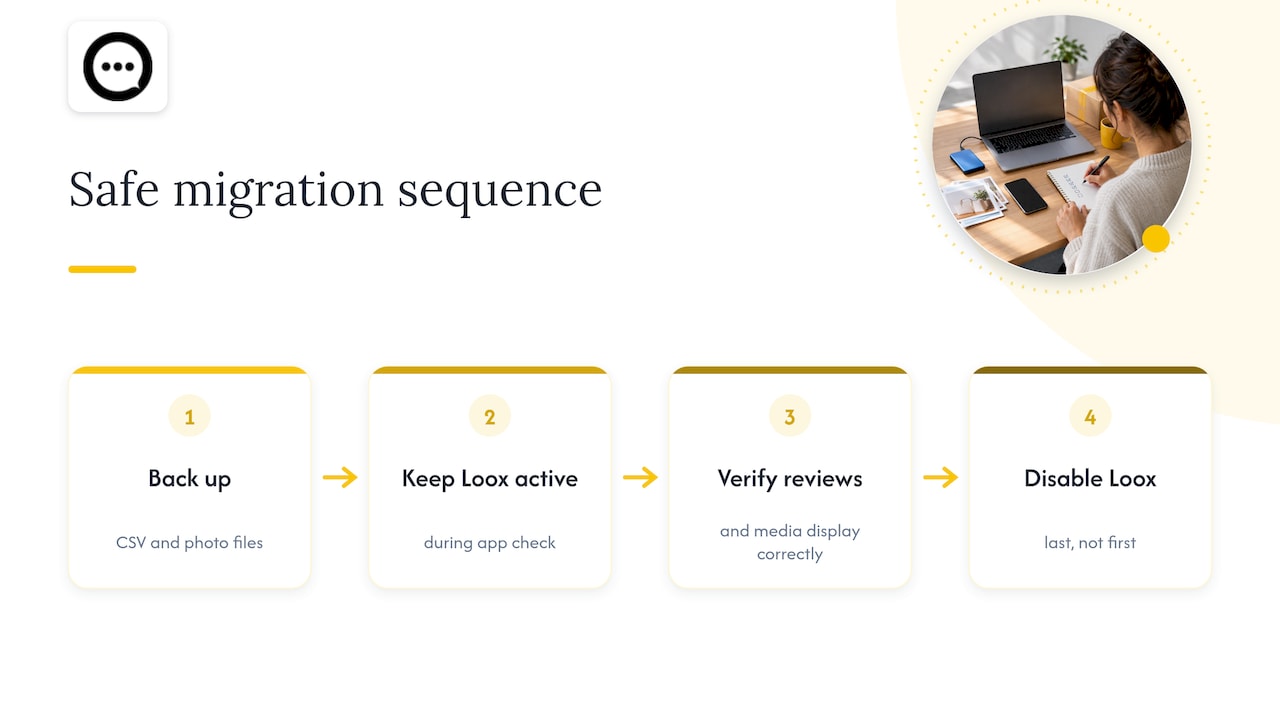
We’d rather see store owners move slower and keep both apps running than rush a full import and lose review history. Back up your CSV and your photo files before changing anything, since there’s no undo button once Loox’s hosted images disappear. Keep Loox active until you’ve verified the new app displays everything correctly, then disable it last, not first.
What most migration guides get wrong
Most guides on this topic treat the CSV export itself as the hard part. It isn’t. The export is a two-minute task. The real risk is photo rehosting and verification flags, the two things a spreadsheet can’t fix for you automatically.
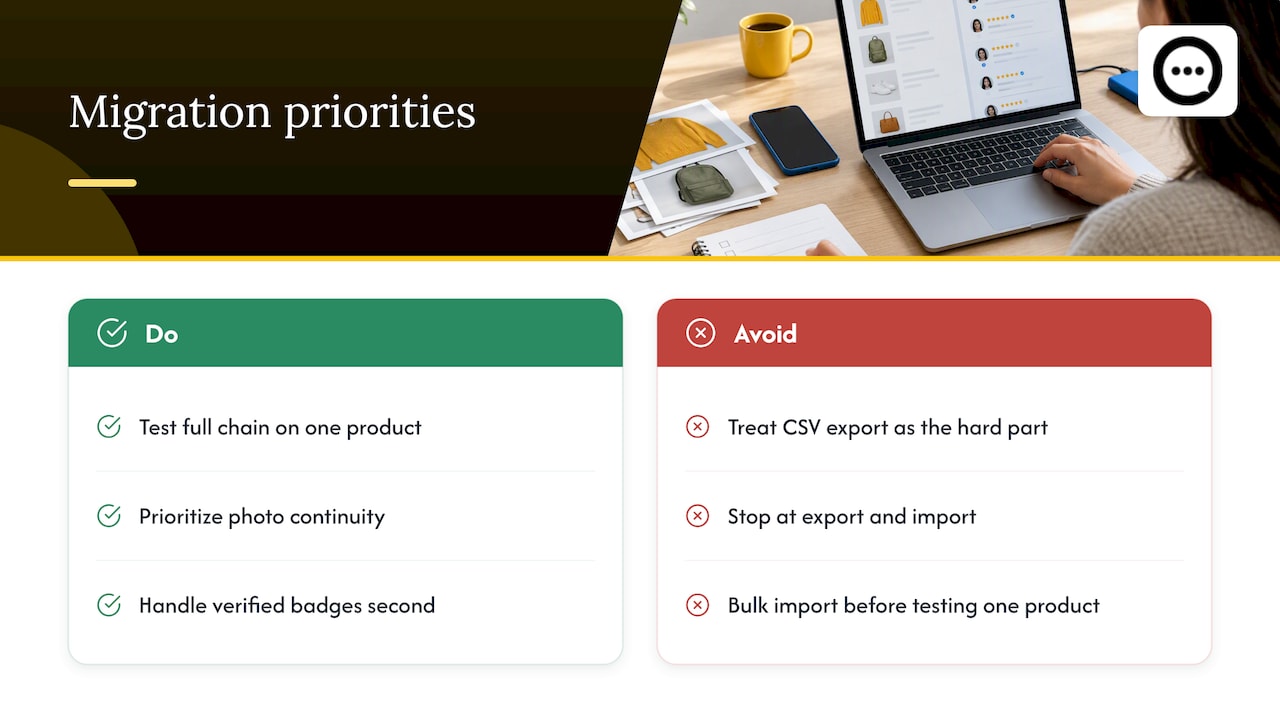
Conventional advice tends to stop at “export and import,” which leaves readers blindsided when images 404 a week later or when verified badges quietly vanish because the new app never asked about that field. If we had to rank priorities, photo continuity comes first, badge handling comes second, and everything else (reviewer names, dates, formatting) is comparatively minor cleanup.
If you take one thing from this guide, test the full chain, photo link included, on a single product before you touch your full catalog. A five-minute test catches problems that take hours to untangle after a bulk import.
— Leo
Rethinking social proof while you migrate
Migrating text and photo reviews is worth doing carefully, but it’s also a natural moment to ask whether photo reviews alone are still doing enough for your product pages. We provide a platform that embeds verified post-purchase video reviews and shopper Q&A directly on product pages, without any theme code edits.
Video content works alongside the reviews you’re migrating rather than replacing them: imported text and photo reviews still carry their own weight, and video adds a layer of buyer confidence that’s harder to fake. If you’re already restructuring your review setup, it’s a reasonable time to add this layer.
- See how it displays on a live storefront in the Peers demo store.
- Review the Growth plan at $15 per month or start with the free plan.
- Install directly from the Shopify App Store to try it on your own catalog.
While you’re protecting your store’s SEO during any app switch, our partners at BabyLoveGrowth cover how to keep product-page rankings intact when you’re making structural changes like this.
FAQ
How do I add reviews to my Shopify website?
You can add reviews either by installing a review app that collects and displays them automatically, or by importing an existing CSV of reviews into that app’s import tool. Most apps, including Loox and its alternatives, provide a settings page where you upload the file and map the columns to match your store’s products.
How does Loox work?
Loox is a Shopify review app that collects customer reviews, including photos and videos, through automated post-purchase email requests. Store owners manage these reviews from the Loox dashboard and can export them as a CSV file, as described in Shopify Community discussions, for use elsewhere.
What is the best product app for Shopify?
There isn’t one universal answer since “best” depends on whether you need review collection, photo and video display, or a different kind of social proof like video testimonials and shopper Q&A. We built Peers to focus specifically on post-purchase video reviews and Q&A embedded on product pages, which complements rather than replaces a traditional review app.
What is the best app review app?
The right review app depends on which fields matter most to you, such as photo support, verified purchase badges, or CSV import flexibility. Judge.me, Junip, and Loox all support CSV-based review data, and checking each app’s import template against your current export is the most reliable way to judge fit before switching.
Will verified purchase badges transfer during a Loox migration?
Verified purchase badges often don’t transfer automatically unless your destination app specifically supports mapping that field during import. It’s worth checking your new app’s import documentation or adding a site-level trust indicator if the badge itself doesn’t carry over.
Sources
- Import reviews to Shopify — LitExtension
- Shopify Review App Migration: Judge.me, Loox, Junip & More — Eevy AI
- Loox reviews — Shopify Community
- Use Automatic Feedback Service with Shopify Flow — Trustpilot Help